

As a security analyst or penetration tester, Unix commands aren’t just tools for everyday tasks – they are core tools when investigating a hostile environment. Whether you’re hardening a server against unauthorized access, performing digital forensics on a compromised system, or conducting reconnaissance during a red team exercise; mastering these commands can streamline your workflow and uncover hidden threats. This cheat sheet draws from foundational Unix knowledge but is tailored specifically for cybersecurity professionals.
I will be demonstrating these commands in an Arch Linux virtual machine, but any other unix-based or Linux operating system will have these commands. Make sure to use safe, ethical examples on test setups. Note: Remember to always operate in an authorized environment – misuse can lead to legal issues.
| Category | Command | Syntax | Usecase | Flags |
|---|---|---|---|---|
| System Information | uname | uname |
Shows system information | -a | -r |
| System Information | uptime | uptime |
Show system runtime & load | |
| System Information | who | who |
List logged-in users | |
| System Information | w | w |
Show users & their activities | |
| System Information | users | users |
List current users | |
| System Information | whoami | whoami |
Show current username | |
| System Information | su | su [cmd] |
Run command with superuser (root) privileges | |
| System Information | cal | cal |
Display calendar | |
| System Information | date | date |
Show current date & time | |
| System Information | halt | halt |
Stop the system | |
| System Information | shutdown | shutdown |
Shut down the system | |
| System Information | reboot | reboot |
Restart the system | |
| System Information | last reboot | last reboot |
Show reboot history | |
| System Information | man | man [cmd] |
Show manual for command | |
| Input/Output Redirection | echo | echo [text] |
Display text or variable | -e | -n |
| Input/Output Redirection | Pipe | [cmd]|[cmd] |
Pipe output from one command to another | |
| Input/Output Redirection | > | [cmd] > [file] |
Redirect output to file (overwrite file contents) | |
| Input/Output Redirection | >/dev/null | [cmd] >/dev/null |
Suppress output | |
| Input/Output Redirection | >> | [cmd] >> [file] |
Redirect output to file (append to file contents) | |
| Input/Output Redirection | < | [cmd] < [file] |
Read input from file | |
| Input/Output Redirection | << | [cmd] << [file] |
Read input from file | |
| File Management | * | [pattern]* |
Wildcard for variable length matching | |
| File Management | ? | [pattern]? |
Wildcard for single character matching | |
| File Management | ls | ls [options] [path] |
List directory contents | -l | -a | -t |
| File Management | cd | cd [path] |
Change directory | |
| File Management | cd .. | cd .. |
Change to directory parent | |
| File Management | cmp | cmp [file 1] [file 2] |
Compare two files | |
| File Management | diff | diff [file 1] [file 2] |
Show differences between two files | |
| File Management | pwd | pwd |
Show working directory | |
| File Management | mkdir | mkdir [dir] |
Create directory | |
| File Management | mv | mv [source] [dest] |
Move or rename file/directory | |
| File Management | cp | cp [source] [dest] |
Copy file/directory | -r |
| File Management | rm | rm [file] |
Remove file | -r | -f | -rf |
| File Management | rmdir | rmdir [dir] |
Remove empty directory | |
| File Management | du | du [options] [path] |
Show disk usage | -ah | -sh |
| File Management | df | df [options] |
Show free disk space | -h | -i |
| File Management | open | open [file] |
Open file in default program | -e |
| File Management | touch | touch [file] |
Create empty file or update timestamps on existing file | |
| File Management | cat | cat [file] |
Display file contents | -b |
| File Management | wc | wc [file] |
Count words, lines, characters | |
| File Management | head | head [file] |
Show first lines of file | -n |
| File Management | tail | tail [file] |
Show last lines of file | -n +1 |
| File Management | less | less [file] |
View file with navigation | |
| File Management | ln -s | ln -s [source link] |
Create symbolic link | |
| Search & Filter | grep | grep [pattern] [file] |
Search for pattern in file | -v | -l | -i |
| Search & Filter | find | find [path] [criteria] |
Search for files by criteria | |
| Search & Filter | locate | locate [name] |
Find files by name using database | |
| Search & Filter | sort | sort [file] |
Sort lines alphabetically/numerically | |
| Archives | tar | tar [options] [files] |
Create or extract a tar archive or bzip2 tar archive (depending on flags provided) | -cf | -xf | -tf | -czf | -xzf | -cjf | -xjf |
| Archives | zip -r | zip -r [file.zip] [files] |
Create zip archive | |
| Archives | unzip | unzip [file.zip] |
Extract zip archive | |
| File Transfer | ssh | ssh -p [port] [user@]host |
Secure remote login | |
| File Transfer | scp | scp [source] [dest] |
Secure copy files | -P | -r |
| File Transfer | sftp | sftp [user@]host |
Secure file transfer protocol | -P |
| File Permissions | chmod | chmod [mode] [file] |
Change file permissions | |
| File Permissions | chown | chown [user:group] [file] |
Change file group | |
| File Permissions | chgrp | chgrp [group] [file] |
Change file group | |
| Process Management | & | [cmd] & |
Run command in background | |
| Process Management | ps | ps [options] |
Show process status | aux | -ef |
| Process Management | kill | kill [PID] |
Terminate process | -9 |
| Process Management | killall | killall [proc] |
Kill process by name | |
| Process Management | pkill | pkill [proc] |
Send signal to process by name | |
| Process Management | bg | bg |
Resume job in background | |
| Process Management | fg | fg |
Bring job to foreground | |
| Process Management | fg n | fg [n] |
Bring specific job to foreground | |
| Process Management | jobs | jobs |
List active jobs | |
| Process Management | top | top |
Interactive process viewer | |
| Process Management | htop | htop |
Enhanced process viewer | |
| Process Management | nice | nice -n [level] [cmd] |
Run command with modified priority | |
| Process Management | renice | renice [level] -p [PID] | Change priority of running process | |
| Process Management | nohup | nohup [cmd] |
Run command immune to hangups | |
| Process Management | lsof | lsof [options] |
List files opened by process | -i | -u | -c |
| Process Management | pgrep | pgrep [proc] | List files opened by process | |
| Process Management | pstree | pstree |
Display process tree | |
| Networking | ip addr show | ip addr show |
Show IP address | |
| Networking | ip link show | ip link show |
Show network interfaces | |
| Networking | ifconfig | ifconfig |
Show network configuration | |
| Networking | netstat -a | netstat -a |
Show all sockets | -at | -au | -l | -s | -p |
| Networking | route | route |
Show routing table | |
| Networking | arp -a | arp -a |
Show ARP table | |
| Networking | ping | ping [host] |
Send ICMP echo requests | |
| Networking | traceroute | traceroute [host] |
Show route to host | |
| Networking | whois | whois [domain/IP] |
Query domain/IP info | |
| Networking | dig | dig [domain] |
DNS lookup | |
| Networking | host | host [domain] |
DNS lookup | |
| Networking | wget | wget [url] |
Download file from web | |
| Networking | curl | curl [url] |
Transfer data to/from server |
System Information
These commands give you a snapshot of the system’s state – crucial for baselining during audits or detecting anomalies like unexpected users in a breach. Understanding the underlying OS and its runtime can reveal potential vulnerabilities or signs of tampering, making them indispensable in initial reconnaissance phases or a security assessment.
uname
The uname command provides basic information about the operating system, such as the kernel name (e.g., Linux), which is a starting point for any security audit. In a real-world scenario, you might use it to identify if the system is running a vulnerable kernel version that could be exploited by known CVEs, like those in older Linux distributions. This helps in prioritizing patches or deciding on isolation measures during an incident response. For instance, if you’re investigating a server compromise, running uname quickly confirms the platform, allowing you to tailor your tools accordingly – perhaps switching to architecture-specific exploits or forensics scripts. It’s a lightweight command that sets the foundation for deeper dives into system hardening.
Syntax: uname
Example: uname in a fresh session
Available Flags:
-a: Full system details, including hostname and hardware; spot mismatched architectures that could indicate emulation or compromise.

-r: Kernel release; essential for cross-referencing with CVE databases during assessments.

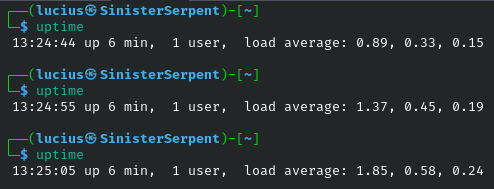
uptime
The uptime command displays how long the system has been running, along with load averages, offering insights into stability and performance that are vital for detecting denial-of-service (DoS) attempts or resource exhaustion from malware. High load averages without corresponding user activity might signal crypto-jacking or a botnet infection, prompting immediate investigation. In a security scenario, during an incident response, comparing uptime with log timestamps can help reconstruct a timeline of events, such as when a system was last rebooted after a patch. It’s also useful for monitoring long-running servers where unexpected short uptimes could indicate frequent crashes due to exploits. Integrating this into monitoring scripts enhances real-time threat detection.
Syntax: uptime
Example: uptime
who
Listing all currently logged-in users with details like login time and terminal, who is essential for spotting unauthorized access in shared or remote systems. In a security breach, an extra session from an unknown IP could be the smoking gun for lateral movement by an attacker. For instance, in a corporate environment, running this periodically helps enforce access policies and detect insider threats. It’s often combined with logs to verify legitimate activity, and in forensics, it provides a snapshot of a user presence during a suspicious timeframe. This command promotes accountability and quick response to potential compromises.
Syntax: who
Example: who

w
Building on who, the w command adds user activity details like idle time and current processes, making it a go-to for monitoring session health and detecting hijacked accounts. Long idle times on active sessions might indicate forgotten logins vulnerable to session theft, a common tactic in phishing follow-ups. In a security operations workflow, this helps identify anomalies like user running unusual commands, triggering alerts for further scrutiny. During audits, it ensures compliance with session timeout policies, reducing the attack surface. Its details output is perfect for real-time oversight in high-stakes environments like servers handling sensitive data.
Syntax: w
Example: w

users
Providing a concise list of logged-in users without additional details, users servers as a rapid check during initial triage in security incidents, helping confirm if the system is in use or potentially compromised. In scenarios like detecting brute-force login success, a sudden increase in listed users could warrant immediate lockdown. It’s lightweight for scripting in automated monitoring tools, where deviations from expected user counts trigger notifications. While less detailed than who, its simplicity makes it ideal for quick glances in busy SOC dashboards. Use it to maintain situational awareness without overwhelming output.
Syntax: users
Example: users
whoami
whoami outputs the current effective username, a fundamental check for privilege escalation verification; especially after escalation attempts or in scripts where actions depend on user context. In a penetration test, running this post-exploit confirms if you’ve gained root access, guiding next steps like persistence and pivoting. Misuse scenarios include attackers using it to map their foothold, so monitoring its invocation in logs can detect suspicious behavior. It’s also crucial for auditing scripts to ensure commands don’t run with unintended privileges, preventing accidental exposures. This command embodies the principle of least privilege in practice.
Syntax: whoami
Example: Run before and after executing sudo su to verify

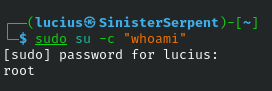
su
Allows for switching users or running commands as superuser, su is a double-edged sword in security. Essential for administrative tasks but a risk if passwords are weak or sessions are left open. In a controlled environment, it’s used for temporary privilege elevation during patching, minimizing exposure. Security scenarios include using it in incident response to access root-owned logs without full login, but always audit its use to prevent abuse. Alternatives like sudo are preferred for better logging, but su shines in legacy systems. Handle with care to avoid escalating threats.
Syntax: su [command]
Example: su -c "whoami"
cal
Displays a calendar for the current month, cal might seem mundane but in security forensics, it aids in correlating dates with log events or attack timelines (i.e., mapping a breach to a specific week.) For example, when reviewing access logs, visualizing the calendar helps spot patterns like weekend anomalies. It’s also useful in scripting for date-based automation, like scheduling backups or scans. While not a core security tool, its integration into workflows enhances temporal awareness in investigations. Keep it handy for quick reference without external tools.
Syntax: cal
Example: cal
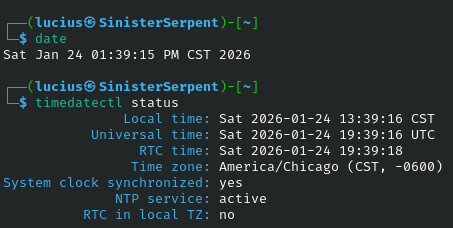
date
Shows the current system data and time, date is vital for ensuring time synchronization, which prevents replay attacks or log tampering in security setups. Discrepancies could indicate NTP hijacking or system clock manipulation by malware. In a scenario like forensic analysis, time stamping evidence with date maintains integrity in reports. It’s often scripted to prefix log entries, aiding in chronological reconstructions. Proper use ensures compliance with standards requiring accurate timing.
Syntax: date
Example: date
halt
Immediately stopping the system without shutdown procedures, halt is a last-resort in security for isolating a compromised machine to prevent data exfiltration or further damage. In high-threat scenarios like active ransomware, it minimizes impact but risks data loss, so use judiciously. It’s part of emergency response playbooks, often automated in intrusion detection systems (IDS). Post-halt forensics can reveal the state at freeze. Avoid in production without backups.
Syntax: halt
Explanation: USE IN VMs ONLY FOR PRACTICE/TESTING
shutdown
Gracefully powering down the system, shutdown allows scheduling and notifications making it ideal for planned maintenance in secure environments to apply patches without disruption. In a breach, it buys time to isolate while preserving state for analysis. Options like -h for halt or -r for reboot add flexibility. Monitor its logs to detect unauthorized shutdown attempts. It’s a controlled alternative to abrupt halts.
Syntax: shutdown
Example: shutdown -h now
reboot
Restarting the system cleanly, reboot is commonly used after kernel updates or configuration changes to activate security enhancements like new firewall rules. In security testing, it’s employed to verify persistence of exploits across boots. Unexpected reboots in logs might signal instability from attacks. Script it for automated recovery in resilient setups. Ensures systems start fresh post-intervention.
Syntax: reboot
Example: reboot
last reboot
Listing reboot history with timestamps, this command helps trace system stability and potential attack vectors, like frequent reboots from exploit crashes. In forensics, it correlates with event logs to pinpoint intrusion windows. Use it in audits to verify uptime SLAs. Anomalies could indicate hidden malware. Valuable for timeline building in reports.
Syntax: last reboot
Example: last reboot
<insert screenshot of output in ParrotOS, highlighting timestamps for anomaly detection>
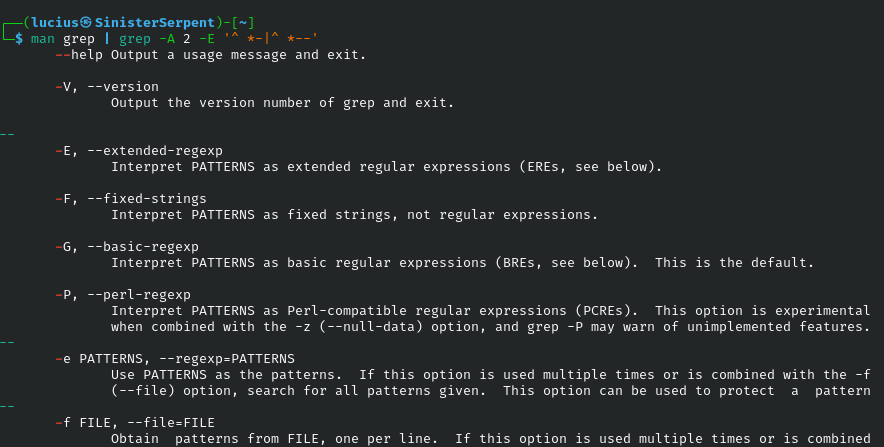
man
Accessing manual pages for commands, man is your encyclopedia for secure usage, detailing flags that prevent vulnerabilities like insecure options in tools. In learning or troubleshooting it reveals security notes, like safe file handling. During pentests, consult for exploit-enabling features. Encourage its use for self-education in teams. Essential for avoiding misconfigurations.
Syntax: man [command]
Example: man ls
Input/Output Redirection
Redirection is key for scripting security tools – e.g., piping logs to analyzers without clutter. Mastering these allows efficient data flow in monitoring pipelines, reducing annual errors and enabling automation in threat hunting.
echo
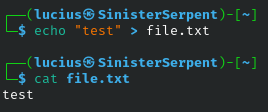
The echo command outputs text to the terminal or files, serving as a building block for testing and scripting in security workflows. For basic usage, it’s great for verifying environment variables or creating quick markers in logs during debugging. In a security scenario, you might use it to append timestamps to audit files, helping track changes over time. Combine with redirection to build simple honeypots or test alert triggers. Its versatility makes it indispensable for prototyping scripts that monitor system integrity.
Syntax: echo [text]
Example: echo "Test" > file.txt
Available Flags:
-e: With escapes; creates formatted logs for audits
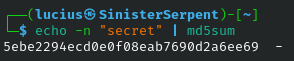
-n: No newline; build strings for password or keys (carefully)
pipe
Piping connects command outputs to inputs, enabling chained operations like filtering logs in real-time for threat indicators. Basic usage transforms simple commands into powerful pipelines for data processing. In security, it’s core to monitoring, such as piping process lists to grep for anomalies. A scenario: During live incident response, pipe tail from logs to grep for attack patterns, speeding detection. Boosts efficiency in automated scans.
Syntax: [cmd 1] | [cmd 2]
Example: ps aux | grep root

>
Redirecting output to overwrite files, > captures results for later analysis, like saving scan outputs in security reports. Basic for logging without screen clutter. In a breach scenario, redirect suspicious process info to a file for exfiltration-proof storage. Ensures data persistence in volatile environments. Use cautiously to avoid overwriting critical files.
Syntax: [cmd] > [file]
Example: ls > list.txt

>/dev/null
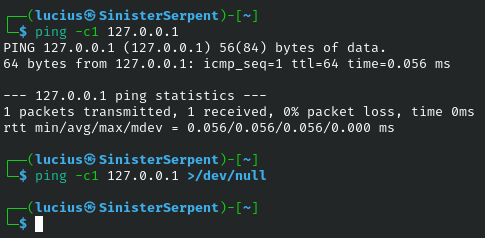
Discarding output to the null device, this suppresses noise from verbose tools, aiding stealth in pentests. Basic usage keeps terminals clean during batch operations. Security scenario: Run scans quietly to evade detection on monitored systems. Ideal for scripts where only error matter. Enhances operational security.
Syntax: [cmd] >/dev/null
Example: ping -c1 127.0.0.1 >/dev/null
>>
Appending output to files, >> builds cumulative logs over time, crucial for long-term monitoring. Basic for incremental data collection. In security, append timestamps to audit trails for tamper-evident records. Scenario: Track daily changes in configs to detect unauthorized edits. Prevents dataloss in ongoing operations.
Syntax: [cmd] >> [file]
Example: date >> log.txt
<
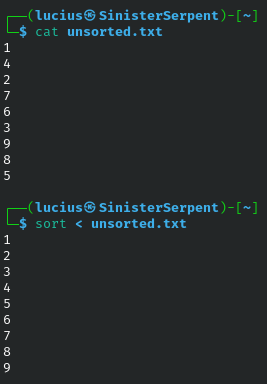
Feeding input from files, < automates commands with pre-set data, like wordlists for testing. Basic for batch processing. Security scenario: Input suspect lists to search tools during forensics. Streamlines repetitive tasks. Ensures consistent inputs.
Syntax: [cmd] < [file]
Example: sort < unsorted.txt
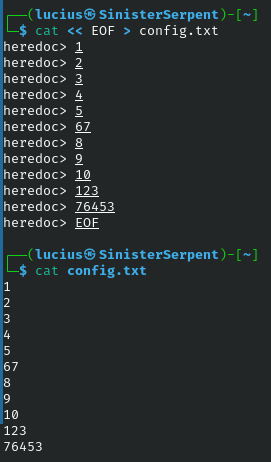
<<
Using here documents for multi-line input, << creates ad-hoc configs or scripts inline. Basic for quick testing without files. In security, generate temporary rules for tools like iptables. Feed multi-line queries to databases in investigation and simplify complex inputs.
Syntax: [cmd] << [delim]
Example: cat << EOF > config.txt
File Management
File operations are foundational for forensics. Auditing permissions, comparing hashes, or cleaning up after an incident. These commands enable precise control over data, crucial for evidence preservation and threat containment.
*
The asterisk wildcard matches any string of characters, allowing bulk operations on file groups. Basic usage includes selecting multiple files for copying or deletion. In security, use it to quarantine patterns like temp files that might harbor malware. Scenario: rm *~ to clean backups that could leak data. Promotes efficient management.
Syntax: [pattern]*
Example: rm temp*
?
Matching a single character, ? offers precise pattern selection for variants. Basic for targeted file operations. Security scenario: Use to list logs like access-202?-01.log to review monthly patters. Helps in forensics timeline building and avoids over-broadened matches.
Syntax: [pattern]?
Example: ls file?.txt
ls
Listing directory contents, ls is the entry point for file exploration; revealing structure and potential hidden threats. Basic usage scans current dirs. In security, flags uncover misconfigurations; i.e., check /tmp for rogue executables during cleanup, essential for initial recon during a penetration test.
Syntax: ls [options] [path]
Example: ls /tmp

Available Flags:
-l: detailed list; check ownership for privilege issues
-a: include hidden; uncover dotfiles
-t: Time-sorted spot recent changes post-breach
cd
Changing directories, cd navigates file systems for targeted analysis. Basic for movement, use to pivot to /proc for process inspection in live forensics. Use absolute paths for precision.
Syntax: cd [path]
Example: cd /var/log
cd ..
Moving to parent directory, this backs out from sub-directories quickly. Basic navigation aid. In security, escape deep nests during recursive searches.
Syntax: cd ..
Example: from sub directory
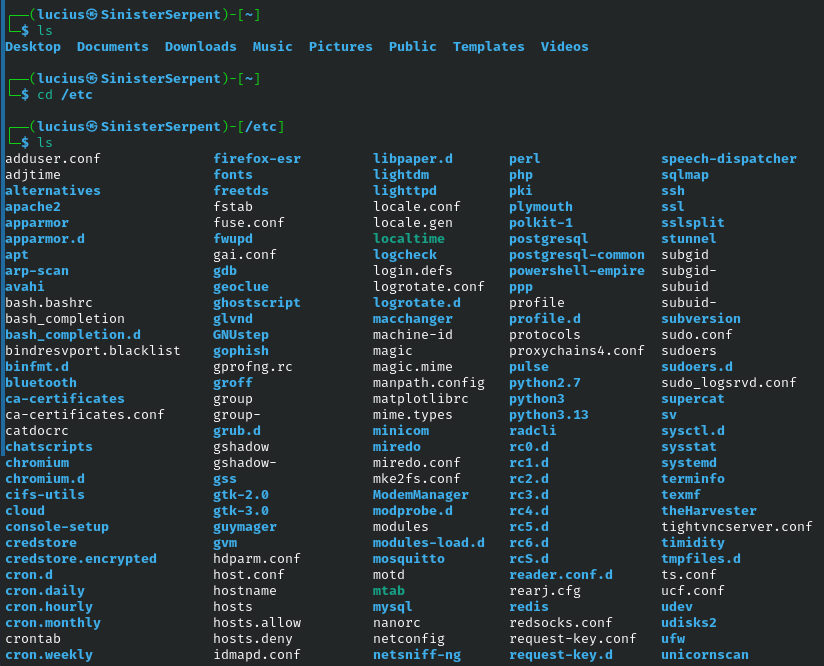
cd /etc
Targeting system configurations, this accesses core files for auditing. Basic for configuration reviews, check for tampered passwd or host files. Central location for system hardening.
Syntax: cd /etc
cmp
Byte-by-byte comparison detects subtle changes, vital for integrity verification. Basic for file equality checks, use to compare backups to originals post-breach. Spot alterations to files made by malware.
Syntax: cmp [file 1] [file 2]
Example: cmp [original] [backup]

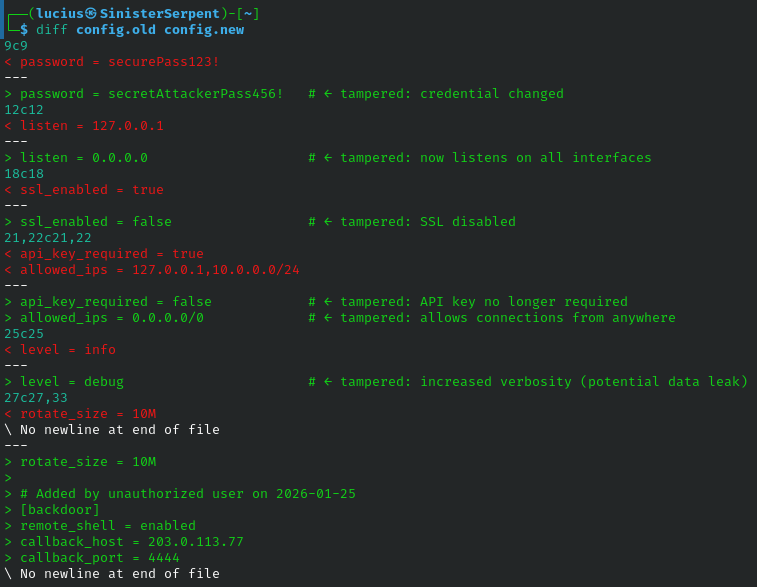
diff
line-level differences highlight edits, useful for configuration tracking and change detections. Use diff pre/post attack configurations for unauthorized modifications & patch verification.
Syntax: diff [file 1] [file 2]
Example: diff config.old config.new
pwd
Printing working directory ensures location awareness before operations, use to confirm paths in scripts to prevent traversal attacks.
Syntax: pwd
Example: pwd

mkdir
Use to create directories, set up isolated spaces for testing or quarantine. Basic for organization, and creating temporary directories for evidence without polluting systems.
Syntax: mkdir [dir]
Example: mkdir test
mv
Moving or renaming file isolates threats or reorganizes data. Basic for relocation, quarantine suspects to restricted directories preventing spread.
Syntax: mv [source] [dest]
Example: mv suspect /quarantine
cp
Copying preserves originals for analysis. Basic duplication, use to backup logs before tampering risks. Maintains the evidence integrity.
Syntax: cp [source] [dest]
Example: cp log backup
Available Flags:
-r: recursive copy; duplicate dirs for offline review
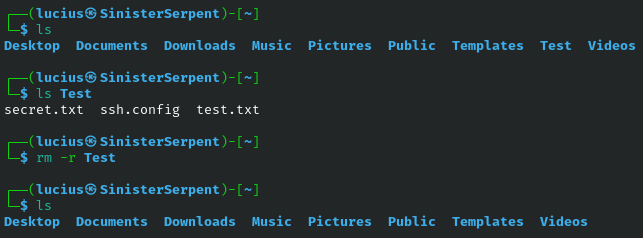
rm
Deleting files for cleanup, but use shred for sensitive data. Basic removal only, use to erase temporary files to deny attackers artifacts.
Syntax: rm [file]
Example: rm temp.txt
Available Flags:
-r: recursive delete; use to clean out directories
-f: Force; bypass prompts in scripts
-rf: Force recursive; dangerous – use for VM resets
rmdir
Removing empy directories, rmdir is safer than rm for basic cleanups.
Syntax: rmdir [dir]
Example: rmdir emptydir
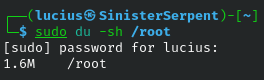
du
Estimating disk usage, du helps spot bloat from attackers and can be used for basic space checks. Use to help detect exfiltration of large directories.
Syntax: du [options] [path]
Example: du /home

Available Flags:
-ah: human-readable; easier auditing
-sh: summary; quick total checks
df
Checks for free space on the system, can be used to monitor for exhaustion-style attacks and check the basic capacity of the system.
Syntax: df [options]
Example: df
Flags:
-h: human readable free space
-i: Inodes; check for inode exhaustion in DoS
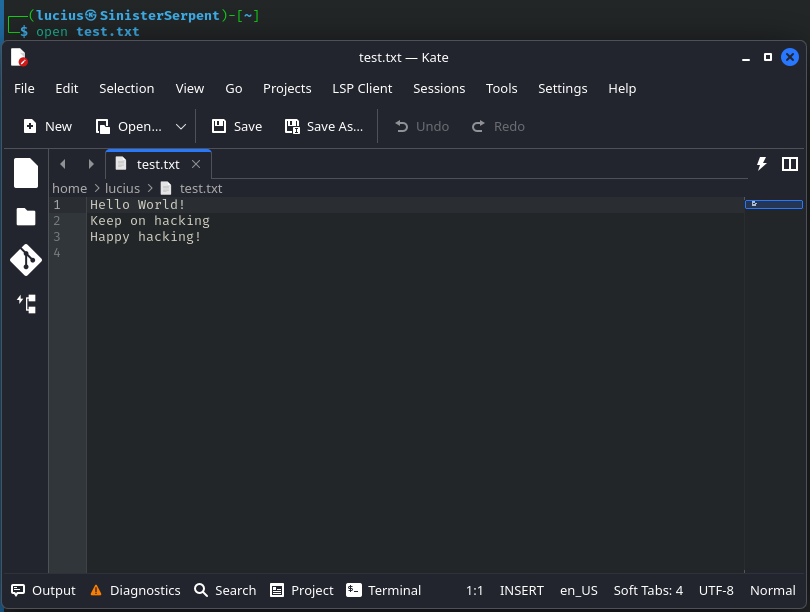
open
Opens a file with the default application; use to view reports (you can also use xdg-open in Linux distros)
Syntax: open [file]
Example: open test.txt
Flags:
-e: Open in text editor; use to edit configuration files safely
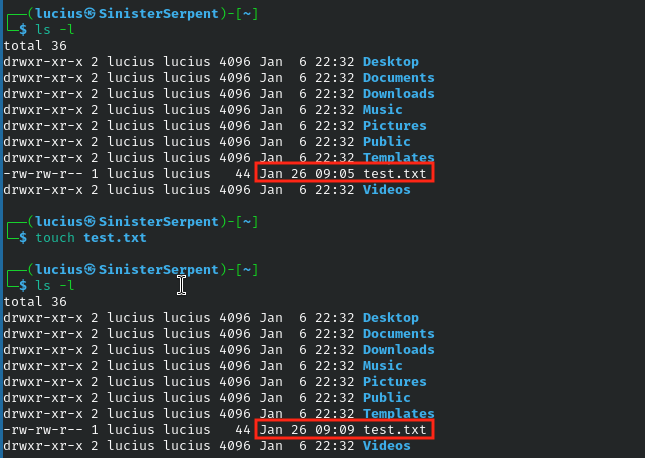
touch
Creating or updating timestamps to mimic access patterns, can be used to test detection capabilities by altering the times a files has been modified without actually modifying contents of the file.
Syntax: touch [file]
Example: touch fake.log
cat
Concatenating and displaying files for quick reviews. Use to peak at logs for IOCs or /etc/passwd for sensitive information.
Syntax: cat [file]
Example: cat /etc/passwd
 Flags:
-b: Numbered lines, use to aid in debugging scripts
wc
Counts elements, use to measure log growth for anomalies
Syntax: wc [file]
Example: wc auth.log

head
First lines sample large files efficiently. Basic for tops, use to check headers for metadata.
Syntax: head [file]
Example: head access.log
Flags:
-n: Specific lines; grab headers of files.
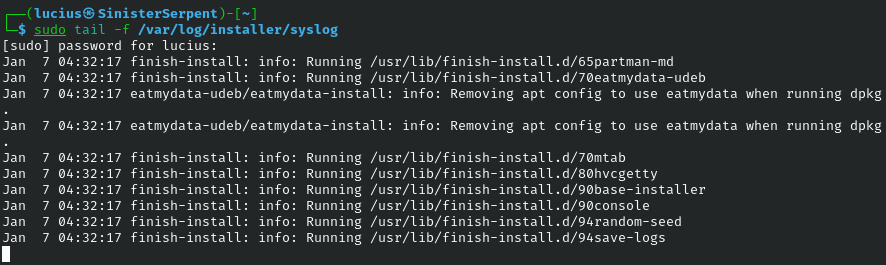
tail
Last lines of the file, use to monitor for the most recent activity on a system.
Syntax: tail [file]
Example: tail syslog
Flags:
-n +1: Entire file with headers, for multi-file (e.g., tail n +1 log*)
less
Paged navigation for large files without loading all, use for basic browsing and scroll through dumps safely.
Syntax: less [file]
Example: less dump.txt

ln -s
Symbolic lins, use to redirect access for deception. Basic usage for aliases, use to create honeypot links.
Syntax: ln -s [source] [link]
Example: ls -l showing link arrow
Search & Filter
Sifting through data in forensics is like hunting for gold, or in this case, indicators of compromise (IoCs) or used to filter through noise generated by alerts.
grep
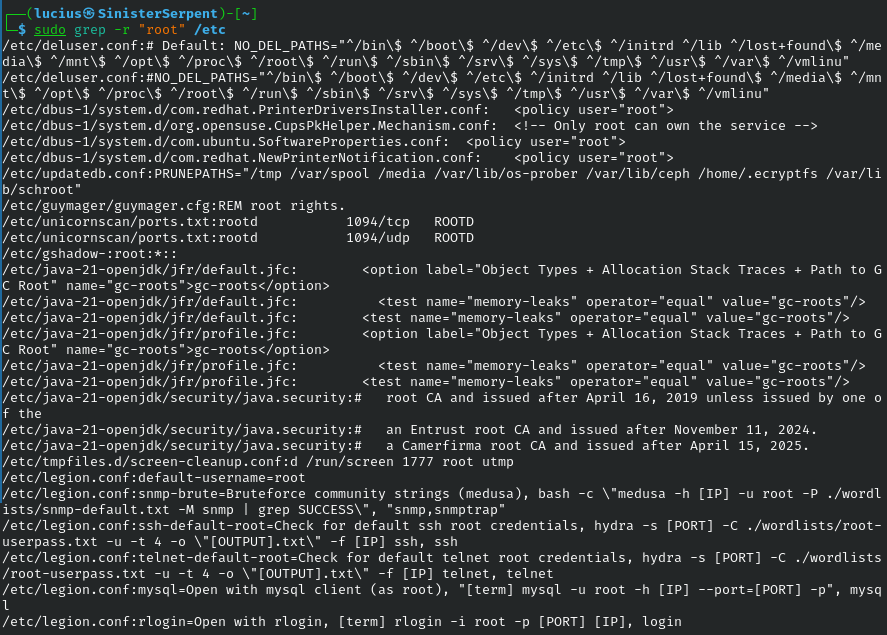
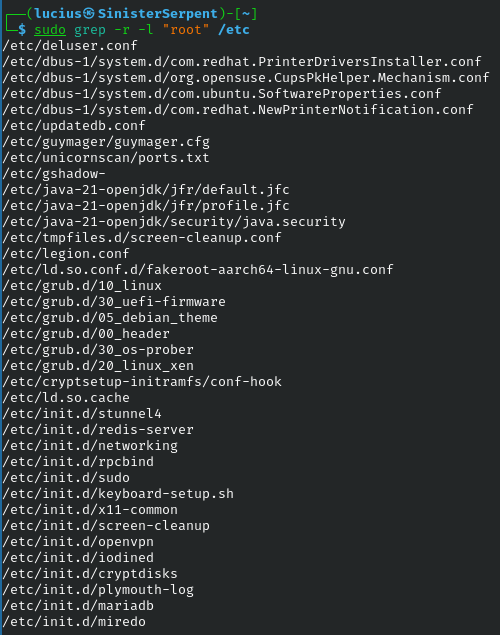
Searching for patterns extracts key data from files or data streams. grep is used for basic text hunts and can be used to scan configurations for exposed credentials, and even used recursively to broaden the scope of the search.
Syntax: grep [pattern] [file]
Example: grep "password" config
Flags:
-v: Invert, exclude noise
-l: search for files only, list matches
-i: Case-insensitive; broad searches
find
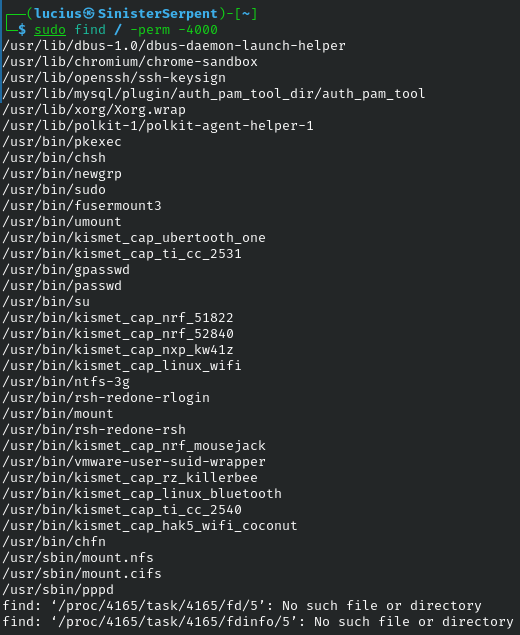
Criteria-based file search locates by permissions, size, etc. Basic for advanced threat hunting, use to find SUIDs for privilege escalation risks.
Syntax: find [path] [criteria]
Example: find / -perm -4000
locate
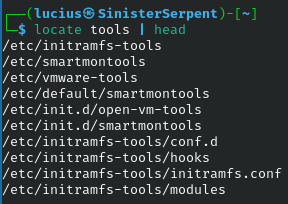
Database-driven fast finds, update with updatedb. Basic for speed searching and can be used to quickly find tooling during assessments.
Syntax: locate [name]
Example: locate passwd
sort
Arranging lines organizes data for analysis. Basic for ordering, can be used to sort IPs from logs for pattern identification.
Syntax: sort [file]
Example: sort ips.txt
Archives
Bundle evidence securely for transport or storage. Archiving preserves integrity, enabling safe sharing in collaborative investigations.
tar
Create, compress, extract, or inspect tar files (also known as tar-balls). Use for handling evidence securely, maintaining file integrity.
Syntax: tar [options] [archive] [files]
Example: tar -xczf archive.tar.gz
Flags:
-cf: create tar; archive directories
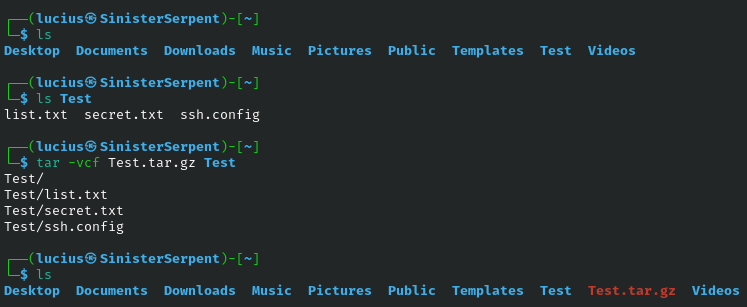
-xf: extract, unpack files
-tf: List; inspect without extraction

-xzf: Extract zip
-cjf: Bzip2 tar; stronger compression
-xjf: Extract bzip2
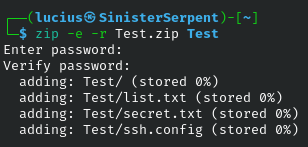
zip -r
Recursive zip is cross-platform friendly. Basic for zips, use to create password-protected zips for cross-operating system transfer.
Syntax: zip -r archive.zip [files]
Example: zip -r backup.zip home
unzip
Unzipping handles common formats. Basic for extraction, use to process shared artifacts safely.
Syntax: unzip archive.zip
Example: unzip file.zip
File Transfer
Securely move data – vital for remote operations without exposure. These ensure encrypted channels, preventing interception in hostile networks.
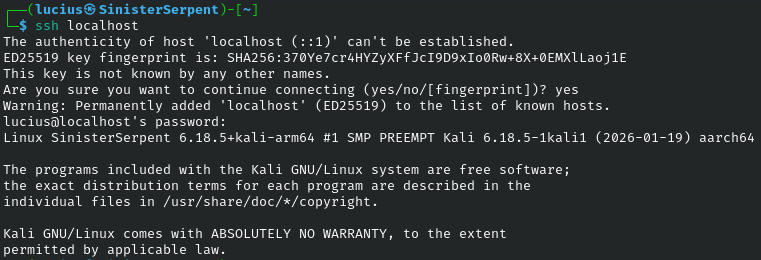
ssh
Secure shell provides encrypted remote access. Basic for logins, use keys to avoid password risks.
Syntax: ssh [user@]host
Example: ssh user@192.168.1.1
Flags:
-p: custom port; used to evade default scans
scp
Custom ports evade default scans. Basic for non-standard, use to attempt firewall bypasses during testing.
Syntax: scp [source] [dest]
Example: scp local.txt user@host:/remote
Flags:
-P: port-specific copy
-r: recursive; directory transfers
sftp
Interactive FTP over SSH browses remotes. Basic for session handling, use to securely handle large files.
Syntax: sftp [user@]host
Example: sftp user@host
Flags:
-P: port-specific
File Permissions
Lock down access – prevent escalation vectors. Proper permissions are the frontline against unauthorized modifications.
chomd
Changing modes enforces access controls. Use for basic permission management, make sure to lock keys to 600 to block lateral movement paths.
Syntax: chmod [mode] [file]
Example: chmod 700 script.sh
chown
Altering ownership secure files from tampering. Use to secure root-owned binaries to prevent edits.
Syntax: chown [user:group] [file]
Example: chown root:root file
chgrp
Group changes enable role-based access. Use to assign logs to the proper security personnel.
Syntax: chgrp [group] [file]
Example: chgrp security log
Process Management
Monitor and control – spot and kill threats. Processes reveal runtime behavior, key for anomaly detection.
&
Backgrounding allows multi-tasking. Basic for async, use to run scans without blocking.
Syntax: [cmd] &
Example: scan.sh &
ps
Listing processes baselines for anomalies. Basic for monitoring process status, use to check for rouge ProcessIDs (PIDs).
Syntax: ps [options]
Example: ps
Flags:
aux: all detailed; user/CPU info

-ef: Full format; parent PIDs
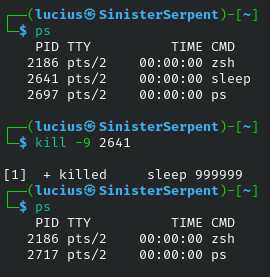
kill
Graceful termination stops issues. Basic for process termination, use to halt ongoing data leaks in a security incident.
Syntax: kill [PID]
Example: kill 1234
Flags:
-9: Force; for hung malware or programs
killall
By name batch terminates, basic for terminating multiple processes with a similar naming structure. Use to stop all instances of a threat.
Syntax: killall [process]
Example: killall firefox
pkill
Signal by name flexible. Basic for target, use to SIGTERM suspicious applications.
Syntax: pkill [process]
Example: pill -9 http
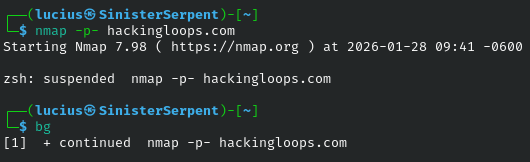
bg
Resumes in background. Basic for jobs, use to continue paused scans.
Syntax: bg
Example: After ctrl+z
fg
Foregrounds recent job, basic for process focus. Use to interact with monitoring.
Syntax: fg
Example: fg
Flags:
n: specific job
jobs
Lists active jobs. Basic for management. Use to track background forensics.
Syntax: jobs
Example: jobs

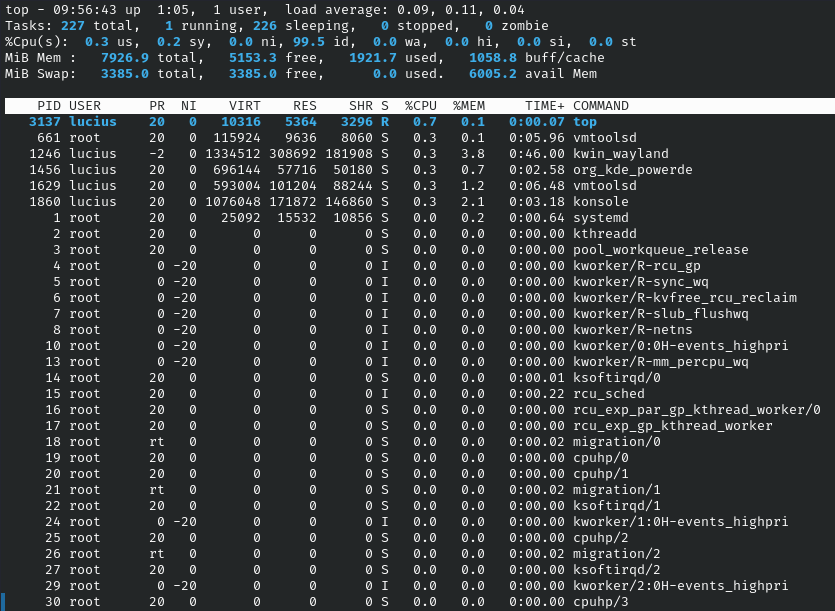
top
Interactive viewer monitoring live, basic for dynamics. Use to watch CPU spikes.
Syntax: top
Example: top
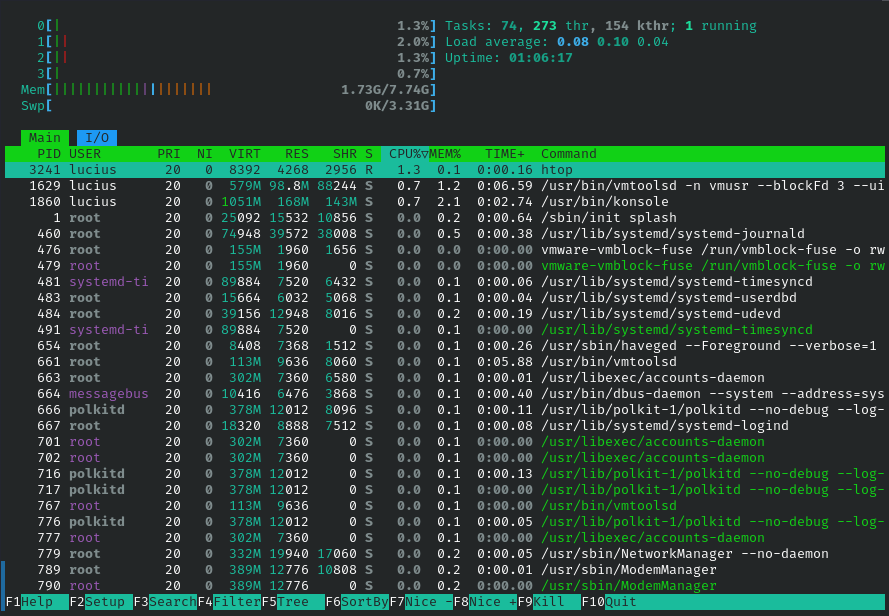
htop
Enhanced with colors and search. Basic for usability, use to filter processes in incidents.
Syntax: htop
Example: htop
nice
Sets the priority for runs. Basic for process scheduling, use for low-priority, long scans.
Syntax: nice -n [level] [cmd]
Example: nice -n 10 scan
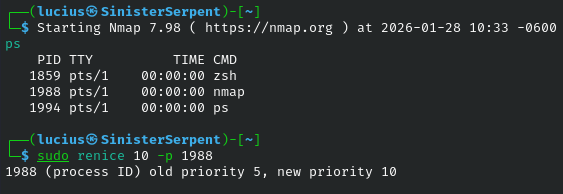
renice
Adjusts running priorities, basic for tweaks. Use to boost critical monitors.
Syntax: renice [level] -p [PID]
Example: renice 5 -p 123
nohup
Immune to hangups for persistence, basic for handling daemon processes. Use to run monitors across sessions.
Syntax: nohup [cmd]
Example: nohup monitor.sh &
lsof
Lists open files/sockets for bindings. Basic for resources, use to detect backdoors.
Syntax: lsof [options]
Example: lsof / file
Flags:
-i: internet files
-u: by user
-c: by process
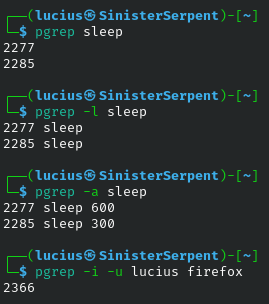
pgrep
PIDs by name for quick kills, basic for lookups. Chain this command with kill.
Syntax: pgrep [proc]
Example: pgrep sshd
pstree
Tree view traces hierarchies, basic for relations. Use to map malware spawns.
Syntax: pstree
Example: pstree -p

Networking
Recon and monitor networks – internal/external threats. These uncover connectivity and configurations, essential for defense mapping.
ip addr show
Displaying IPs and interfaces for configuration checks, basic for addresses. Use to verify there are no rogue IPs.
Syntax: ip addr show
Example: ip addr show

ifconfig
Legacy configuration view with MTU/etc, basic for nets. Use to get a basline of your networks.
Syntax: ifconfig
Example: ifconfig

netstat
Show connections
Syntax: netstat [option]
Example: netstat -a
Flags:
-a: Show all sockets
-at: Show TCP connections
-au: Show UDP connections
-l: Listen for connections

-s: Stats
-p: Show PID sockets

route
Routing table for paths, use to check for gateway hijacks.
Syntax: route
Example: route

arp -a
ARP cache for local area network (LAN) mappings, basic for ARPs. Use to detect spoofing.
Syntax: arp -a
Example: arp -a

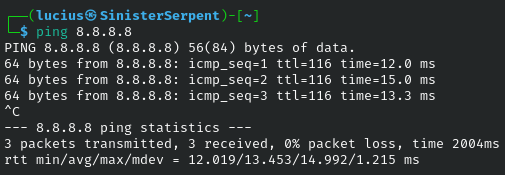
ping
ICMP tests connectivity. Basic for reach, use to map live hosts.
Syntax: ping [host]
Example: ping 8.8.8.8
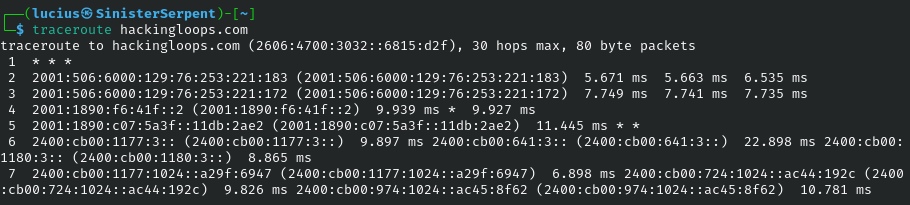
traceroute
Path hops to destinations. Basic for traces, use to identify routing anomalies.
Syntax: traceroute [host]
Example: traceroute google.com
whois
Registration information for open source intel (OSINT). Basic for queries, use to profile potential attackers.
Syntax: whois [domain/IP]
Example: whois hackingloops.com

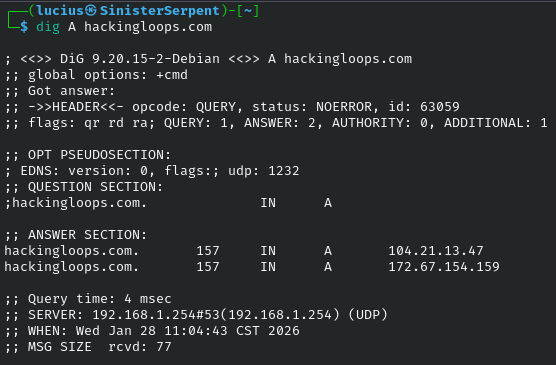
dig
DNS queries for records. Basic for lookups, use to check for domain poisoning.
Syntax: dig [domain]
Example: dig A hackingloops.com
host
Simple DNS resolution, use to verify subdomains.
Syntax: host [domain]
Example: host hackingloops.com
hostname
Get the system name for identity. Basic for host information, use to confirm multi-environments.
Syntax: hostname
Example: hostname
wget
Downloading files from the web. Basic for fetching files, use to test vulnerability downloads.
Syntax: wget [url]
Example: wget https://file
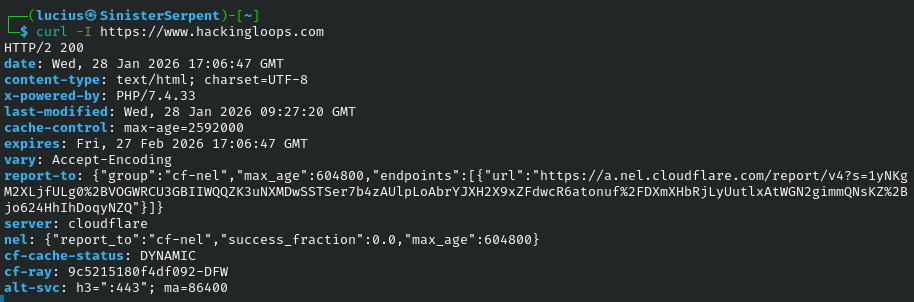
curl
Transferring data flexibly. Basic for APIs, use for header scans in vulnerabilities.
Syntax: curl [url]
Example: curl -I https://site
Advanced Tips
Combining Commands
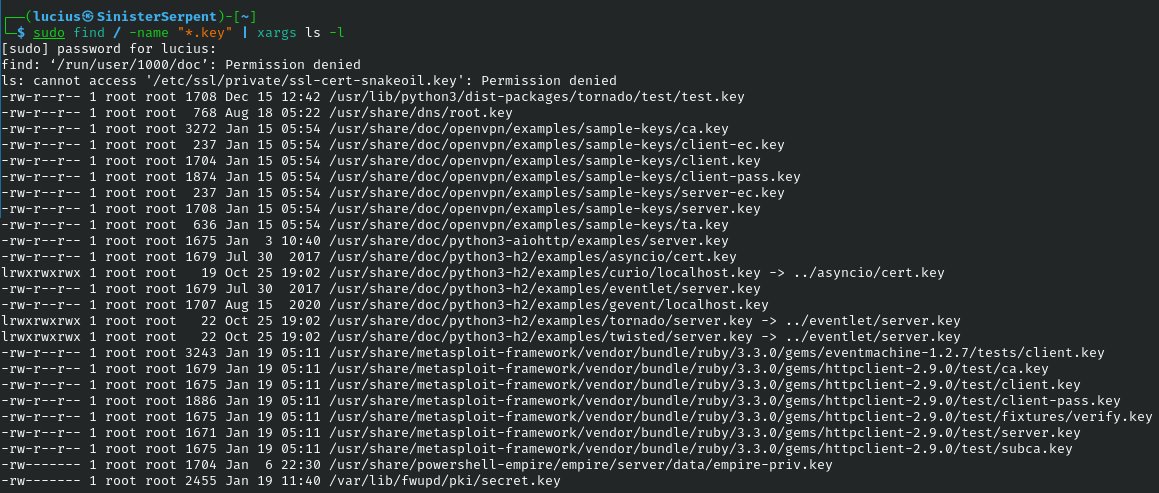
Pipe like a pro: find/ -name "*.key" | xargs ls -l to audit keys.
Scripting Basics
Use bash loops for batch ops, e.g., permission checks
Pitfalls
Forget sudo? Miss root-owned files. Always check with whoami.
Aliases
Set alias ll='ls -la' for quick permission views.
Conclusion & Resources
This cheat sheet equips you with Unix & Linux essentials through a security lens, practice in your virtual machines to build muscle memory, and crack on with CTF-style challenges to get as-close-to real world experience. For deeper dives, check the man pages of each of the commands (e.g., man ls), and OWASP Linux Guides.
Happy Hacking!