
Introduction: What is Shodan?
If you have used Google, you know you can search for websites, images, and news. But what if you want to search for devices connected to the internet? Things like webcams, routers, servers, or even traffic lights? That is where Shodan comes in.
Shodan (which stands for Sentient Hyper-Optimized Data Access Network – interesting name huh) is a search engine for internet-connected devices. While Google looks at what is on a website, Shodan looks at the devices themselves. It scans the internet and collects information called “banners.” These banners tell you what software is running, which port is open, and where the device is located.
People use Shodan for many reasons. Cybersecurity experts use it to find their own weak points before hackers do. Researchers use it to study the internet. Even law enforcement uses it to track illegal activity. In this article, we will learn how to use the free version of Shodan, step by step.
Some of the most important capabilities of Shodan include the following:
Advanced Search Options
Shodan provides powerful filtering options that allow users to narrow down results with precision. Searches can be refined based on factors such as device category, operating system, geographic location, open ports, and running services, making it easier to locate specific systems on the internet.
Service and Banner Data Collection
The platform gathers detailed response data – commonly referred to as banners – from exposed devices. These banners often reveal information such as software versions, operating systems, active ports, and service configurations, which can be useful for identifying outdated or misconfigured systems.
Vulnerability and Exposure Identification
Shodan enables users to discover systems running software versions that are already known to have security weaknesses. This functionality is particularly useful for security professionals who want to detect and address risks before they are exploited.
Internet Asset Visibility:
Using Shodan, it is possible to enumerate all publicly accessible assets tied to a specific organization or IP address range. This helps in understanding how much of an organization’s infrastructure is exposed to the internet and where potential security gaps may exist.
IoT Device Detection:
Shodan is widely used to locate Internet of Things (IoT) devices that are connected to the public internet. Because many IoT devices lack strong default security settings, the ability to identify them can play a key role in assessing and reducing security threats.
In this article, we will learn how to use the free version of Shodan, step by step.
Getting Started: Account Creation
Before you start searching, you need an account. While you can do some basic searches without one, creating a free account gives you access to more features.
Step 1: Go to the official Shodan website at https://www.shodan.io/.
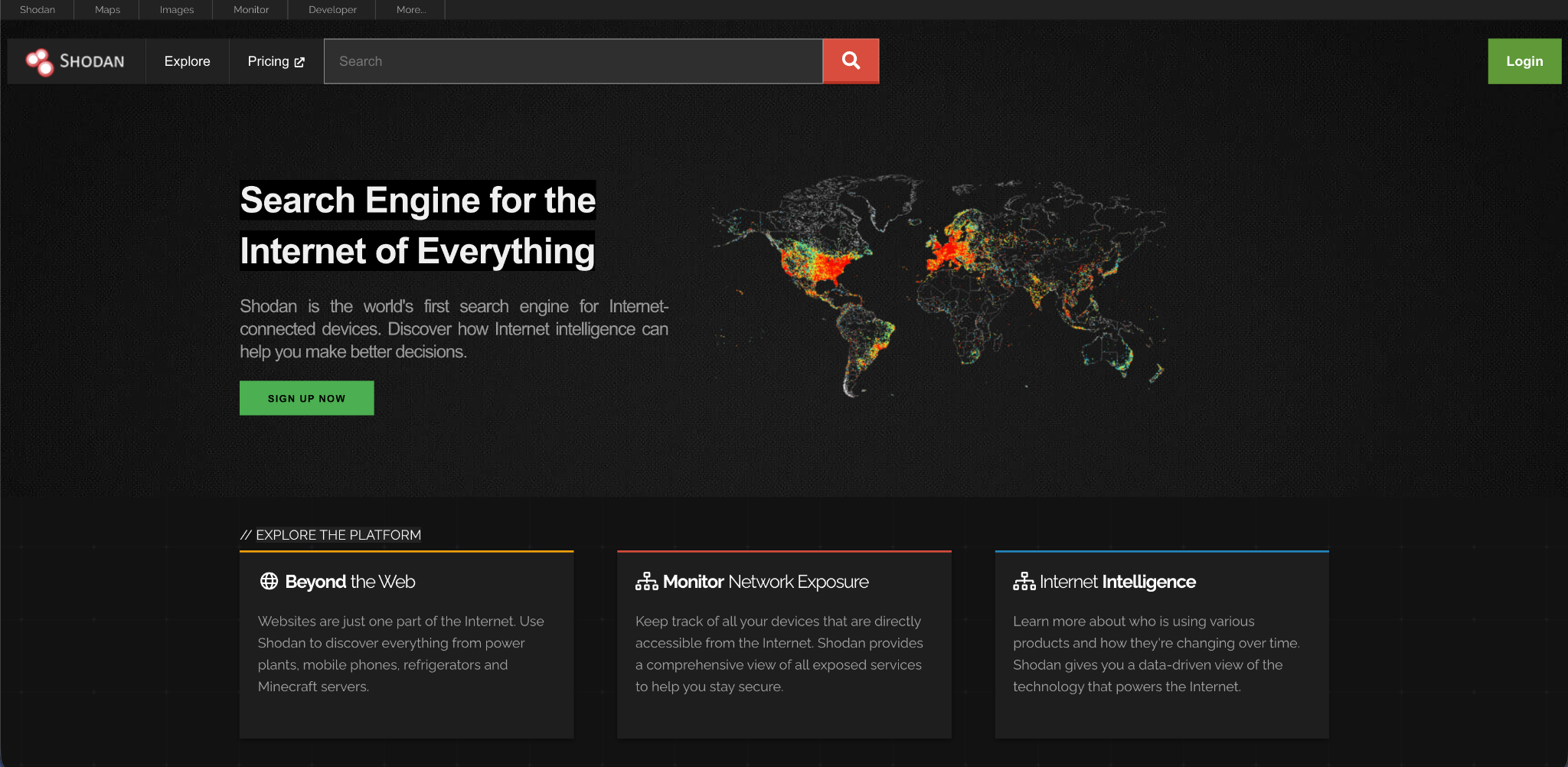
Step 2: Click on “Sign Up” and fill in your details. You will need to verify your email address.
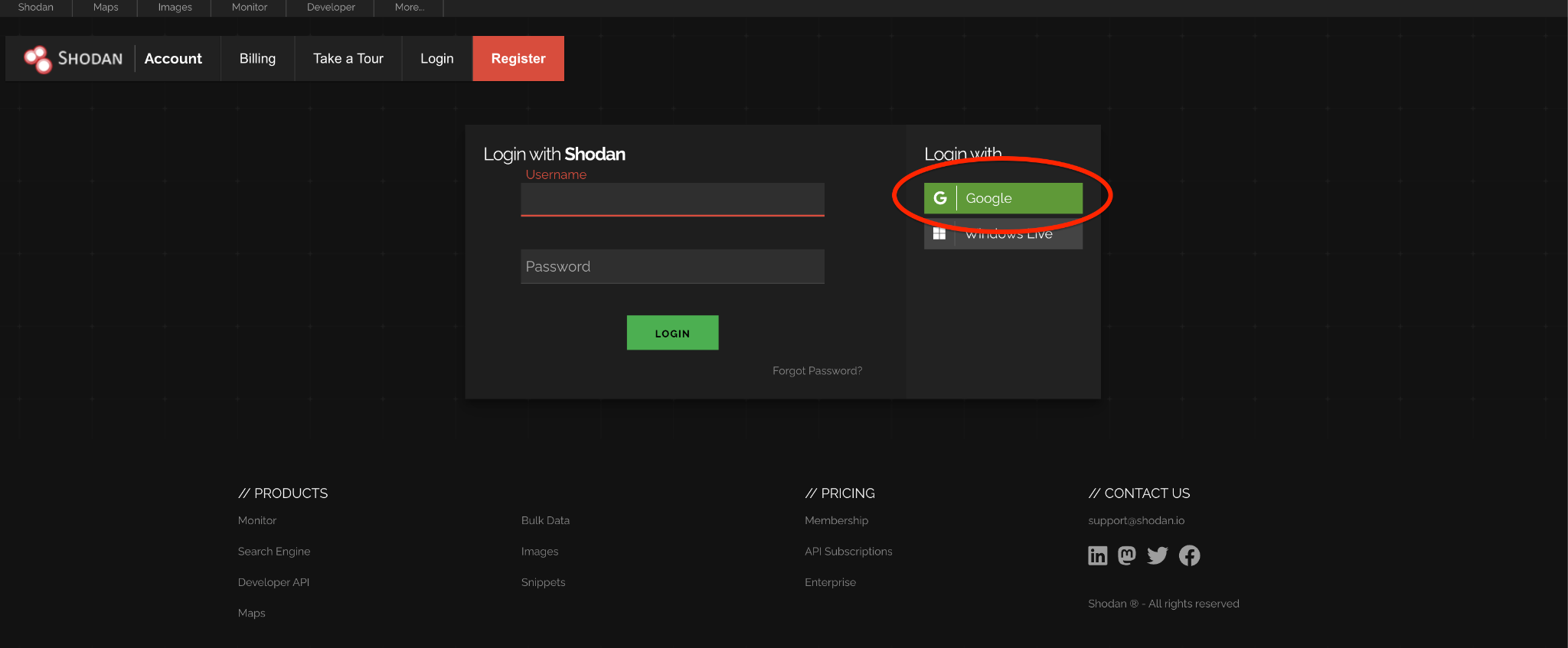
Step 3: Log in to your new account.
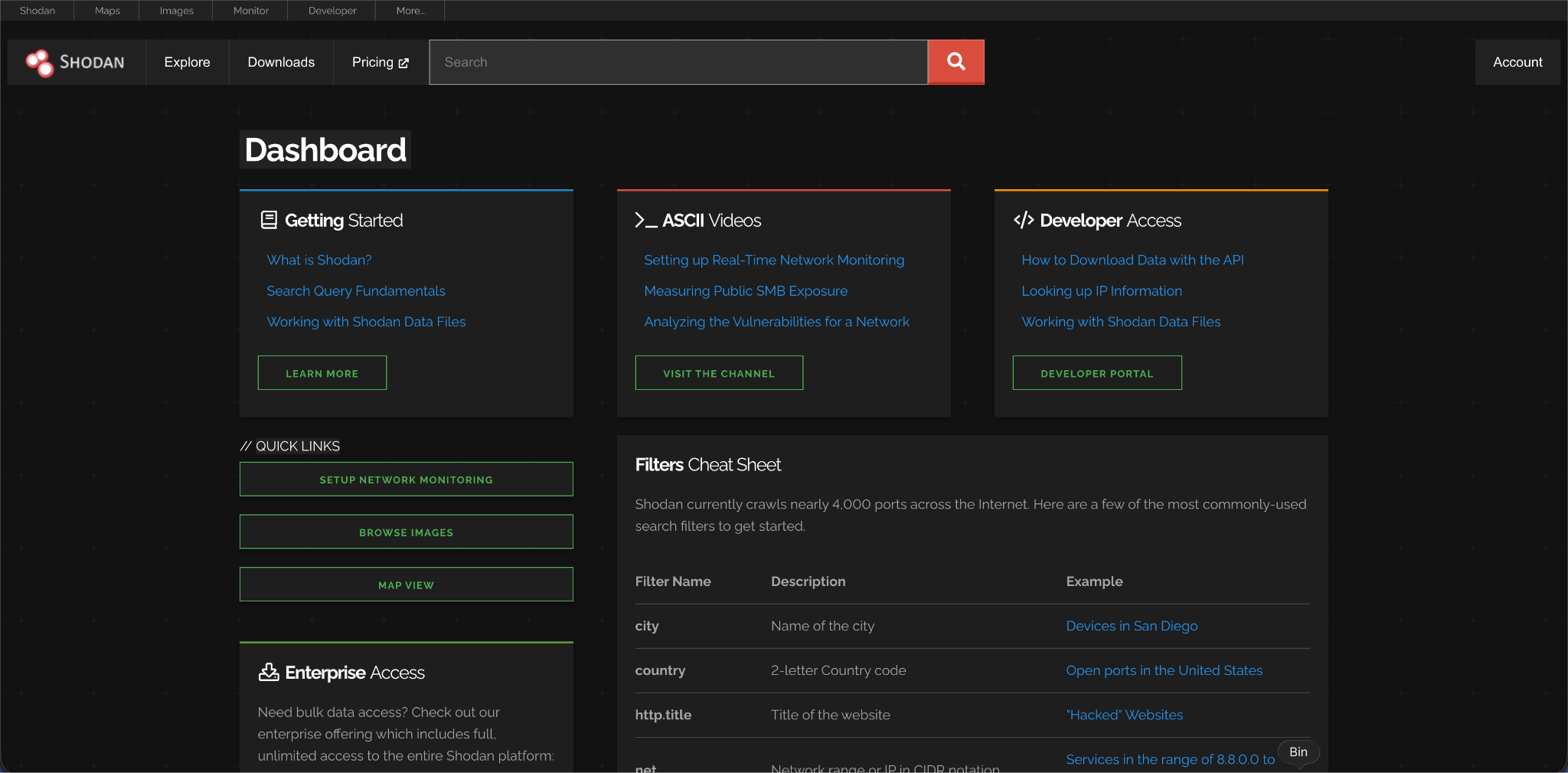
Some additional core features of Shodan are outlined below but these are paid also:
Maps
Shodan offers a visual map-based view of search results as part of its paid plans. This feature allows users to examine up to 1,000 results at once and dynamically updates the displayed data as the map is zoomed or moved. All standard search filters remain available within the map interface.
Images
Shodan Images provides an easy way to browse screenshots collected from internet-exposed systems. Built on top of the screenshot search capability, this feature is included with Shodan memberships and simplifies visual analysis of discovered devices.
Explore
The Explore section highlights popular and trending search topics on Shodan. It groups results into areas such as industrial systems, databases, network services, and gaming platforms, making it useful for discovery and research.
API Access
Every Shodan account, including free ones, is assigned an API key. Shodan provides two APIs: a REST API for searching data and generating summaries, and a Streaming API that delivers real-time data as it is collected, intended mainly for large-scale or automated use.
A Special Tip for Students
If you are a student, professor, or work at a university, you are in luck. Shodan offers a free upgrade to an Academic Membership. If you use your school email address (ending in .edu or similar) to sign up, you might automatically get access to more features. If not, you can email academic@shodan.io from your school email and request access. This gives you more search results and advanced filters usually reserved for paying customers. You can read more on this on https://help.shodan.io/the-basics/account-faq
Check this from the official website of shodan

Understanding the Basics
Once you log in, you will see a simple search bar. This is where you type your query.
Unlike Google, you cannot just type plain English sentences. You need to think like a computer. When Shodan finds a device, it records the “banner.” This banner includes the IP address, the port number (like 21 for FTP or 80 for web traffic), and the welcome message from the software .
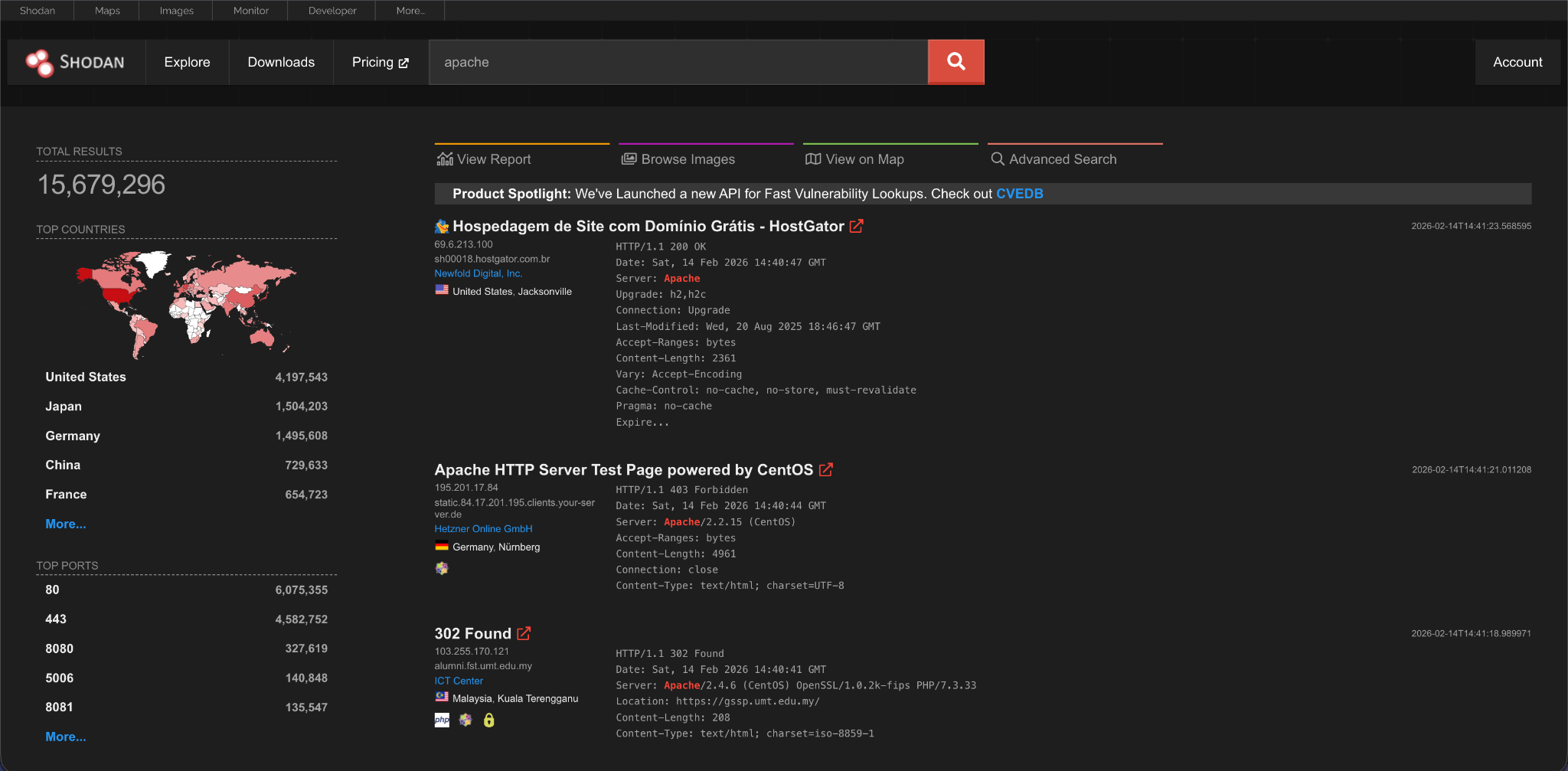
A simple search for “Apache” will show you all the devices running the Apache web server.
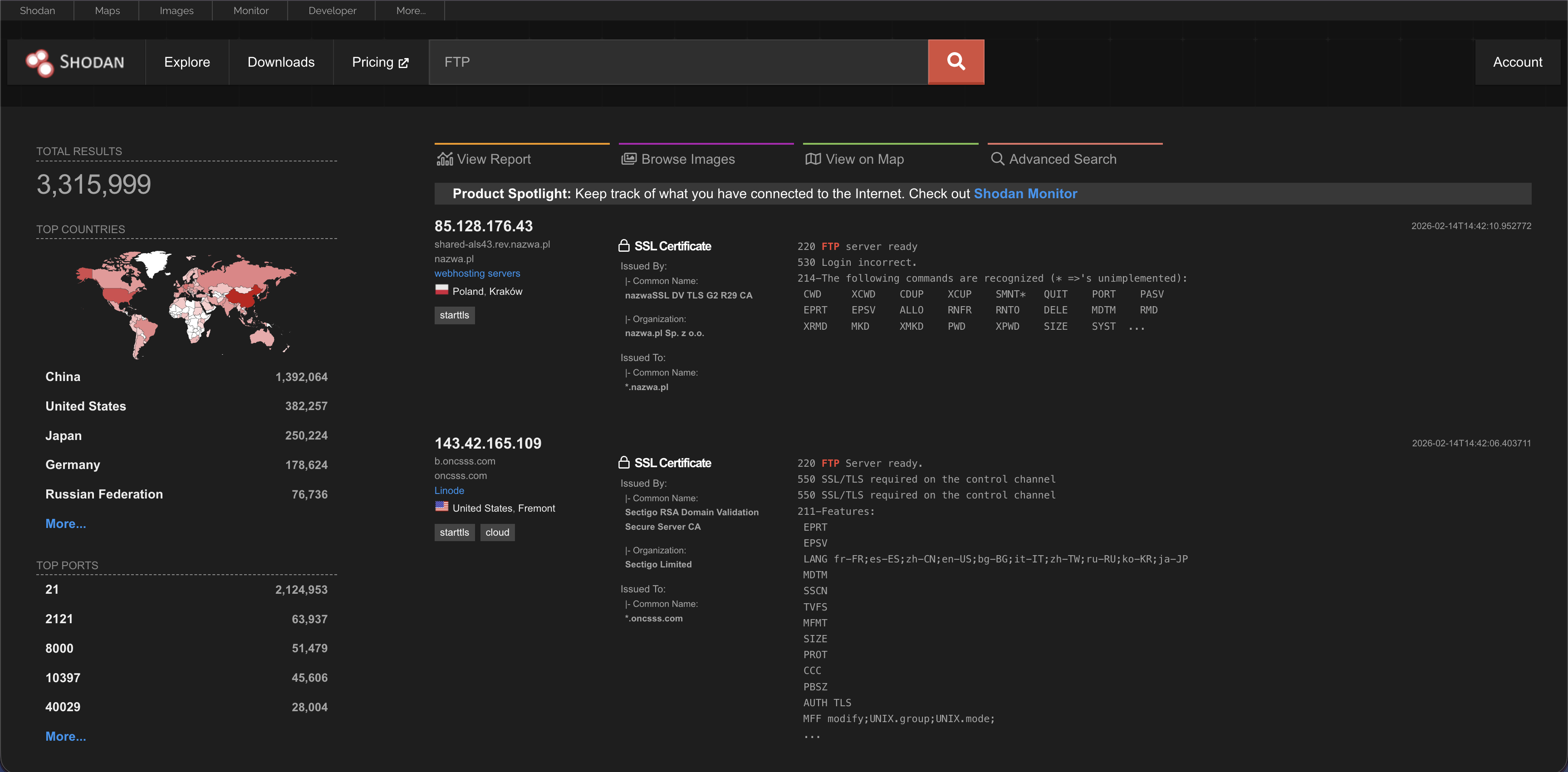
A search for “FTP” will show you all the file servers.
Beginner Level: Basic Searching
At the beginner level, you will use simple keywords. This helps you understand what is out there.
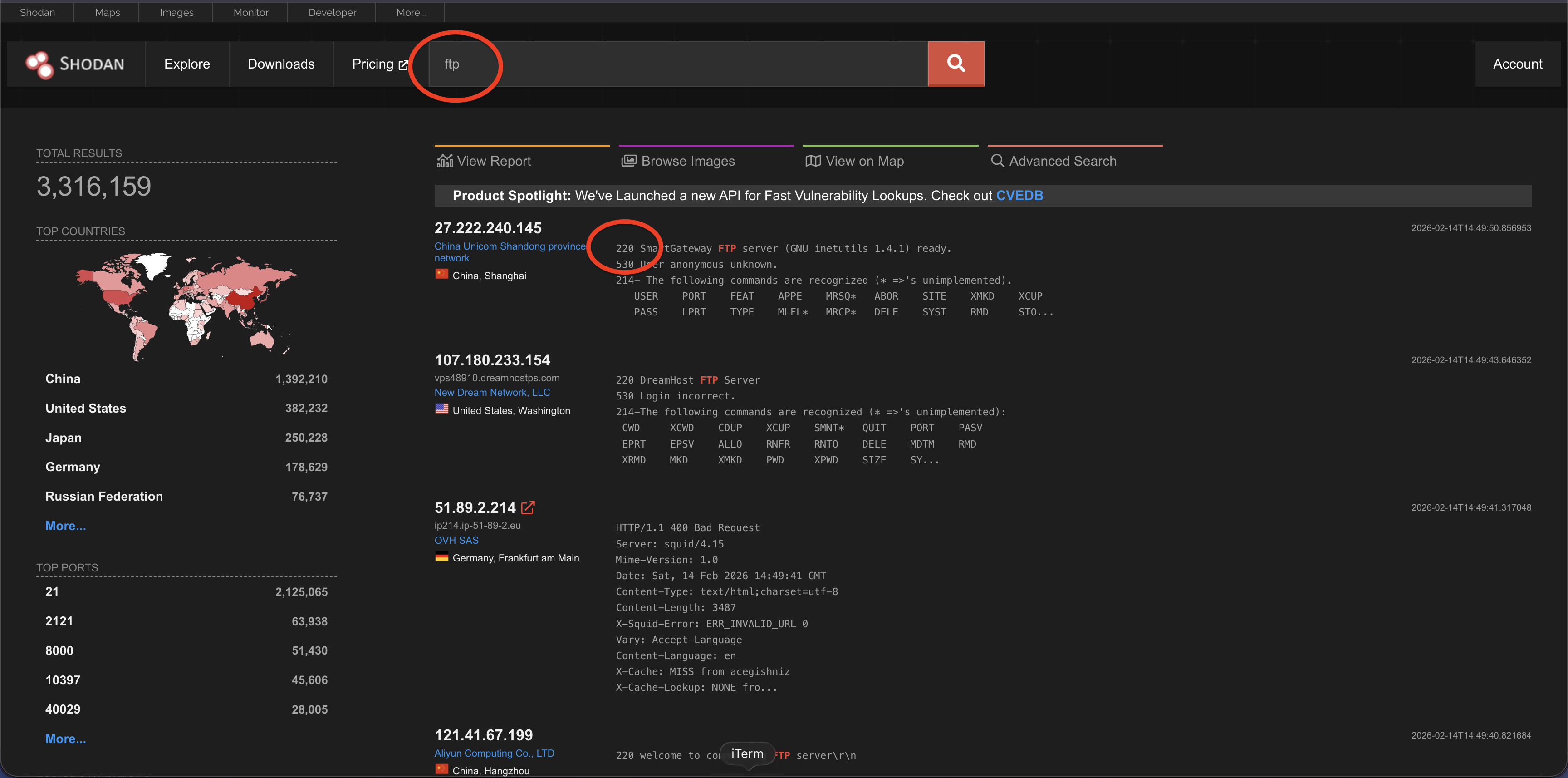
Search for a specific service e.g. ftp as we did before
Type FTP into the search bar. You will see a list of IP addresses that have port 21 open. You might see “220” in the banner, which is a standard FTP welcome code.
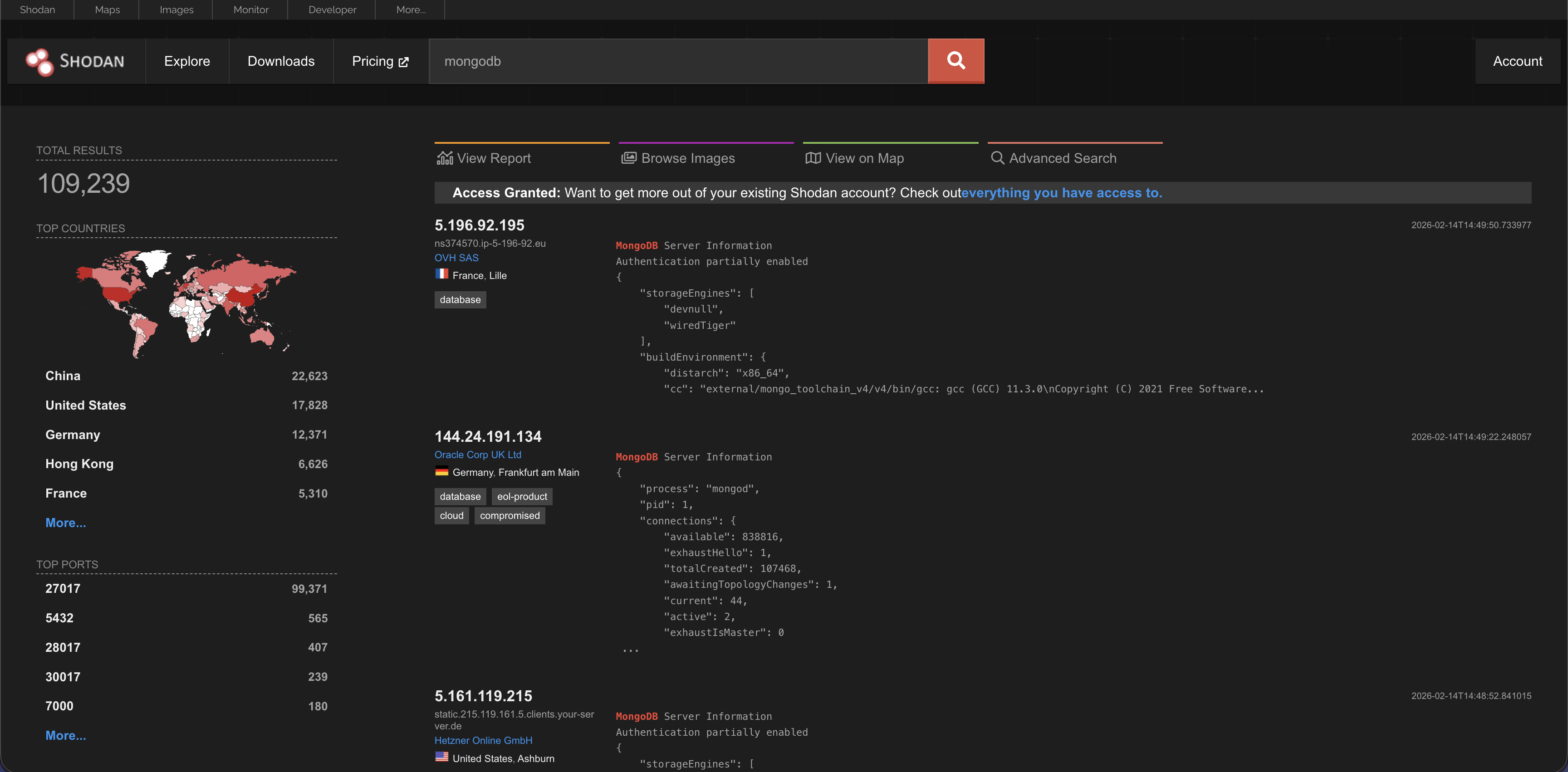
Search for a specific product e.g. mongodb
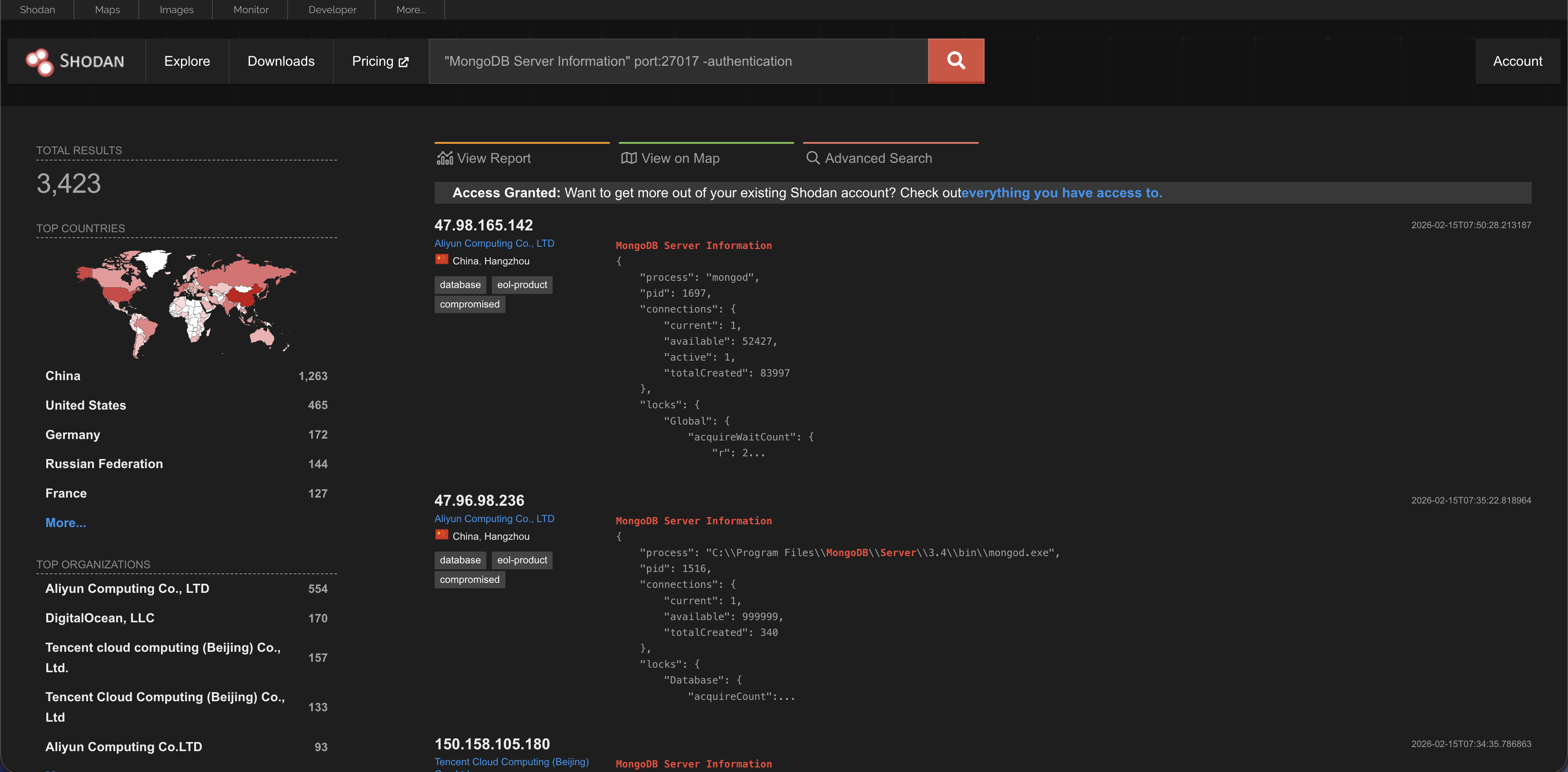
Type MongoDB to find databases that are connected to the internet. If you see “MongoDB Server Information,” that means the database might be unprotected.
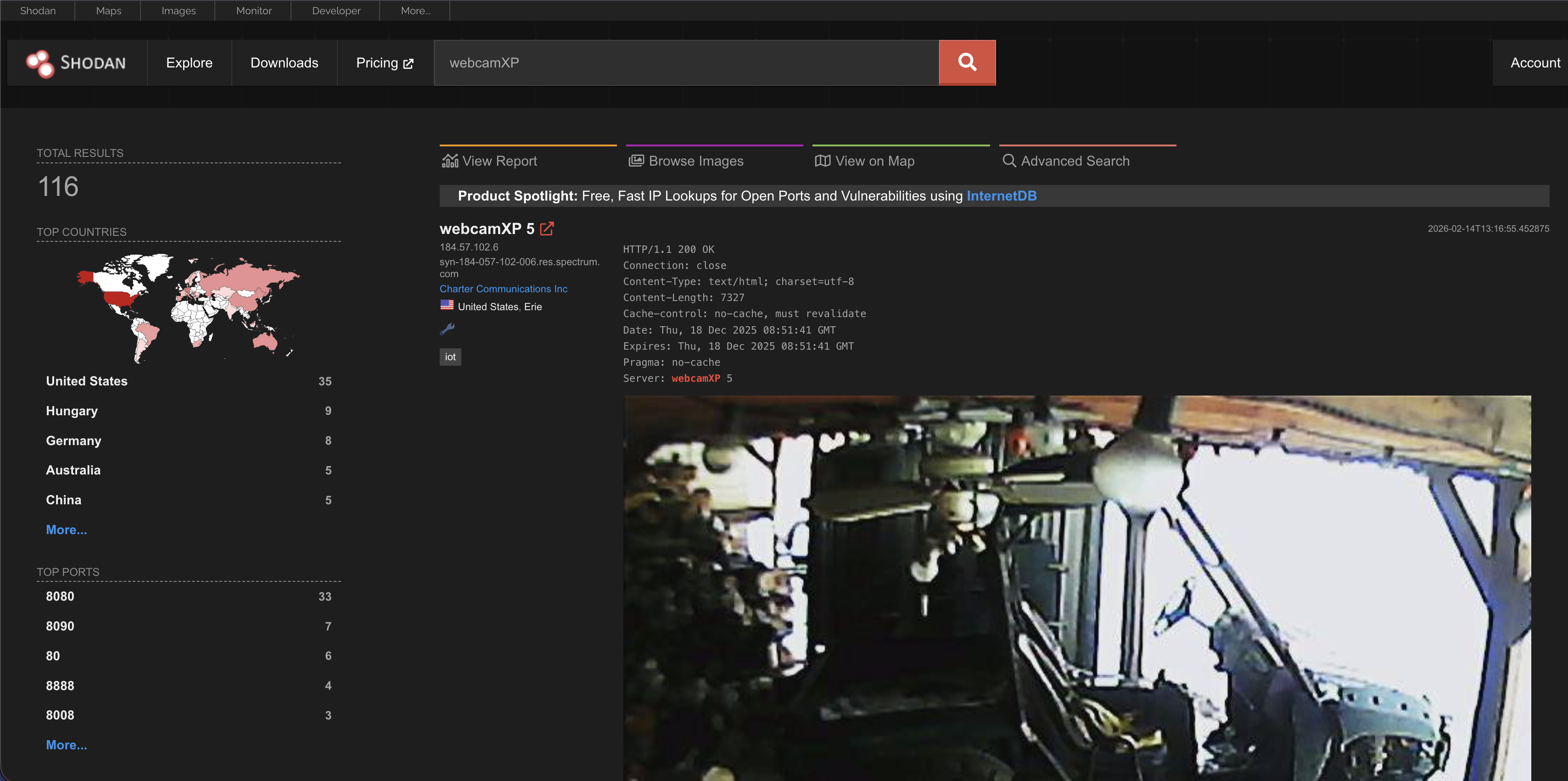
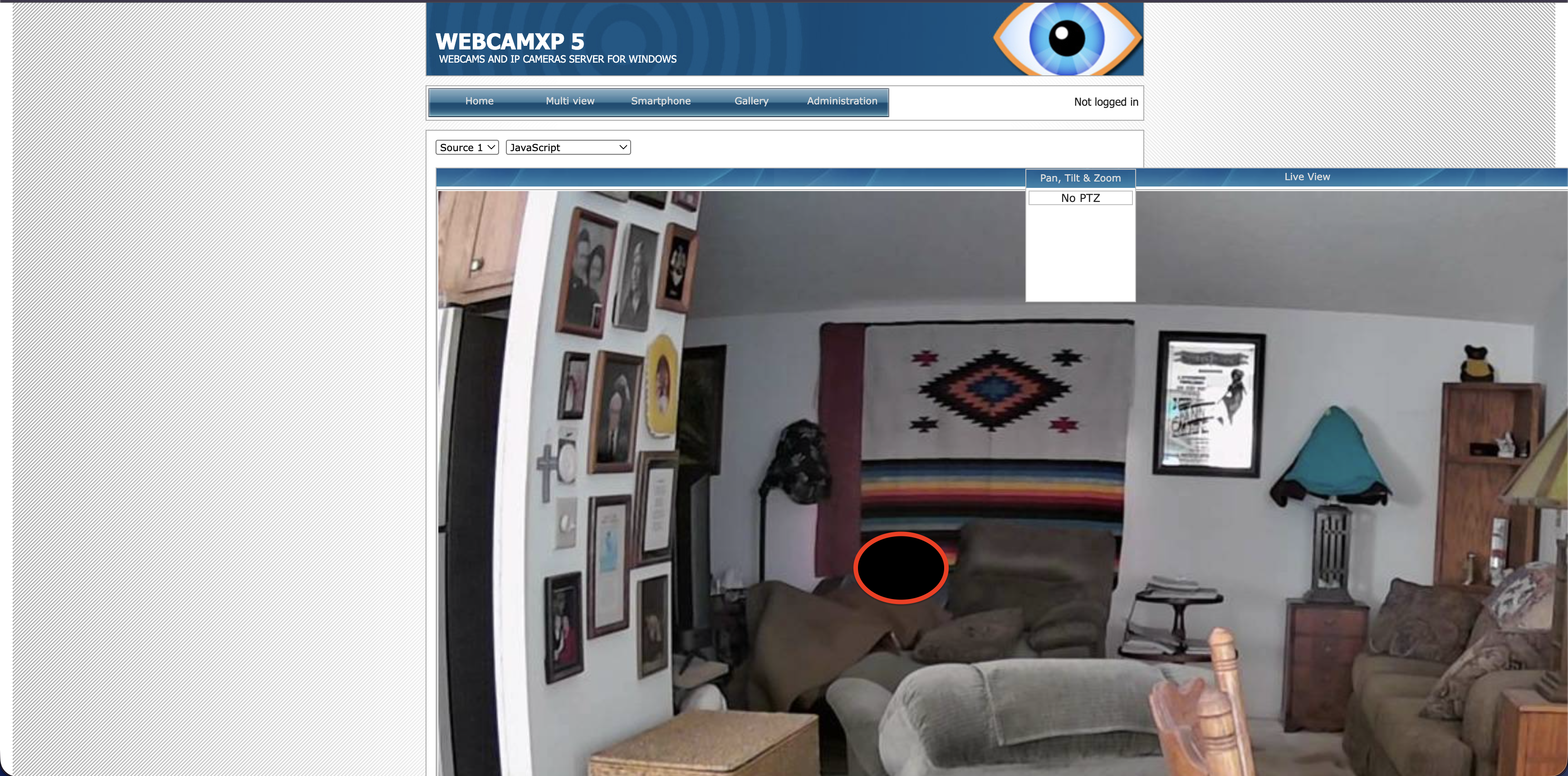
Search for webcams:
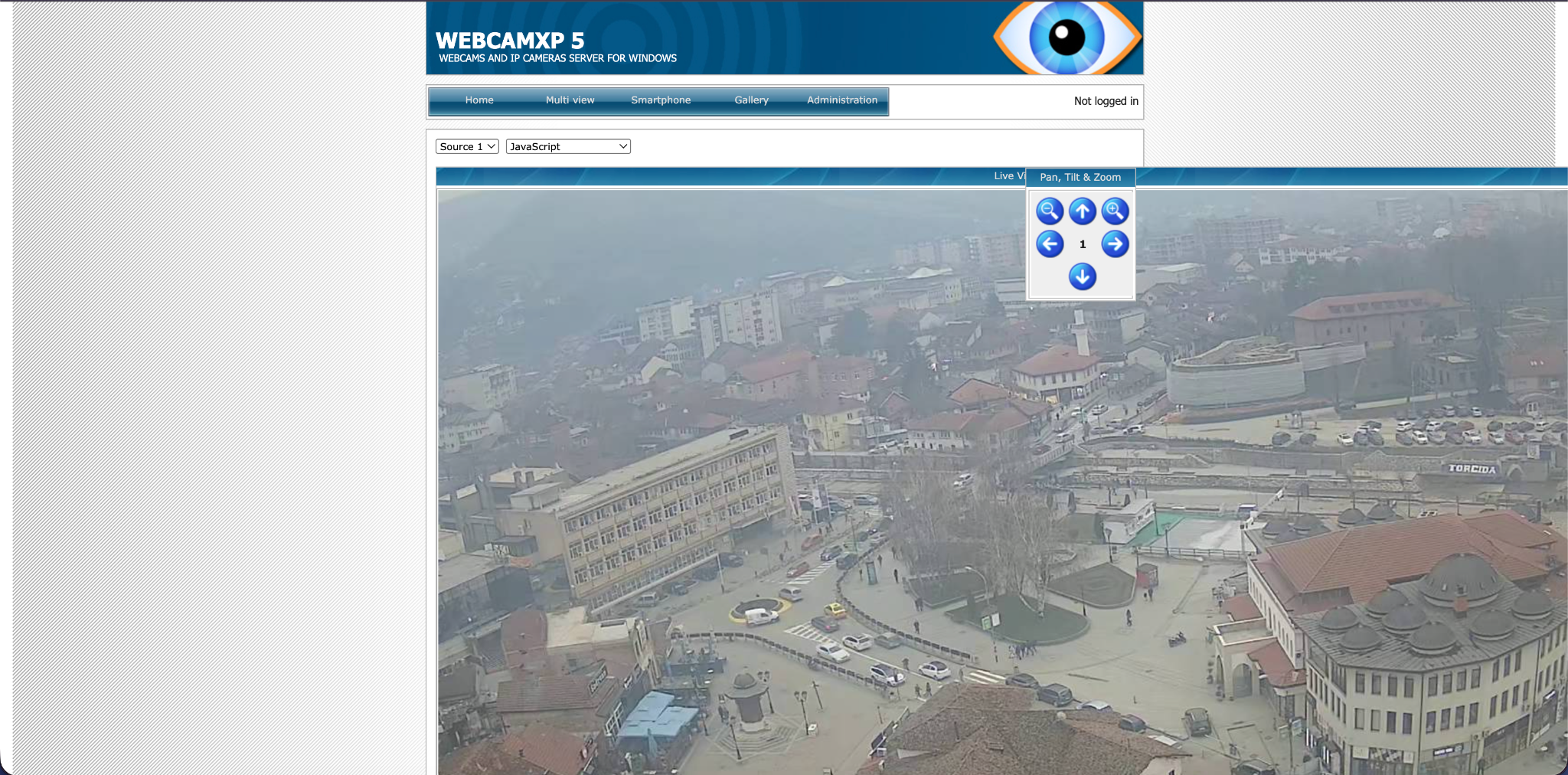
Type webcamXP or netcam. This is a popular search to find publicly accessible webcams. Sometimes, these cameras have no password. For example, we searched for webcamXP
This is live by the way. You can see moving cars.
Intermediate Level: Using Filters
The real power of Shodan comes from using filters. Filters are special commands that narrow down your search. With a free account, you can use these to get very specific results.
Here are the most important filters:
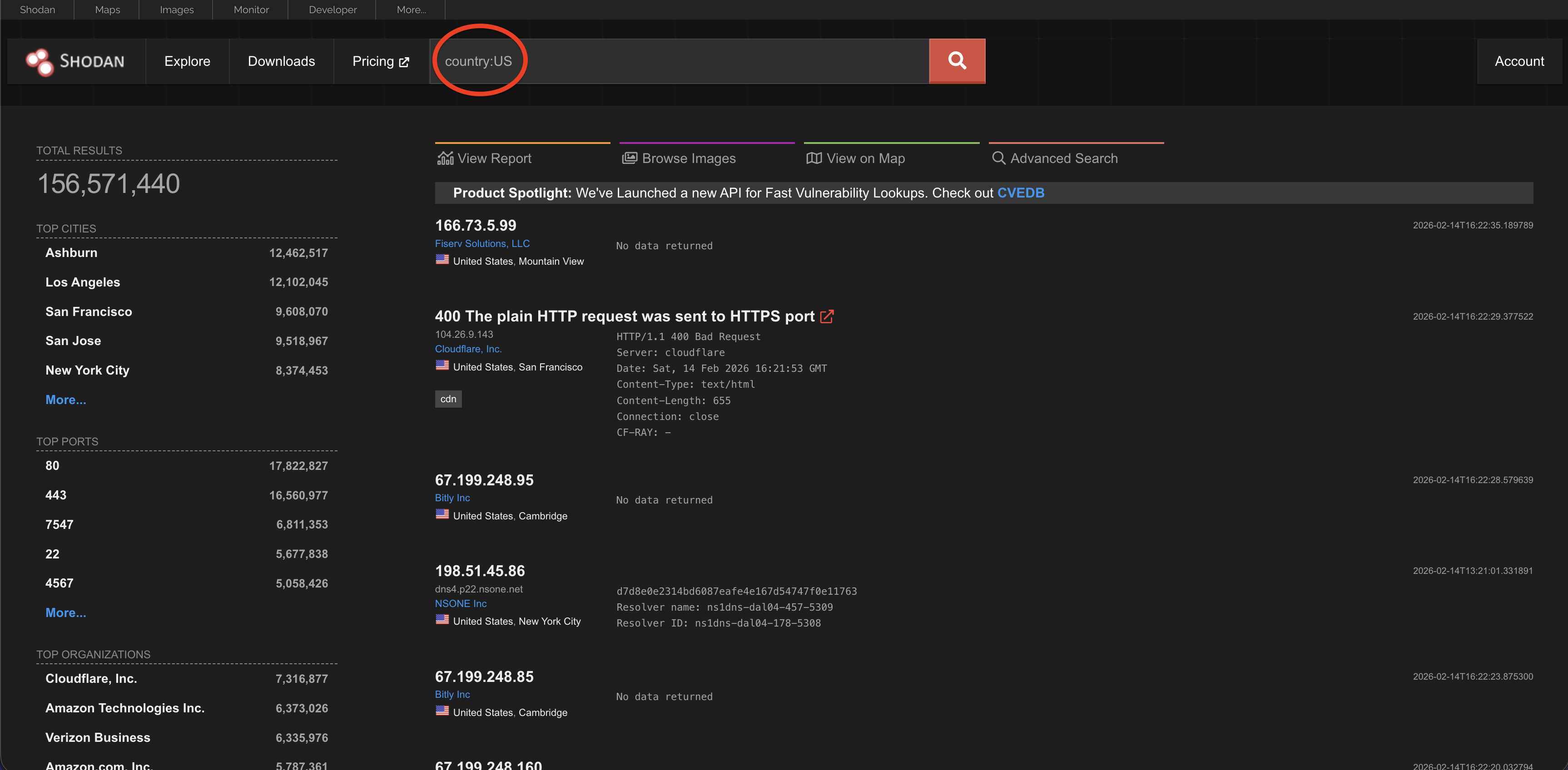
Country
This filter finds devices in a specific country. For example: country:US finds devices in India.
City
This narrows it down to a city. For example: city:”New York”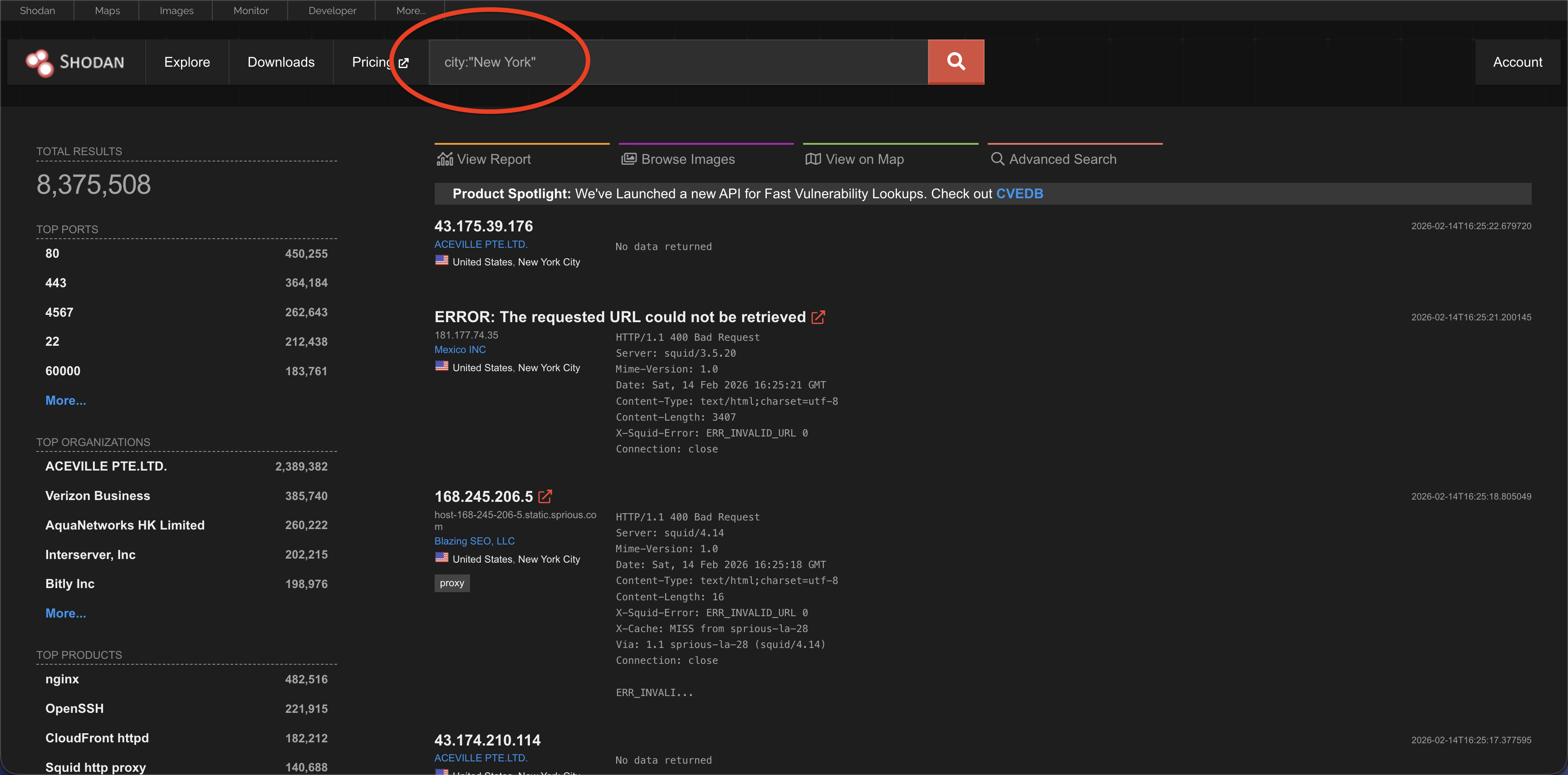
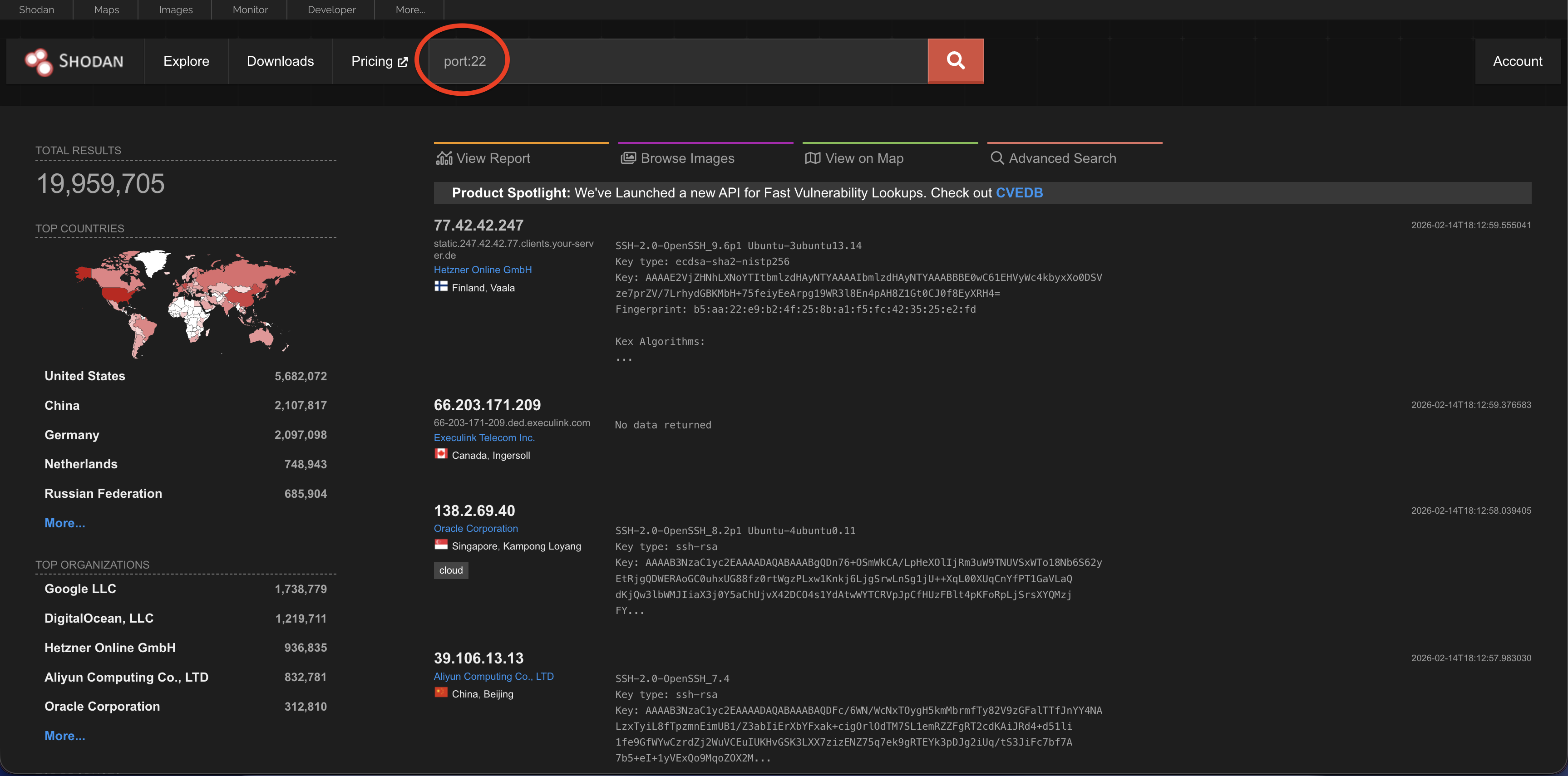
Port
This looks for a specific open port. For example: port:22 finds devices with SSH (Secure Shell) access.
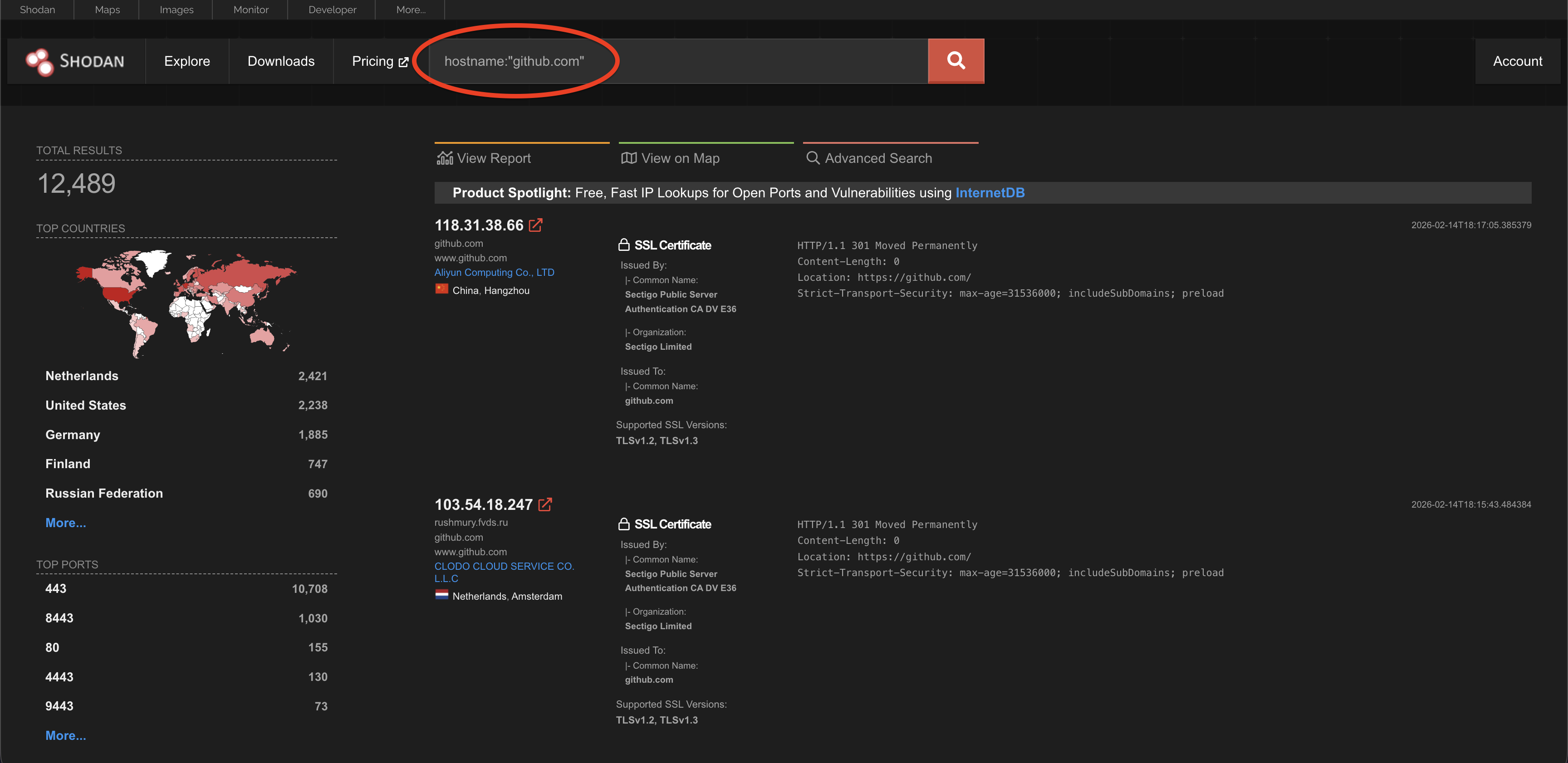
Hostname
This searches for devices with a specific domain name. For example: hostname:github.com.
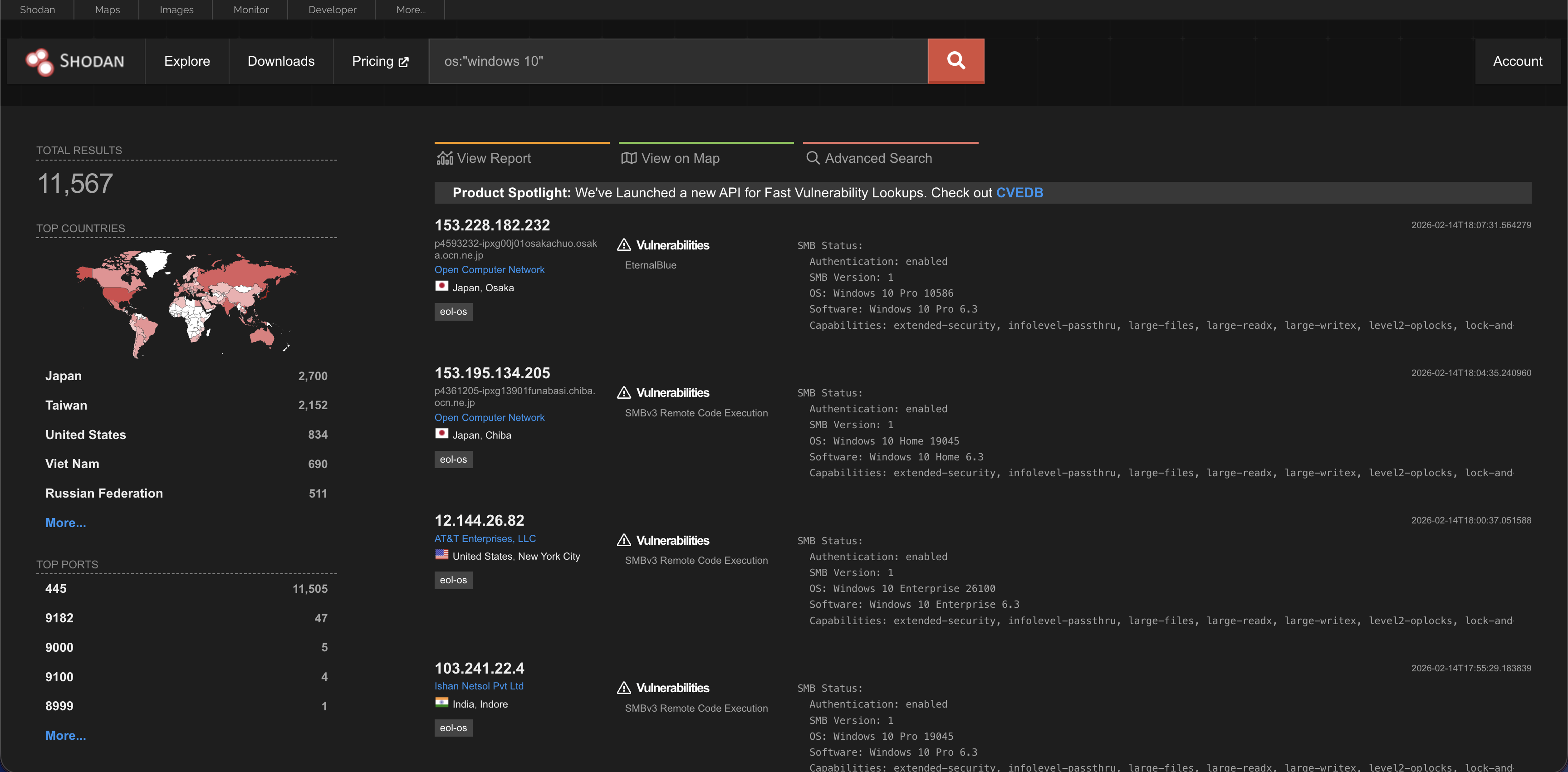
Os
This searches for a specific operating system. For example: os:”Windows 10″
Product
This searches for a specific software product. For example: product:Apache. Let us explore this a bit.
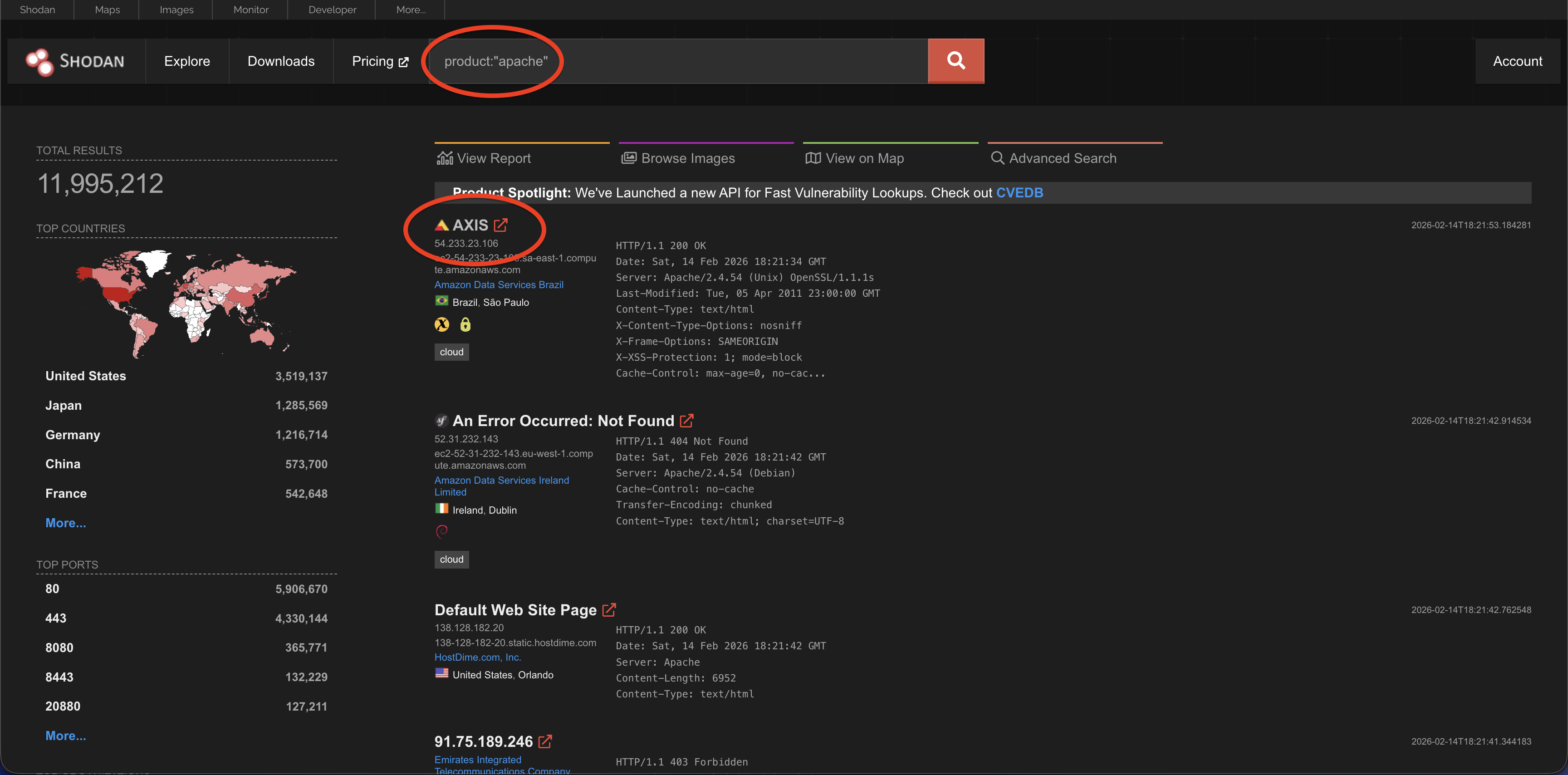
If we go a bit further, we see multiple open ports here which is concerning. This looks like an amazon ec2 instance.
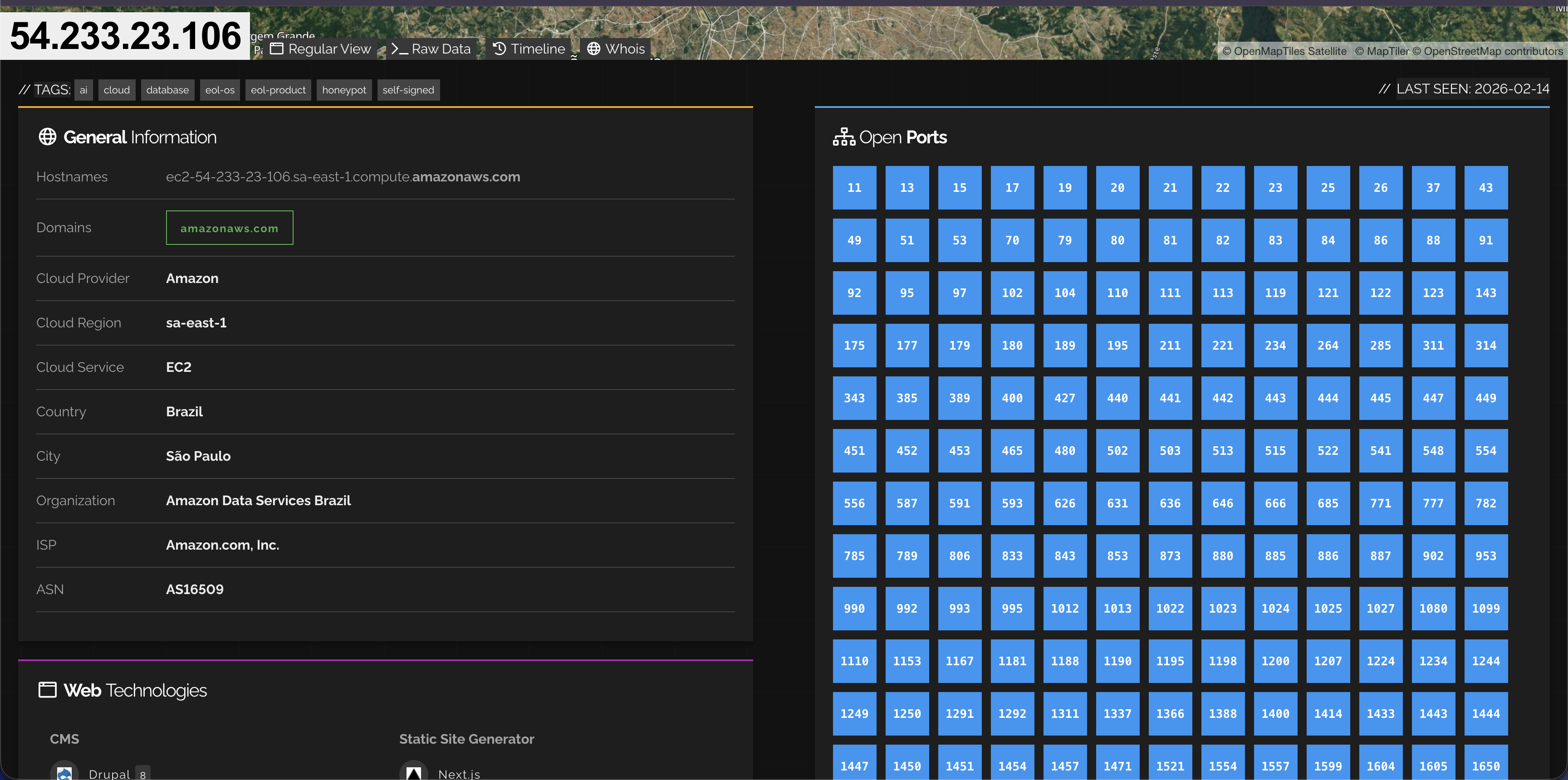
When we examine additional open ports, we encounter numerous login interfaces. The purpose of highlighting these examples is to demonstrate how our assets are exposed to the public internet and to emphasize the importance of reviewing and understanding this exposure from a security perspective. For example,
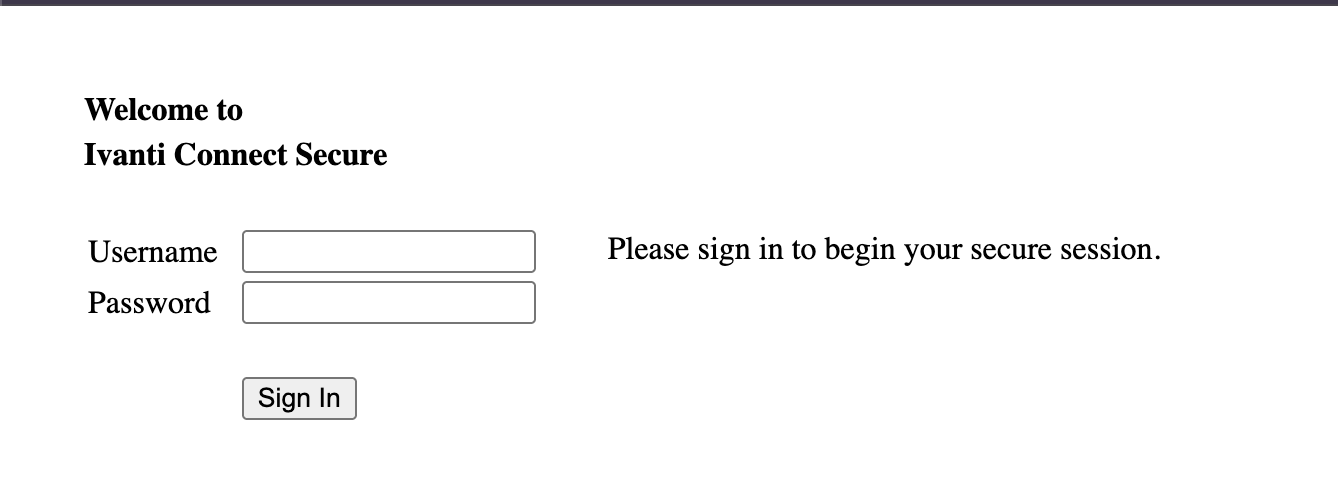
And
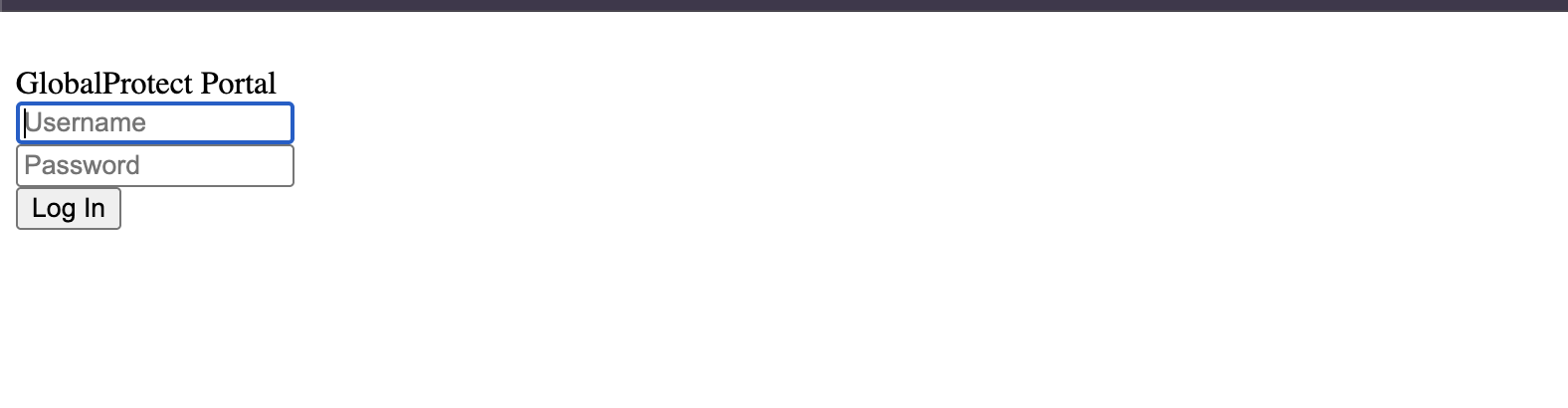
Messages like these do not stop the threat actors from performing illegal activities. It’s the security measures that should be implemented and not just the threatening messages.
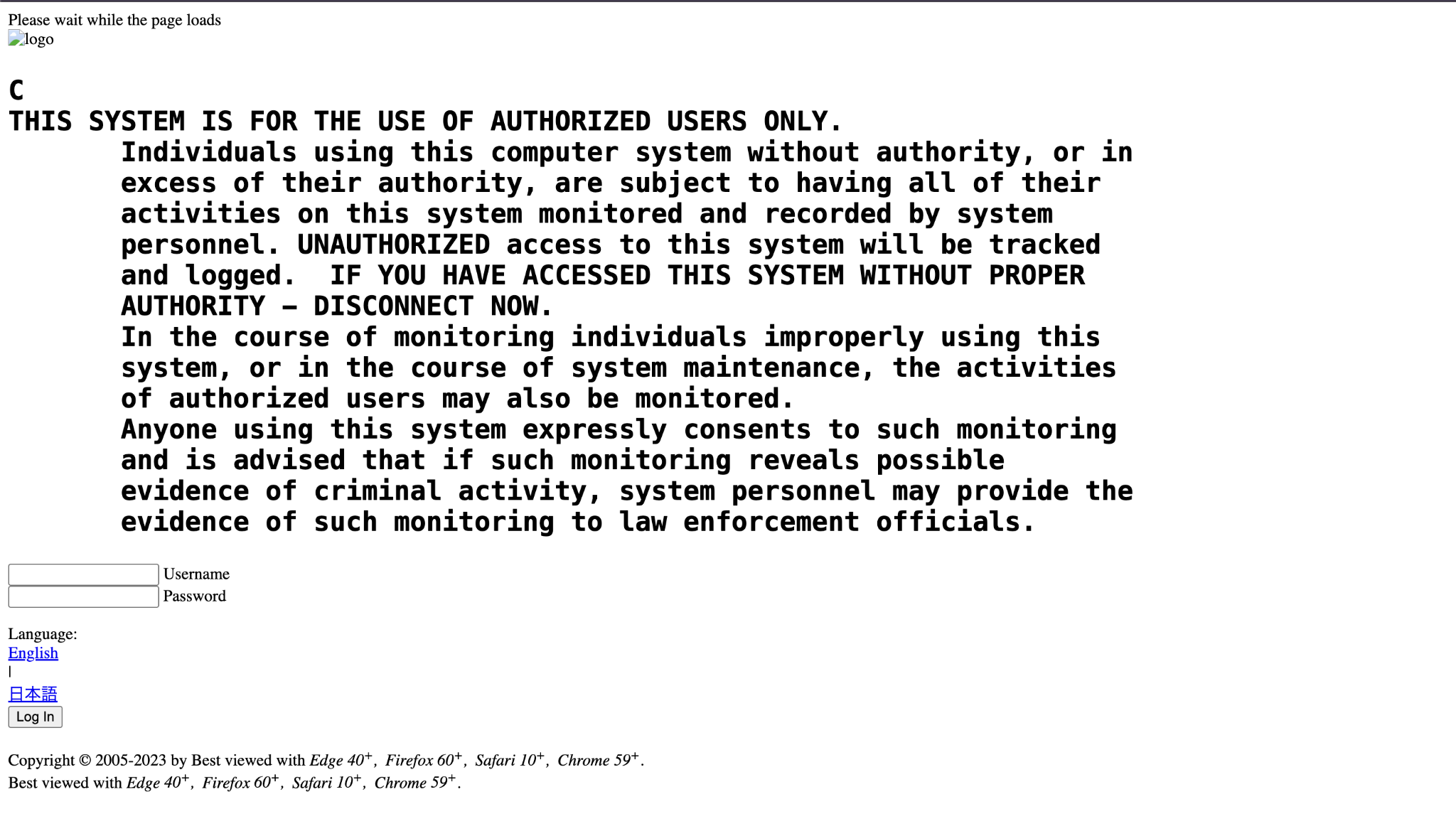
Let us not check this further ;-)
Net
This is a powerful filter. It lets you look for devices inside a specific IP range or subnet. For example, if you know a company uses the IP range 190.52.51.0 to 190.52.51.255, you would search net:190.52.51.0/24.
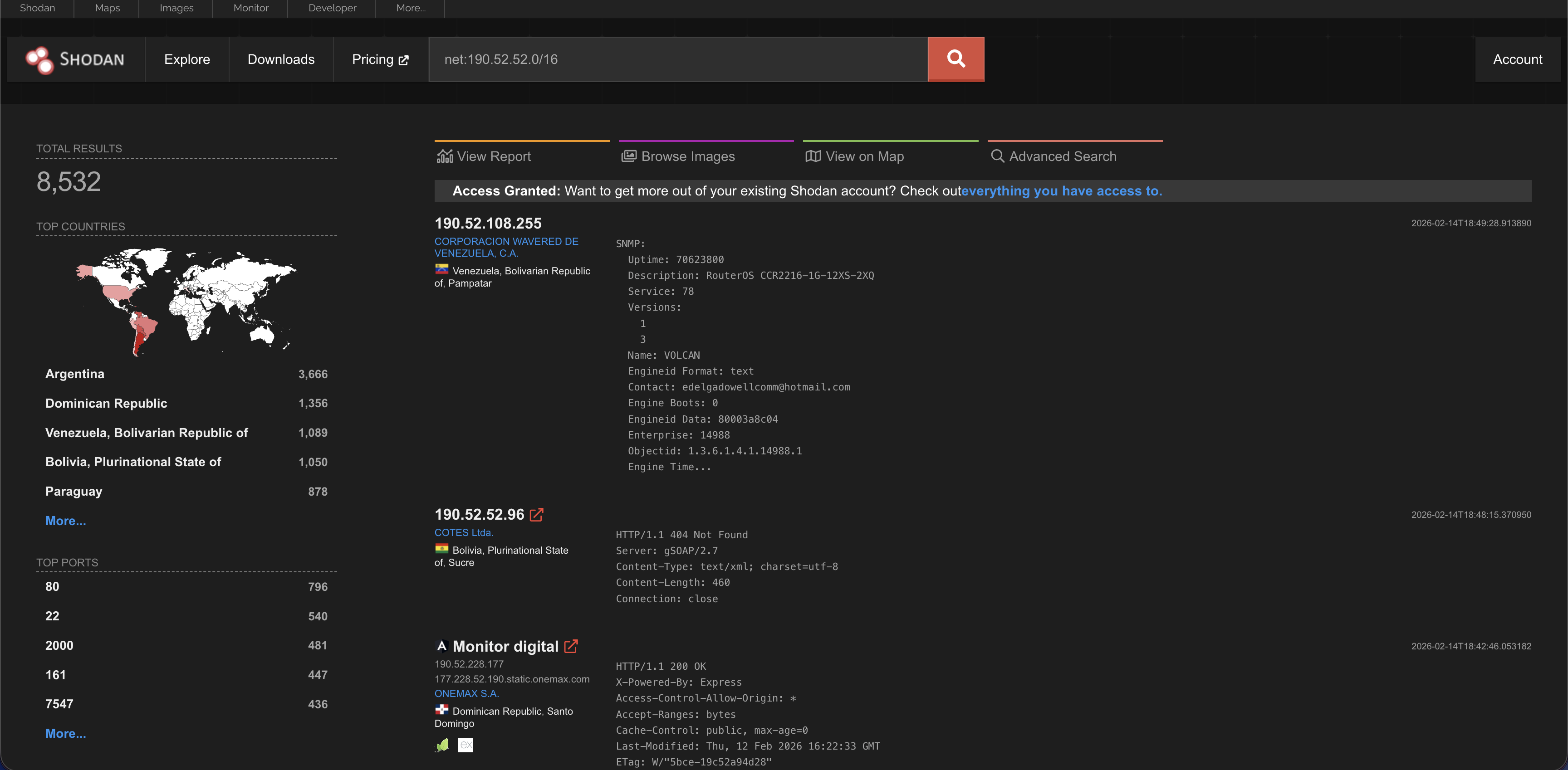
How to combine them
You can mix and match these filters. For example, to find FTP servers in India that might allow anyone to log in (anonymous login), you could search:
port:21 anonymous login country:IN.
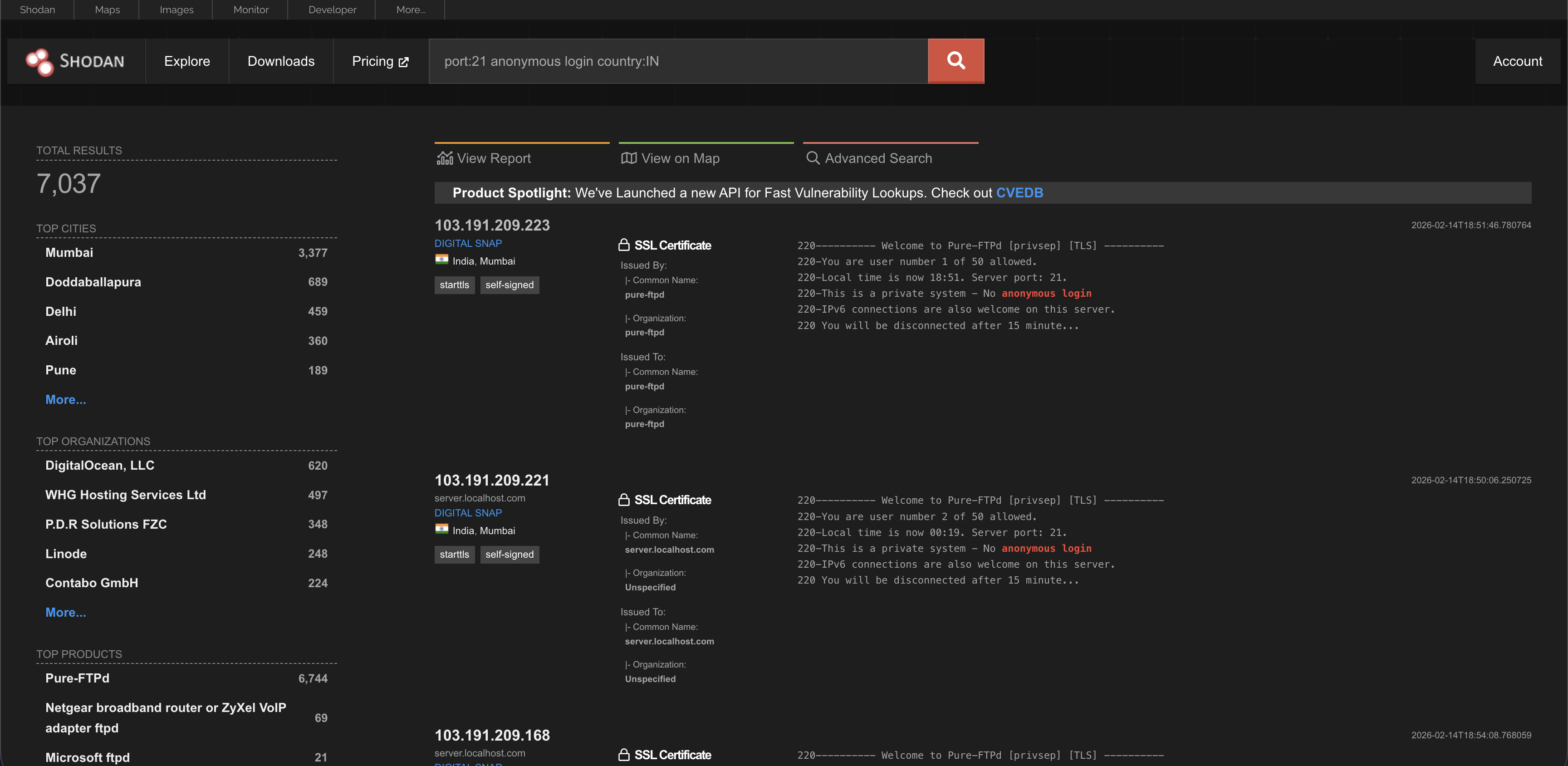
Now lets say we are doing reconnaissance, isn’t it helpful to find out that these guys are running mariadb? It may look like its not a lot. But this information can mean a lot to some individuals.
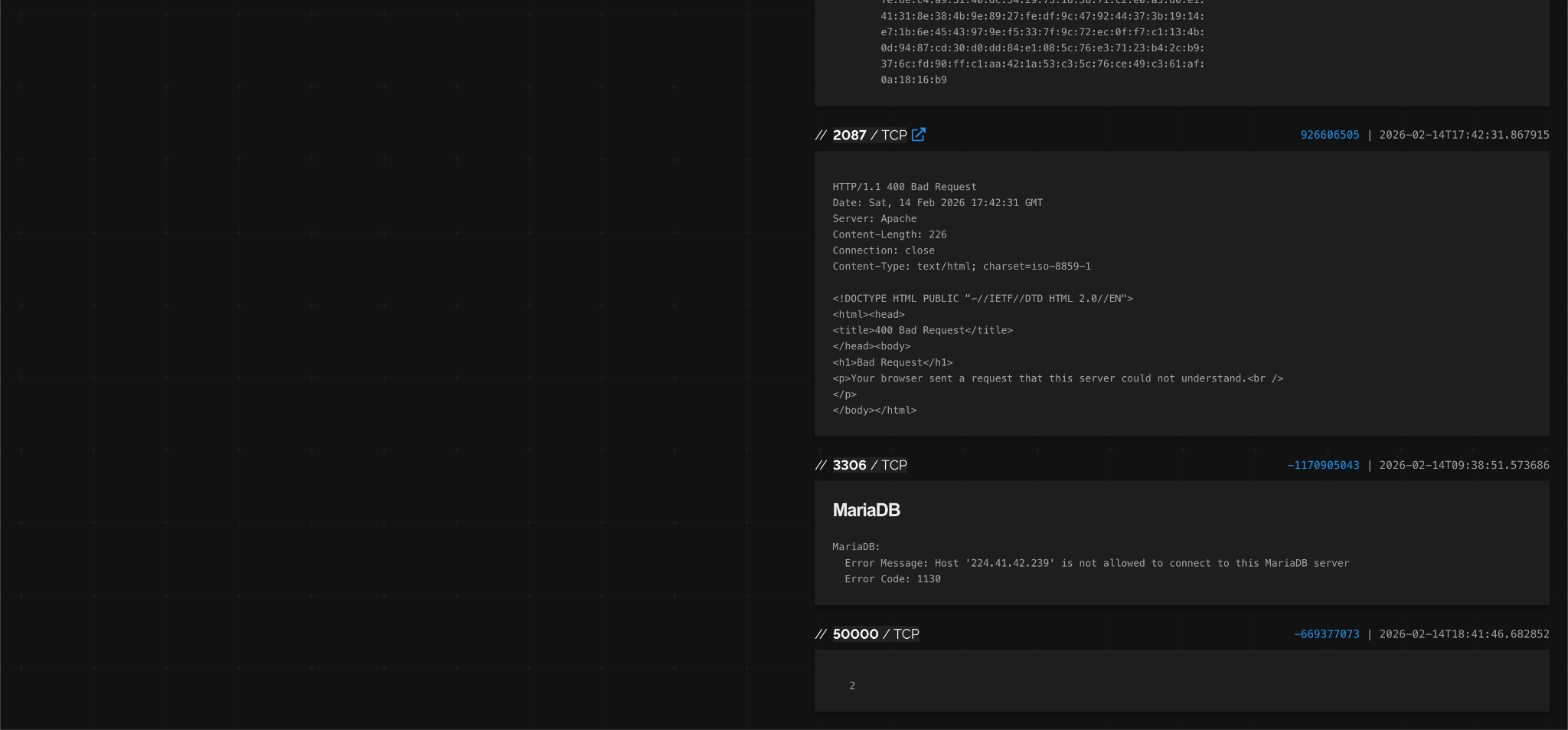
Or, to find webcams in the United States on a specific port, you might search:
webcamxp port:8080 country:US.
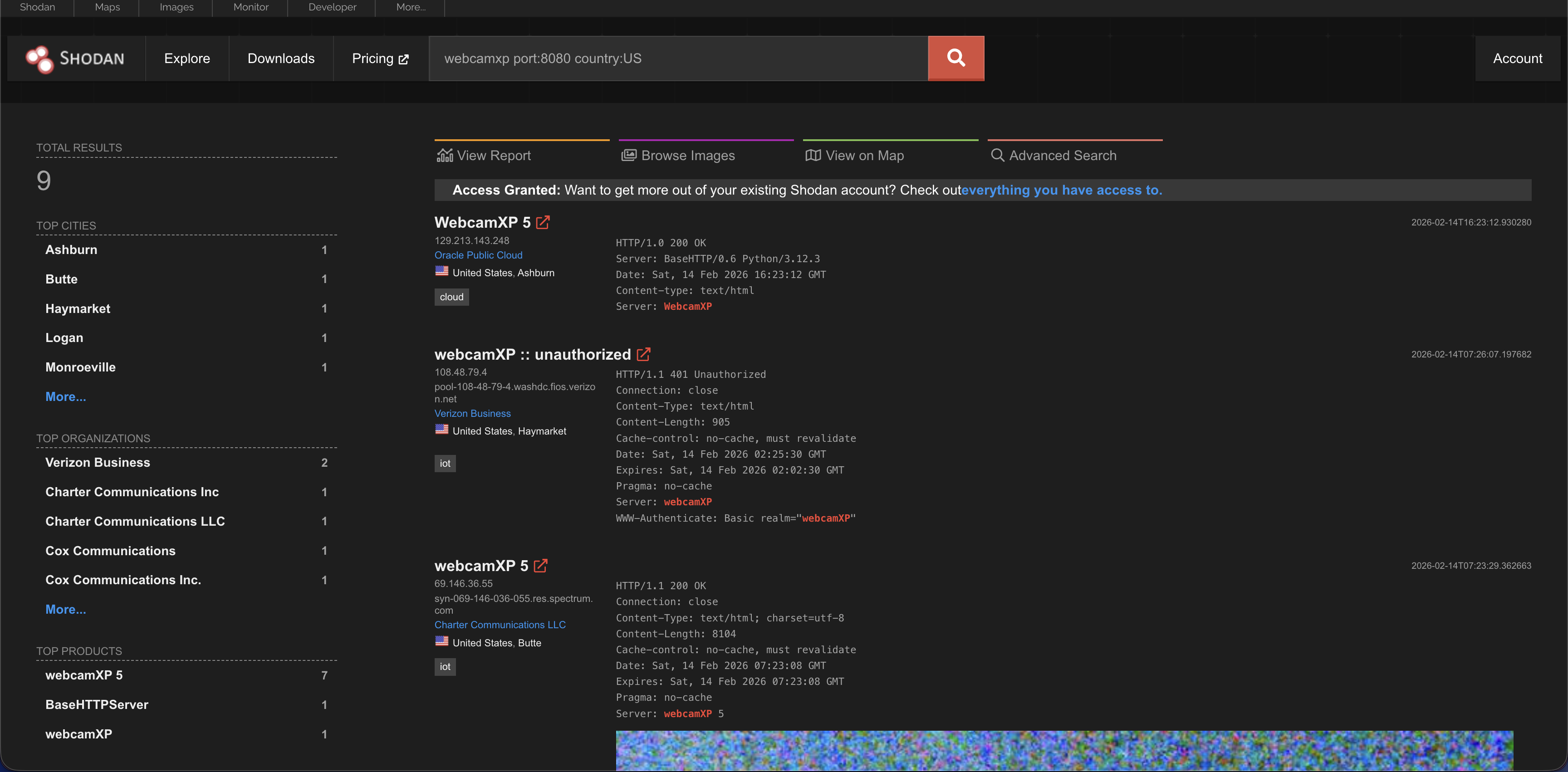
Well someone is having a good sleep in San Diego hehe
Practical Examples and Use Cases
To help you understand how this all comes together, here are some real-world examples of searches you can try (remember to use them ethically).
Example 1: Finding Unprotected Databases
If a database like MongoDB is not set up correctly, anyone can read the data.
Search Query: “MongoDB Server Information” port:27017 -authentication
Example 2: Finding Open SMB Ports
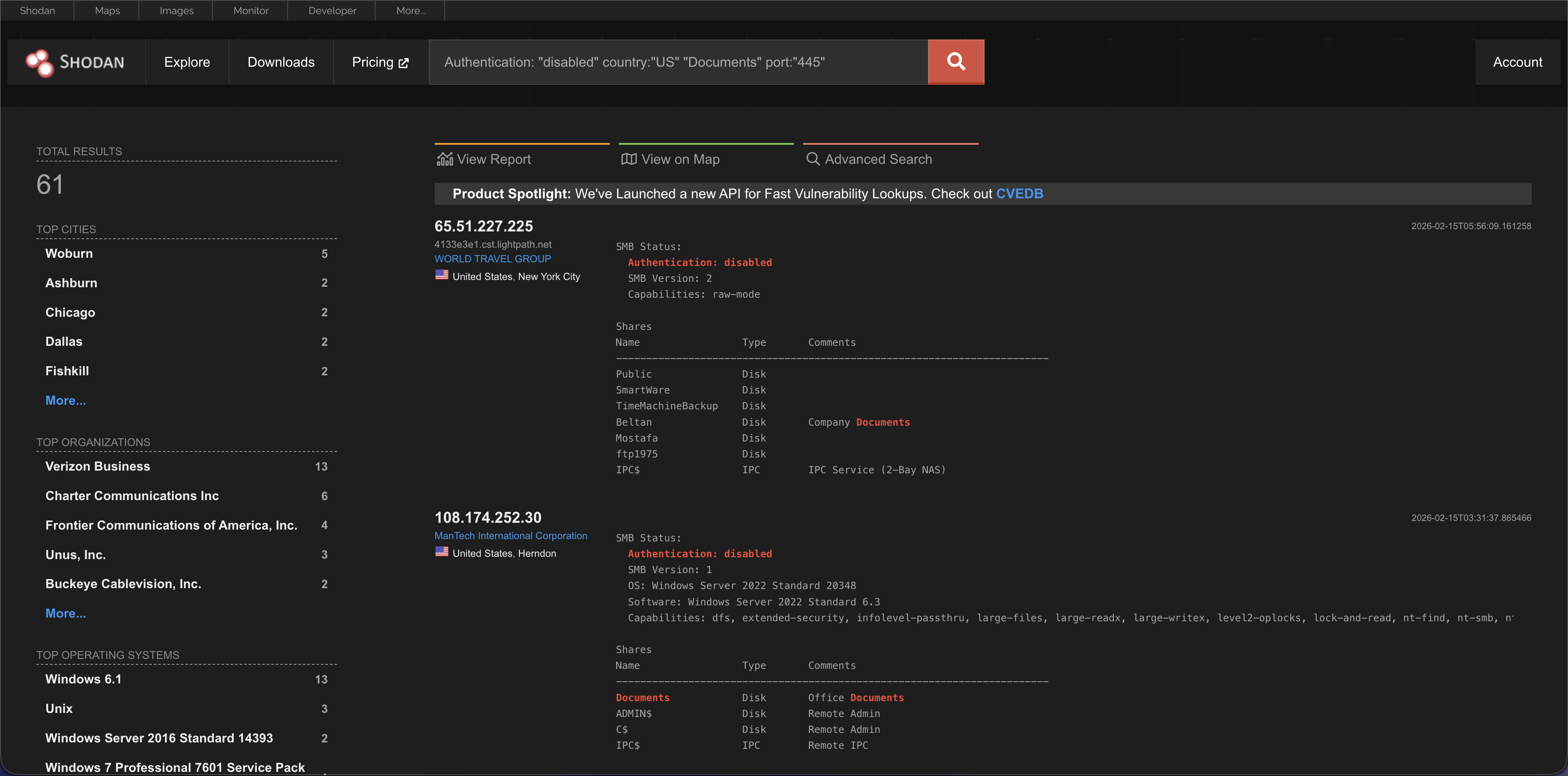
We can refine our Shodan search by combining multiple filters. In this case, the query targets systems with port 445 open (indicating SMB), authentication disabled, located in US, and containing the keyword “Documents.” Using these filters together helps isolate devices that match very specific conditions.
Search Query: Authentication: “disabled” country:”US” “Documents” port:”445″
Example 3: Finding Specific Infrastructure
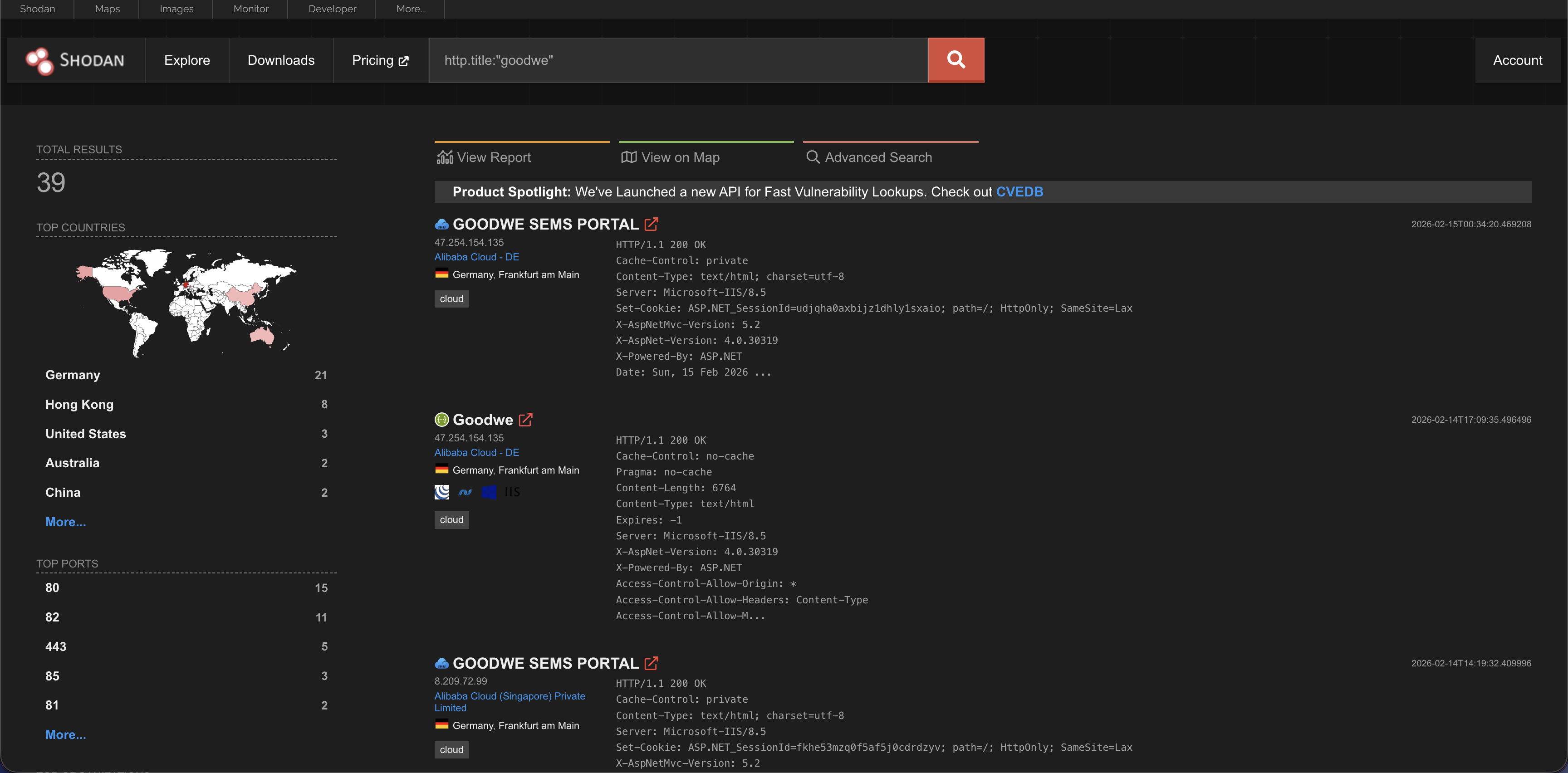
Lets say we want to dig into the goodwe solar systems. The company provides an interface to control the resources in a solar system. We can use a specific query to get the login panels and then proceed further.
Search Query: “http.title:”goodwe”
Example 4: Checking Your Own Exposure
If you want to see what the internet sees of your home network, find your public IP address (by Googling “what is my ip”) and put it into the Shodan search bar. You might be surprised to see which of your devices are actually public.
Example 5: Checking Open RDP Ports
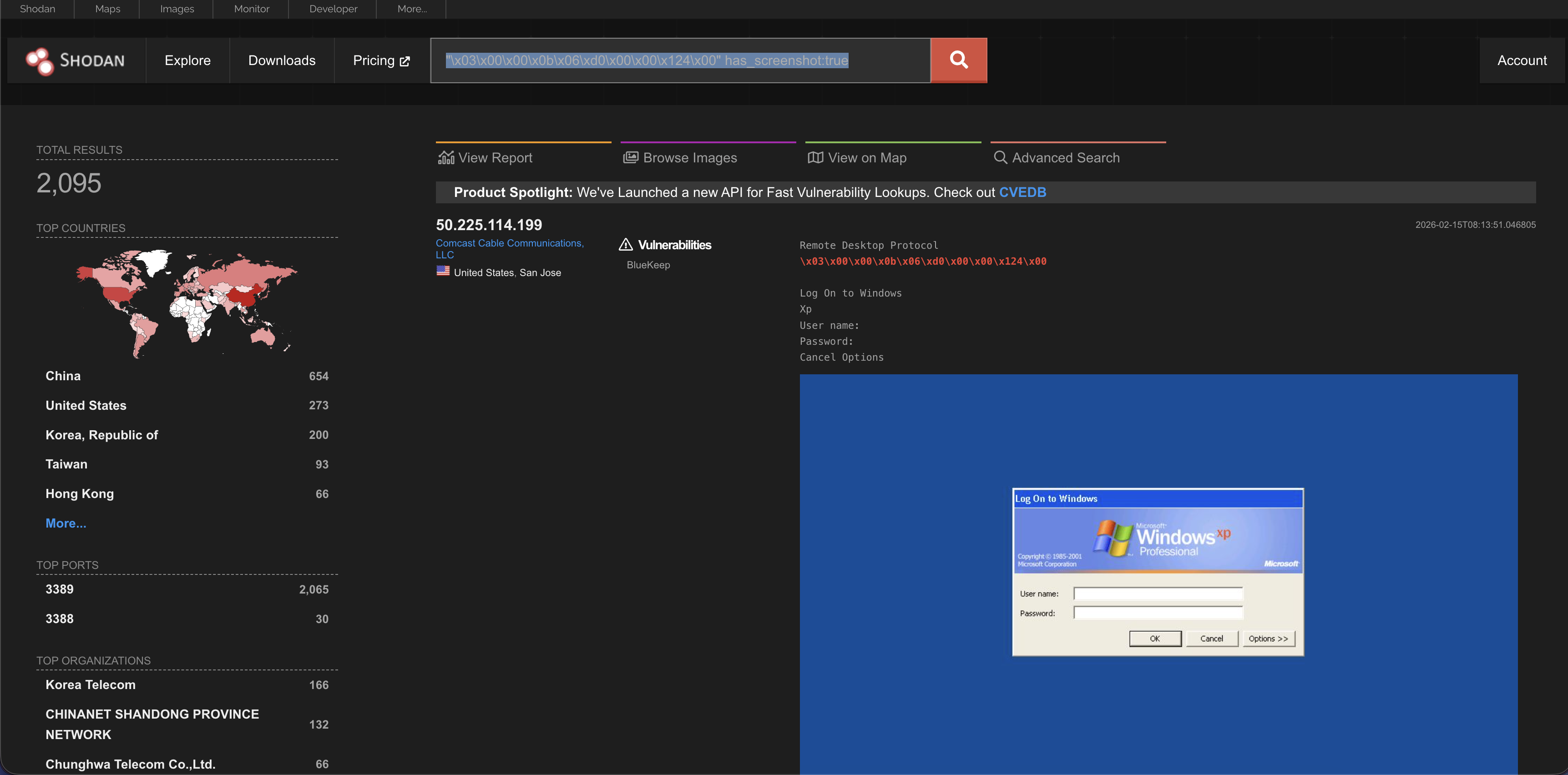
To check whether Windows Remote Desktop (RDP) is exposed, we can build a targeted Shodan query. This approach is useful during client assessments to verify if RDP is enabled and to review any additional details Shodan has collected.
Search Query: “\x03\x00\x00\x0b\x06\xd0\x00\x00\x124\x00” has_screenshot:true
That string is a hex-encoded byte sequence that comes from the initial handshake of the Windows Remote Desktop Protocol (RDP). It represents raw network data sent by an RDP service when a client first connects.
Conclusion and Responsible Use
Shodan is a powerful tool. It is like a flashlight in a dark room – it shows you what is there. With the free version, you can learn a lot about the internet, protect your own network, hack jupyter notebooks with Shodan or advance your cybersecurity career.
However, with great power comes great responsibility. Always use Shodan ethically. If you find a device that is vulnerable, do not try to break into it. If it belongs to a company, you can report it to them through a responsible disclosure program. Unauthorized access is a crime in most countries.
Start with the basics, practice the filters, and soon you will see the internet in a whole new way. Happy (ethical) hunting!!!