
Every second counts during a cybersecurity incident. Knowing your way around the Windows Command Line can be the difference between containing a breach, and watching it escalate to a total system compromise. This practical Windows command line interface (CLI) cheat sheet gathers the most important commands for enumeration, threat hunting, incident response, and forensics – your go-to reference for blue team and red team operations on Windows systems.
Table of Reference
| Command | Syntax | Category | Description |
|---|---|---|---|
| CD | CHDIR | cd [path] |
Directory & File Navigation/Management | Changes the current working directory to the specified path. |
| DIR | dir [path] [options] |
Directory & File Navigation/Management | List files and directories in a specified location, with optional filters and formatting. |
| MOVE | move [source] [dest] |
Directory & File Navigation/Management | Moves one or more files or directories from one location to another. |
| MD | MKDIR | mkdir [directory] |
Directory & File Navigation/Management | Creates one or more new directories at the specified path. |
| TREE | tree [path] [/F] [/A] |
Directory & File Navigation/Management | Graphically displays the directory structure of a path. /F includes files; /A uses ASCII characters. |
| ATTRIB | attrib [+/- attr] [path] [/S] [/D] |
Directory & File Navigation/Management | Views or modifies file attributes such as Hidden (H), System (S), Read-only (R), and Archive (A). |
| COPY | copy [source] [dest] |
Directory & File Navigation/Management | Copies one or more files to another location. |
| DEL | ERASE | del [file] [/F] [/S] [/Q] |
Directory & File Navigation/Management | Deletes one or more files. /F forces deletion; /S includes subdirectories; /Q subprocesses confirmation. |
| REN | RENAME | ren [oldname] [newname] |
Directory & File Navigation/Management | Renames a file or directory. |
| XCOPY | xcopy [src] [dest] [/E] [/H] [/I] |
Directory & File Navigation/Management | Extend copy utility supporting subdirectories, hidden files, and robust error handling. |
| ROBOCOPY | robocopy [src] [dest] [options] |
Directory & File Navigation/Management | Robust file copy tool with resume, mirroring, logging, and fine-grained filtering capabilities. |
| TYPE | type [filename] |
Directory & File Navigation/Management | Displays the contents of a text file directory in the terminal. |
| MORE | more [filename] |
Directory & File Navigation/Management | Paginates output one screen at a time. Used standalone or piped from another command. |
| FIND | FINDSTR | findstr [/S /I /R /N] "pattern" [path] |
Directory & File Navigation/Management | Searches files for a string or regex pattern. FINDSTR supports regex, multi-file, and recursive search. |
| ICACLS | icacls [path] [/grant /deny /T] |
Directory & File Navigation Management | Views and modifies file/folder permissions and Access Control Lists (ACLs) with inheritance flags. |
| TAKEOWN | takeown /F [path] [/R] [/A] |
Directory & File Navigation/Management | Takes ownership of a file or directory. /R recurses subdirectories; /A assigns ownership to Admins group. |
| FSUTIL | fsutil [verb] [subcommand] |
Directory & File Navigation/Management | Performs advanced file system tasks such as querying volume info, USN journals, and file extended attributes. |
| CERTUTIL | certutil -hashfile file.exe SHA256 |
Directory & File Navigation/Management | Compute file hashes (MD5/SHA1/SHA256) for malware identification. |
| FC | COMP | fc [file1] [file 2] [/B /C /N] |
Directory & File Navigation/Management | Compares two files and outputs differences. FC is text-aware; COMP does binary comparison. |
| SYSTEMINFO | systeminfo [/FO TABLE /NH] |
System Information & Enumeration | Displays detailed OS, hardware, hotfix, and domain configuration for local or remote system. |
| HOSTNAME | hostname |
System Information & Enumeration | Outputs the NetBIOS name of the local machine. useful as a quick host identifier. |
| WHOAMI | whoami [/all /priv /groups /user] |
System Information & Enumeration | Displays the current user’s identity, SID, group memberships, and assigned privileges. |
| WMIC | wmic [alias] [get /where / call] |
System Information & Enumeration | WMI command-line interface for querying processes, users, services, hotfixes, and hardware info. |
| VER | ver |
System Information & Enumeration | Outputs the current Windows OS version string. |
| GPRESULT | gpresult [/R] [/H report.html] |
System Information & Enumeration | Displays Resultant Set of Policy (RSoP) – applied GPOs, settings, and OUs for the current user/computer. |
| MSINFO32 | msinfo32 [/nfo file] [/report file] |
System Information & Enumeration | GUI-based system information tool. Can export hardware, OS, and component details to .nfo or text reports. |
| TASKLIST | tasklist [/SVC /M /FI "filter"] |
Process & Service Management | Lists running processes with PID, memory usage, and optionally associated services or loaded DLLs. |
| TASKKILL | taskkill [/PID id] [/IM name] [/F /T] |
Process & Service Management | Terminates a running process by PID or image name. /F forces; /T kills child processes. |
| SC | sc [query /qc /start /stop /sdshow] |
Process & Service Management | Service Control utility for querying, configuring, starting, stopping, and inspecting service security descriptors. |
| SCHTASKS | schtasks [/query /create /delete /run] |
Process & Service Management | Manages scheduled tasks. /query with /fo LIST /v provides verbose details on triggers, run-as user, and history. |
| TASKSCHD | taskschd.msc |
Process & Service Management | GUI Task Scheduler snap-in. Provides a visual interface for browsing, creating, and editing scheduled tasks. |
| DRIVERQUERY | driverquery [/FO TABLE] [/SI] |
Process & Service Management | Lists all installed device drivers. /SI shows driver signing status, revealing unsigned or potentially malicious drivers. |
| QPROCESS | qprocess [*] [/ID:pid] |
Process & Service Management | Displays running processes in a Remote Desktop/Terminal Services session context. |
| QWINSTA | qwinsta [/SERVER:host] |
Process & Service Management | Lists active Remote Desktop (RDP) sessions and their status on the local or remote system. |
| NETSTAT | netstat [-ano] [-b] [-p proto] |
Networking & Connectivity | Shows active TCP/UDP connections, listening ports, associated PIDs, and owning executables. |
| IPCONFIG | ipconfig [/all /release /renew /flushdns] |
Networking & Connectivity | Displays and manages IP configuration. /all reveals MAC, DHCP server, DNS, and lease details per adapter. |
| PING | ping [host] [/n count] [/t] [/l size] |
Networking & Connectivity | Tests ICMP reachability to a host and measures round-trip latency. |
| PATHPING | pathping [host] [/n] [q num] |
Networking & Connectivity | COmbines PING and TRACERT to measure packet loss and latency at each hop over a sustained period. |
| TRACERT | tracert [host] [/d] [/h maxhops] |
Networking & Connectivity | Traces the route packets take to a destination, showing each hop’s latency and address. |
| NETSH | netsh advfirewall show allprofiles |
Networking/Firewall | Advanced network config, firewall rules, saved WiFi credentials. |
| NBSTAT | nbstat [-a host] [-n] [-c] |
Networking & Connection | Displays NetBIOS name tables, active sessions, and name cache. Used for legacy network enumeration. |
| ARP | arp -a [| -d | -s ip mac] |
Networking & Connectivity | Displays and manages the ARP cache, mapping IP addresses to MAC addresses on the local network. |
| NSLOOKUP | nslookup [host] [server] |
Networking & Connectivity | Queries DNS servers to resolve hostnames, IPs, MX records, and more. Supports interactive mode. |
| GETMAC | getmac [/V] [/FO TABLE] [/S host] |
Networking & Connectivity | Retrieves MAC addresses and associated network adapter names for local or remote machines. |
| NET USER | net user [username] [/domain] |
User & Account Management | Creates, modifies, or views local user accounts. Displays login times, group membership, and password policy. |
| NET LOCALGROUP | net localgroup [group] [/add /delete] |
User & Account Management | Lists or manages local group memberships. Useful for enumerating privileged group members like Administrators. |
| NET SESSION | NET FILE | net session | net file |
User & Account Management | NET SESSION lists active inbound connections; NET FILE shows remotely opened files. Key for IR investigations. |
| NET SHARE | net share [name] [/delete] |
User & Account Management | Displays or manages shared network resources, including default admin shares (C$, IPC$, ADMIN$). |
| RUNAS | runas /user: [domain\user] [cmd] |
User & Account Management | Executes a program under a different user account – useful for privilege escalation testing and lateral movement. |
| SFC | SCANNOW | sfc /scannow [/verifyonly] |
Security & Integrity Tools | System File Checker scans and repairs corrupted or missing protected Windows system files. |
| DISM | dism /Online [/Check-Health /Get-Packages] |
Security & Integrity Tools | Services Windows images and component store. Can repair OS, list installed packages, and check image health.. |
| AUDITPOL | auditpol /get /category:* |
Security & Integrity Tools | Displays or sets the audit policy for success/failure across all security audit categories. |
| WEVTUTIL | wevtutil qe Security /f:text |
Logging | Query/Export Windows Event Logs. |
| EVENTVWR | eventvwr.msc |
Security & Integrity Tools | GUI Event Viewer snap-in for browsing Security, System, and Application logs with filtering and export. |
| GPEDIT.MSC | SECPOL.MSC | gpedit.msc | secpol.msc |
Security & Integrity Tools | Group Policy and Local Security Policy GUI editors. Used to review and enforce security settings and restrictions. |
| MPCMDRUN | MpCmdRun.exe [-Scan -ScanType N] |
Security & Integrity Tools | Windows Defender command-line tool for triggering scans, updating signatures, and collecting diagnostic data. |
| REG | reg query HKLM\Software\Microsoft\Windows\CurrentVersion\Run |
Registry/Persistence | Query or modify the Windows Registry (hunt for autostart persistence). |
| BITSADMIN | bitsadmin /list /allusers /verbose |
Security & Integrity Tools | Manages Background Intelligent Transfer Service jobs. Often abused for LOLBin file download and persistence. |
| CIPHER | cipher [/E /D /W /S] [path] |
Disk Encryption Management | Manages EFS encryption on files and folders. /W securely wipes free space by overwriting it. |
| CHKDSK | chkdsk [vol] [/F] [/R] [/scan] |
Disk Encryption Management | Checks a disk volume for errors, bad sectors, and file system integrity. /F fixes errors; /R locates bad sectors. |
| DISKPART | diskpart (interactive shell) |
Disk Encryption Management | Interactive disk partitioning tool. Supports listing, selecting, creating, formatting, and managing volumes. |
| FORMAT | format [vol] [/FS:type] [/Q] |
Disk Encryption Management | Formats a disk volume with a specific file system (NTFS, FAT32, exFAT). /Q performs a quick format. |
| BITLOCKER | manage-bde -status [drive] |
Disk Encryption Management | Manages BitLocker Drive Encryption via manage-bde. Supports enabling, disabling, and checking encryption status. |
| ECHO | echo [message] [on/off] |
Other Important Commands | Output text to the terminal or toggles command echoing in scripts. Comonly used in batch scripting. |
| SORT | sort [/R] [/+n] [file] |
Other Important Commands | Sorts lines of text input alphabetically or in reverse. Can sort by a specific character column. |
| ASSOC | assoc [.ext[=[filetype]]] |
Other Important Commands | Displays or modifies file extension associations. useful for detecting hijacked extensions used for persistence. |
| OPENFILES | openfiles /query |
File Management | List files opened remotely or locally |
| POWERCFG | powercfg /batteryreport |
System | Power and energy settings. |
Directory & File Navigation/Management
The foundation of any Windows command line workflow, these commands enable file system traversal, file management, permission inspection, and uncovering hidden or protected content – essential abilities for both initial reconnaissance and post-compromise investigation.
CD | CHDIR
Changes the current working directory. Useful during investigations to navigate to suspicious folders (e.g., %TEMP%, AppData, System32).
Syntax: cd [path] or cd ..
Example: cd C:\Users\Administrator\AppData\Roaming
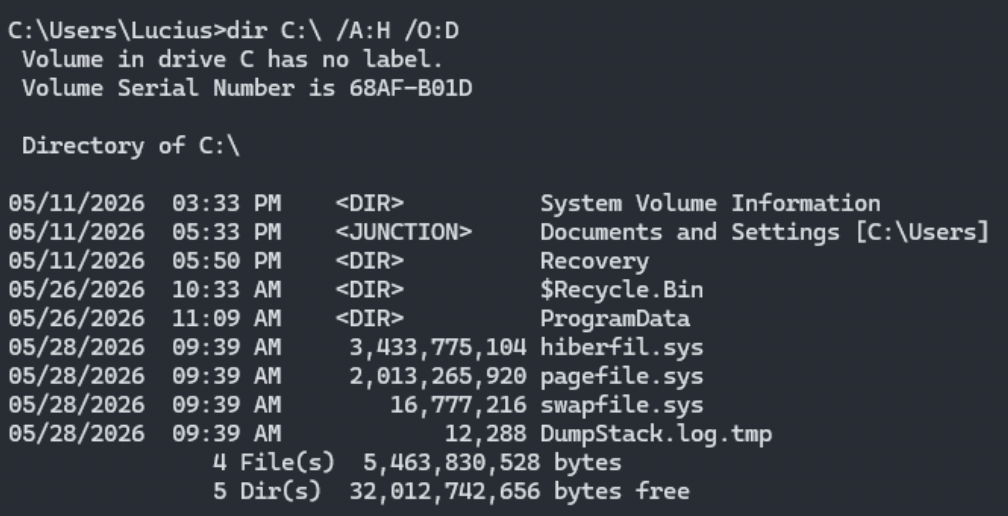
DIR
Lists files and directories. Critical for spotting hidden malware, recently modified files, or unusual executables.
Syntax: dir [path] [options]
Example: dir C:\/A:H /O:D
 Flags:
/A:H– hidden/system/A:D– directories only/O:S– sort by size/O:D– sort by date/B– bare format/S– recursive/T:C– creation time
MOVE
Moves files or directories from one location to another. Useful during incident response to quarantine suspicious files or reorganize evidence
Syntax: move [source] [destination]
Example: move suspicious.exe C:\Quarentine\
MD | MKDIR
Creates new directories
Syntax: md [directoryname] or mkdir [directoryname]
Example: md C:\IR_Evidence\Case_12345
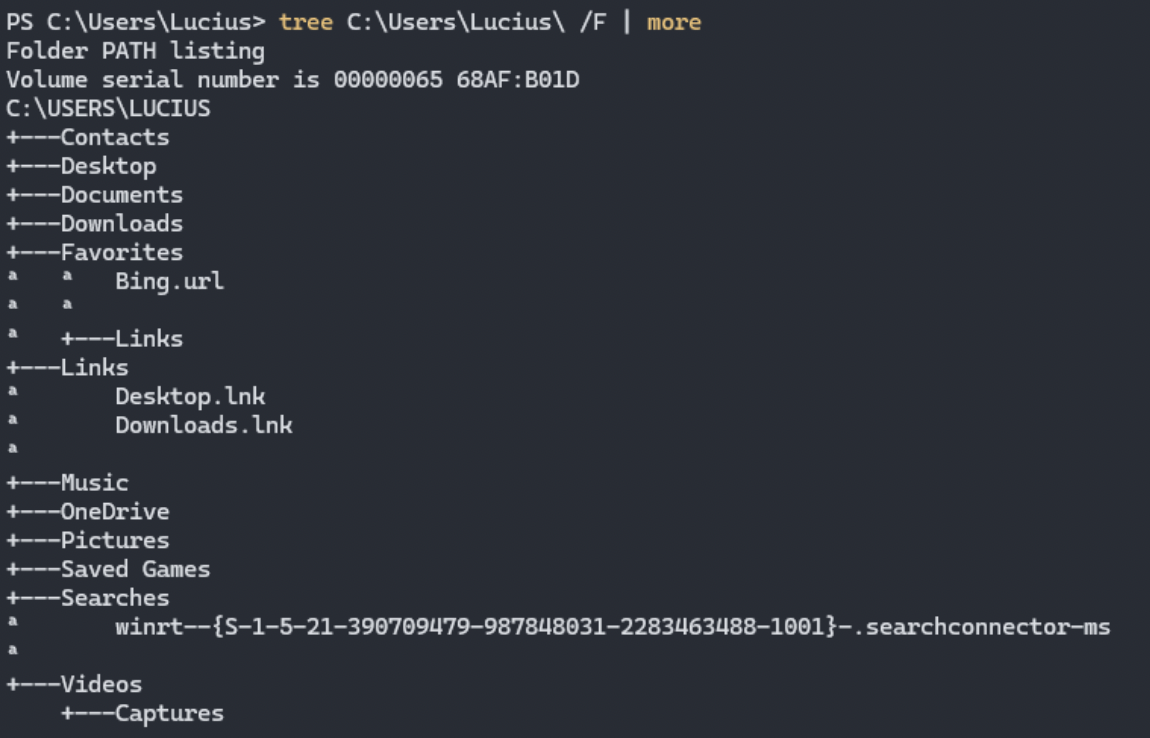
TREE
Displays directory structure recursively. Helps visualize suspicious folder hierarchies created by malware droppers.
Syntax: tree [drive:] [path] [options]
Example: tree C:\Users\ /F
 Flags:
/F– displays files in each folder/A– ASCII characters
ATTRIB
Views or changes file attributes. Malware often hides files using +H +S
Syntax: attrib [+/- attributes] [filename]
Example: attrib +H +S suspicious.exe
 Flags:
+H– hidden+S– system+R– read only-H– remove hidden
COPY
Copies files from one location to another.
Syntax: copy [source] [destination]
Example: copy malware_sample.exe C:\Analysis\
Flags:
/V– verified copy/Y– suppress overwrite prompt
DEL | ERASE
Deletes files. Use to remove malicious files after containment.
Syntax: del [filename] or erase [filename]
Example: del suspicious.exe /F /Q
Flags:
/F– force delete read-only/Q– quiet mode/S– delete from subdirectories/A– by attributes
REN | RENAME
Rename files or directories.
Syntax: ren [currentname] [newname]
Example: ren evil.exe evil.exe.disabled
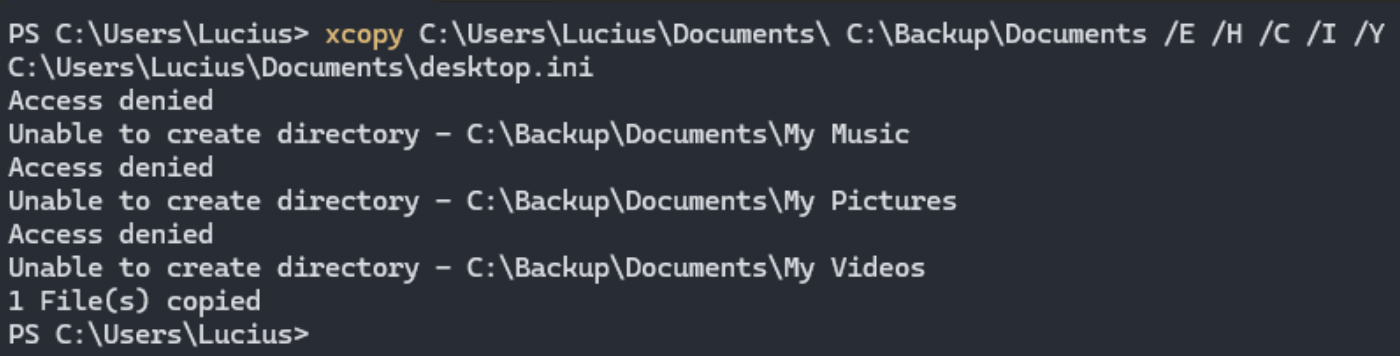
XCOPY
Copies files and directories recursively, including attributes and permissions. Excellent for collecting large amounts of forensic evidence or artifacts.
Syntax: xcopy [source] [destination] [options]
Example: xcopy C:\Users\*\AppData\Roaming C:\Evidence\ /S /I
Flags
/S– subdirectories, non-empty/E– empty directories too/Hhidden/system files/C– continue on errors/Y– suppress prompts/D– copy only changed files
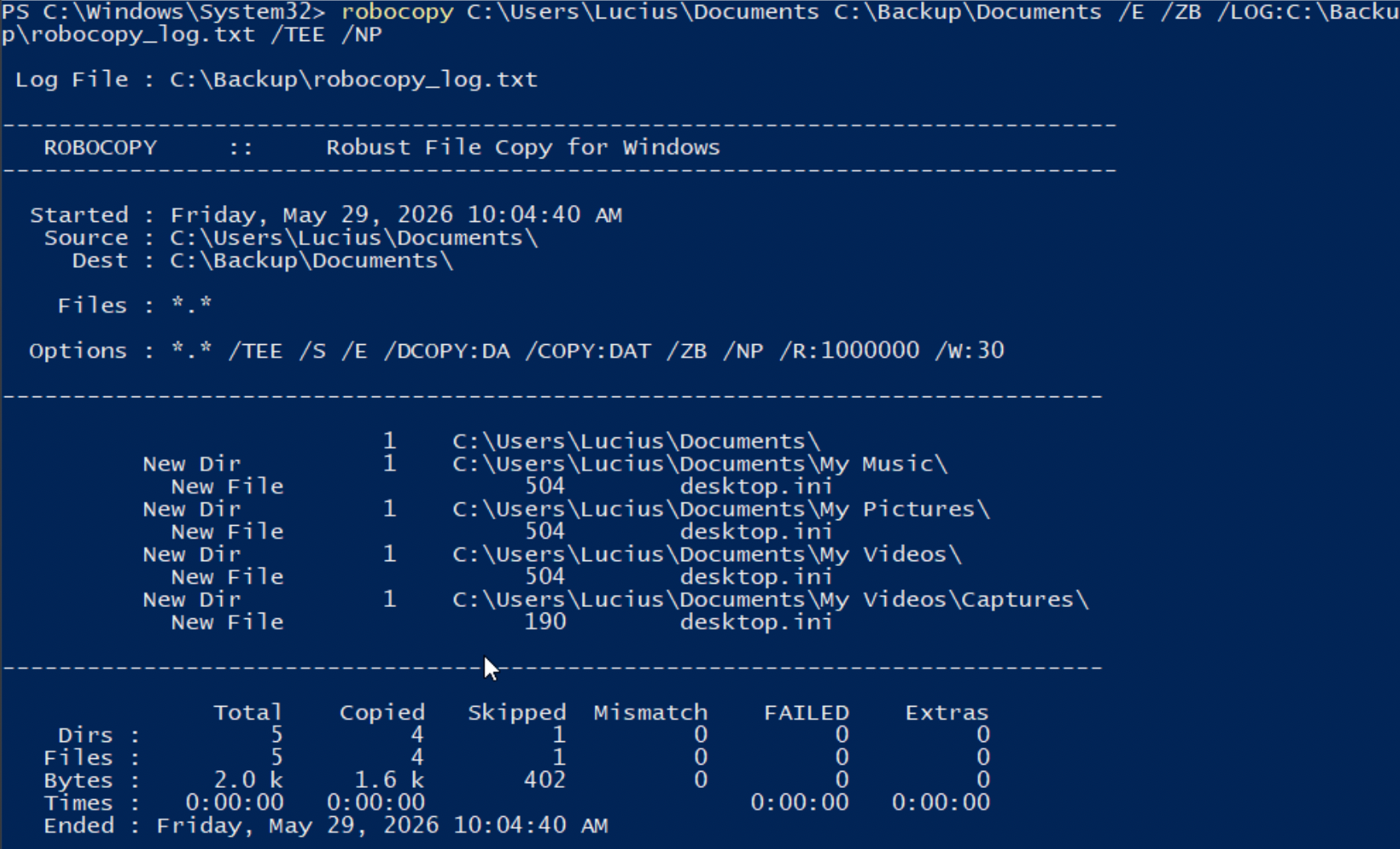
ROBOCOPY
Robust file copy utility (superior to xcopy). Ideal for large-scale evidence collection, mirroring directories, or backing up logs with retries and logging.
Syntax: robocopy [source] [destination] [options]
Example: robocopy C:\Users\ C:\Evidence\Users /E /COPYALL /R:3
 Flags:
/E– copy subdirectories including empty/COPYALL– copy all file info: data, attributes, timestamps, ACLs, owner/R:n– retires on failure/LOG:file– output log/MT– multi-threaded/MIR– mirror (dangerous, deletes destination differences)
TYPE
Displays text file contents. Quick way to read configs, logs, or scripts dropped by attackers.
Syntax: type [filename]
Example: type C:\config.txt
MORE
Paginates long output. Essential when reviewing large log files or command results during triage.
Syntax: command | more or more [filename]
Example: type large.log | more
FIND | FINDSTR
Searches for strings in files (regex support). Hunt for indicators of compromise (IOCs) like IP addresses, domains, or keywords in log/config files.
Syntax: findstr [options] “searchstring” [files]
Example:findstr /C:"password" *.logFlags:
/C:– literal string/R– regular expression/S– subdirectories/I– Case insensitive/N– line numbers
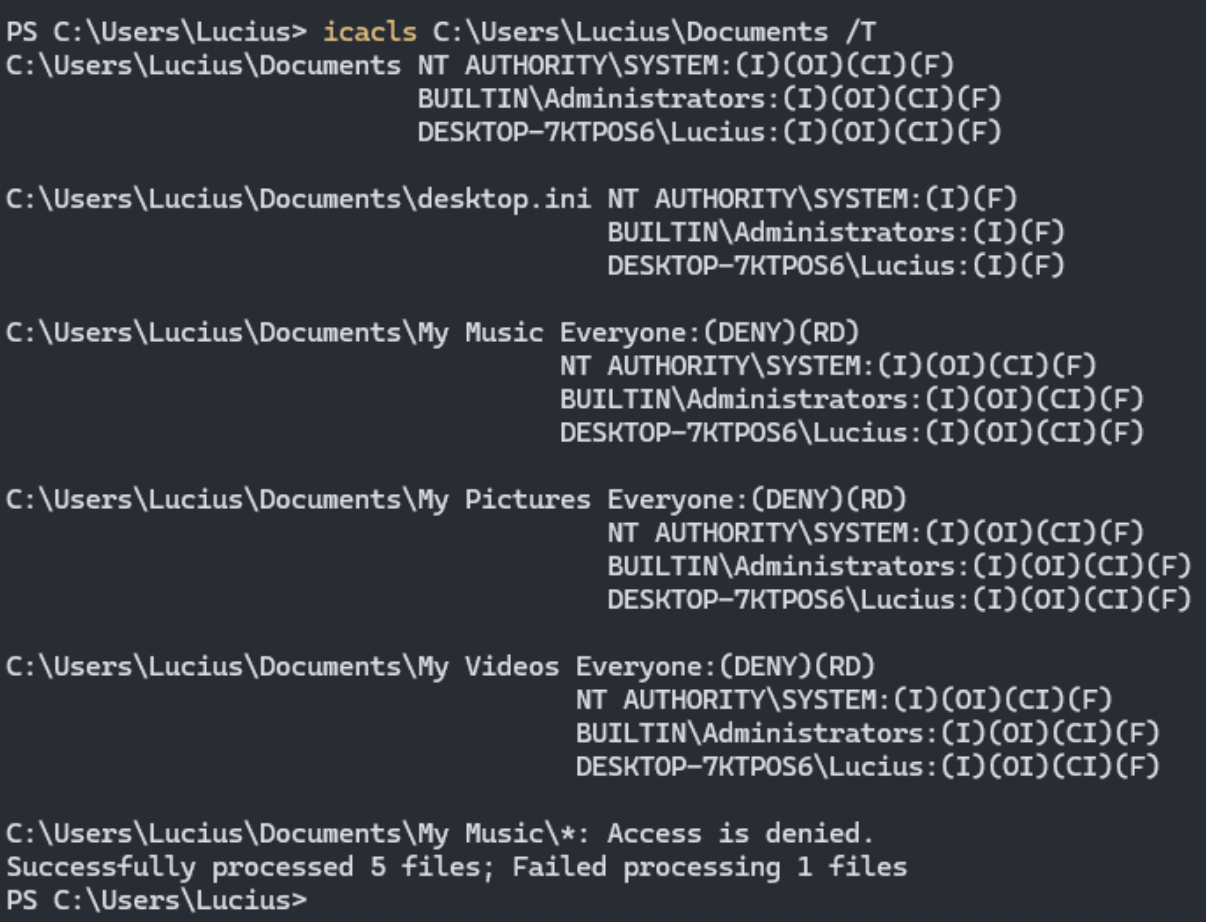
ICACLS
Views or modifies file/folder permissions. Check for overly permissive ACLs that attackers exploit.
Syntax: icacls [file/folders] [options]
Example: icacls C:\Windows\System32
Flags:
/grant/deny/inheritance:r/T– recursive

/C– continue on errors
TAKEDOWN
Takes ownership of files/folders locked by malware during incident response.
Syntax: takedown /F [file/folder]
Example: takedown /F suspicious.exe /A
Flags:
/F– file/A– assign to administrators group/R– recursively/D Y– default yes
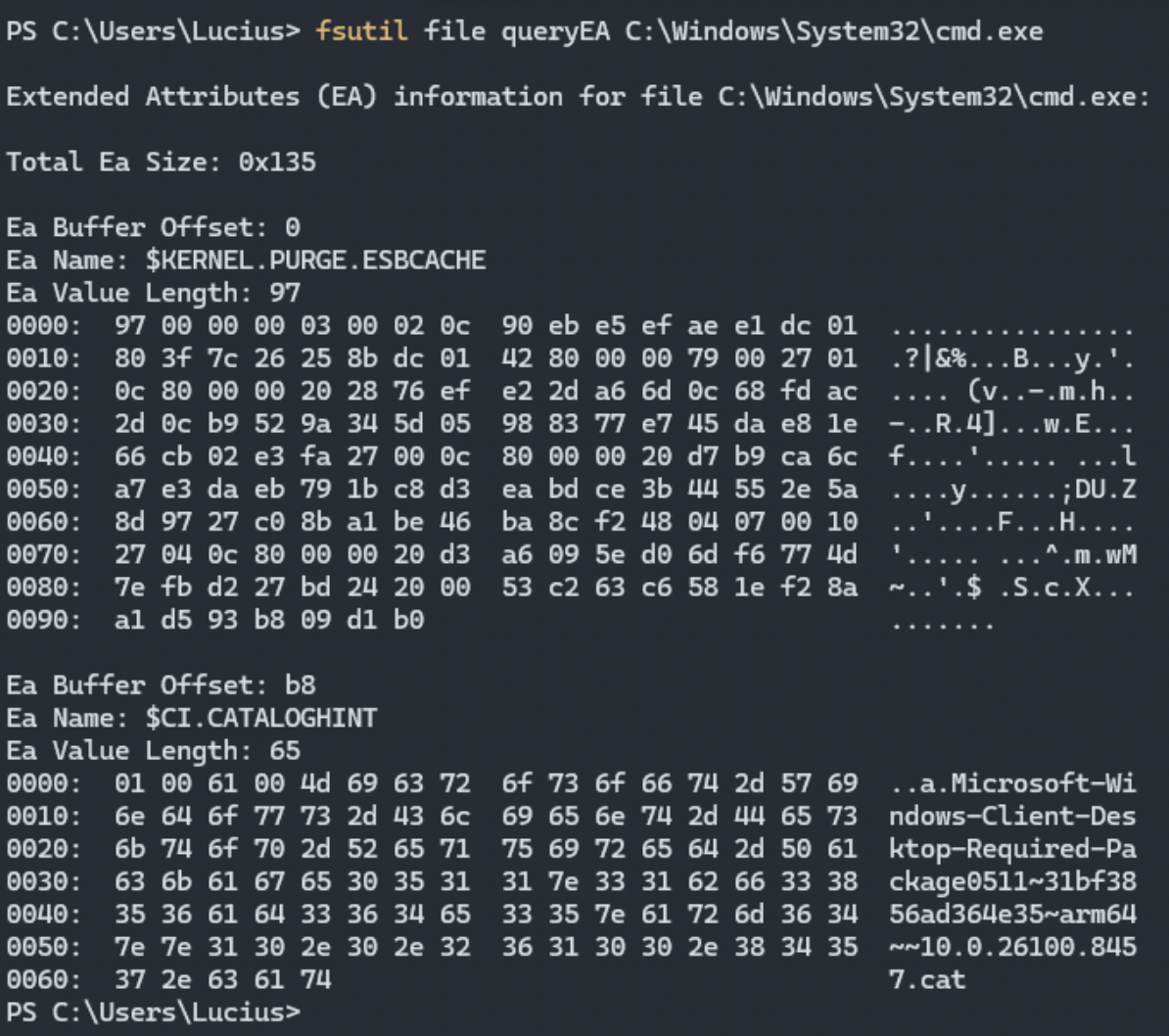
FSUTIL
Advanced file system utility. Useful in forensics for checking file details, managing USN Journal (change tracking), or analyzing file metadata.
Syntax: fsutil [subcommand] [arguments]
Example: fsutil usn readjournal C: wait
Flags:
fsutil file queryfileid

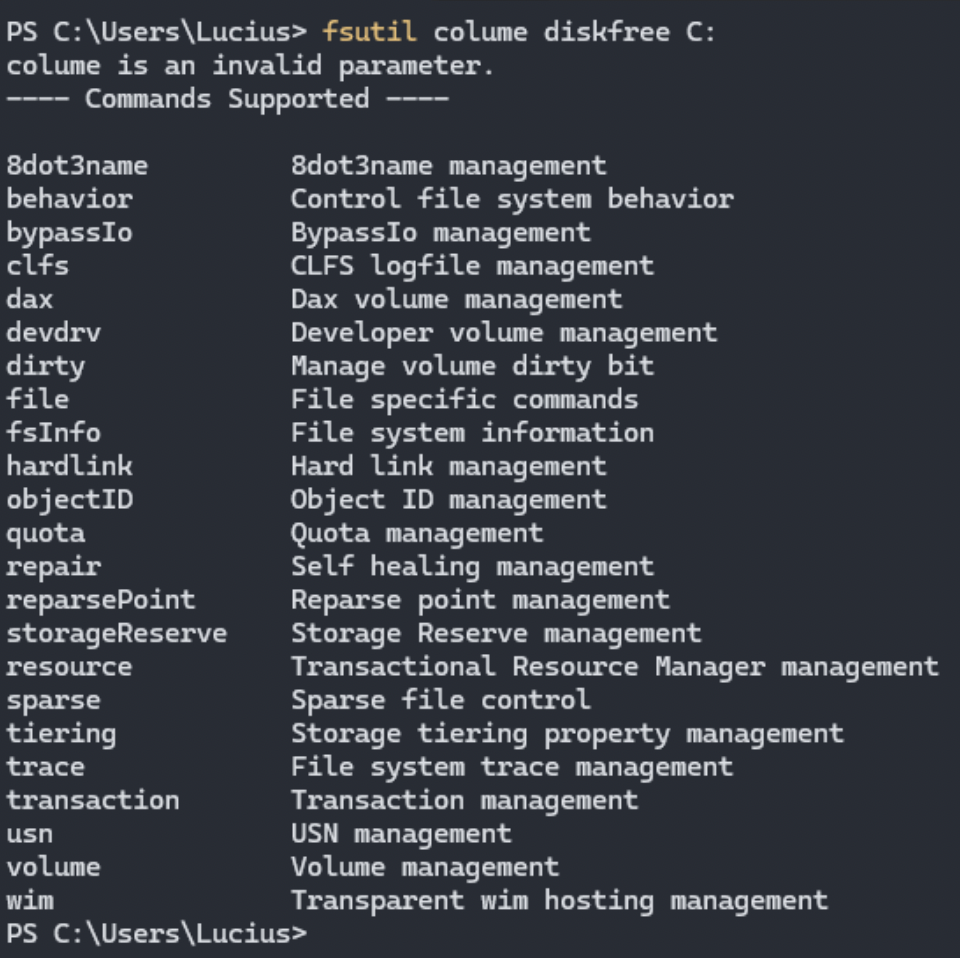
fsutil usn– USN journal, great for detecting file changes/tamperingfsutil volume diskfree

fsutil behavior query– file system behavior settings
CERUTIL
Computes file hashes and performs certificate tasks. Verify malware hashes or decode base64.
Syntax: certutil -hashfile [file] [algorithm]
Example: certutil -hashfile malware.exe SHA256
 Flags:
-hashfile-decode-encode-URLCACHE -F
FC | COMP
Compares two files or sets of files. Useful for identifying modified system files (e.g., comparing against known good copies) or detecting trojanized binaries.
Syntax: fc [file1] [file2] or comp [file1] [file2]
Example: fc original.exe infected.exe or comp svchost.exe C:\Windows\System32\svchost.exe
Flags:
/B– binary comparison/C– case insensitive/N– show line numbers/L– ASCII text comparison/U– unicode comparison
Disk & Encryption Management
Understanding what’s on a disk and how it’s protected is critical to both offensive and defensive engagements. These Windows command line tools let you inspect volume health, manage encryption, carve out partitions, and securely wipe sensitive data without leaving traces.
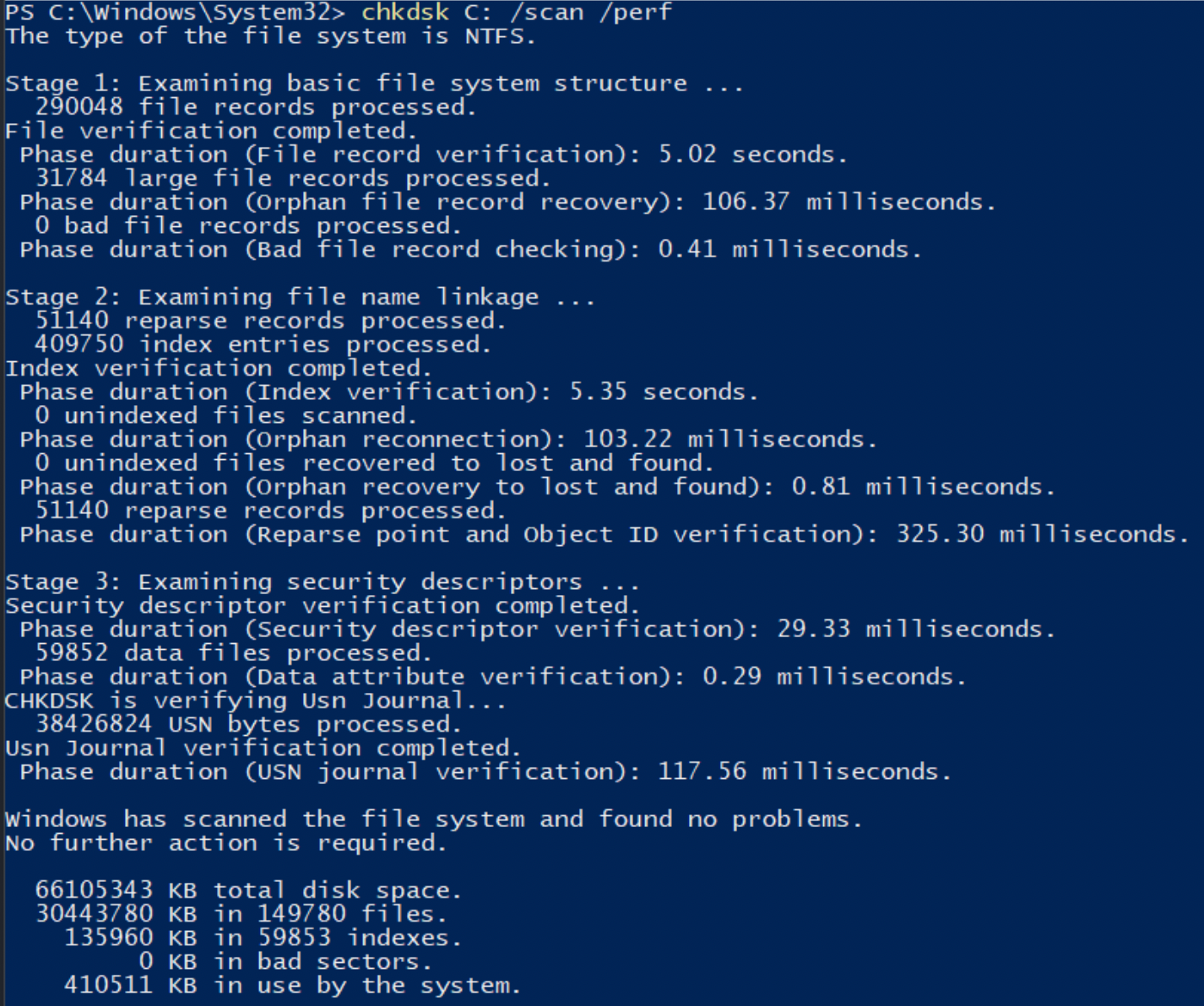
CHKDSK
Checks a disk for file system errors, bad sectors, and repairs them. In IR/forensics, it helps assess drive integrity, recover corrupted data after an attack, or verify storage before imaging. Note:Requires admin rights, often needs a reboot for system drive.
Syntax: chkdsk [volume] [options]
Example: chkdsk C: /F /R /X
Flags:
/F– fixes errors on disk/R– locates bad sectors and recovers readable data (implies /F)/X– forces dismount first (implies /F)/V– verbose output (shows files)./B– Re-evaluates bad clusters (NTFS only)/SCAN– scans for errors without fixing (online)

CIPHER
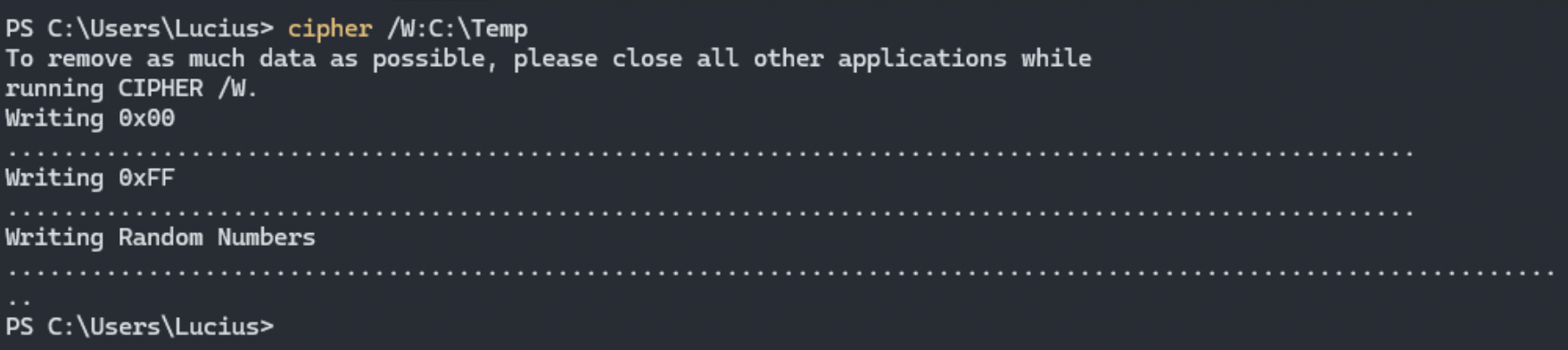
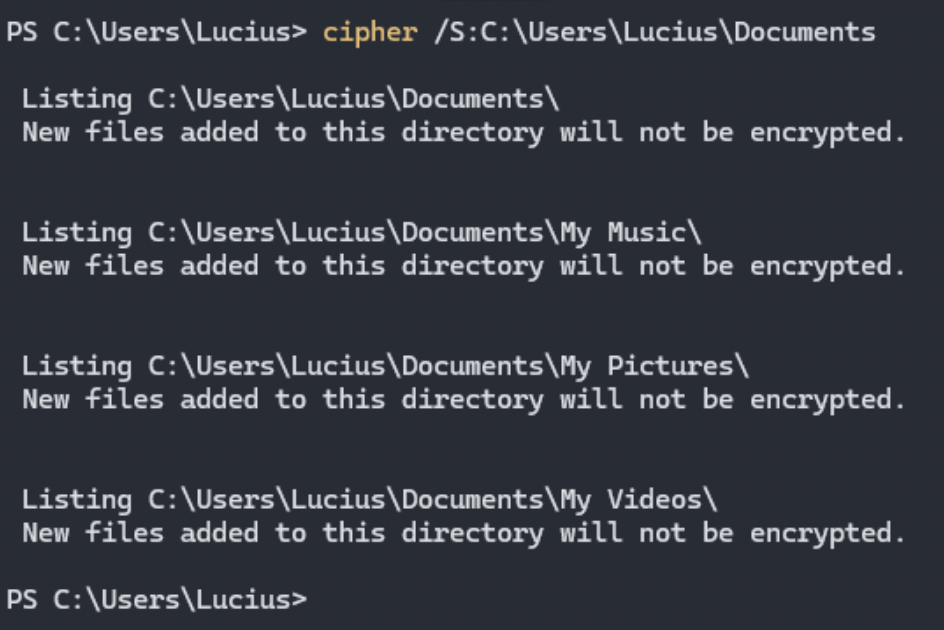
Manages EFS (Encryption File System) encryption and securely wipes free space. In forensics/IR, the /W switch overwrites deleted file remnants (anti-forensics counter or secure deletion tool).
Syntax: cipher [options] [pathname]
Example: cipher /W:C:\
Flags:
/E– Encrypt a folder/file/D– Decrypt a folder/file/W:directory– wipe free space (overwrites with 0x00, 0xFF, then random data – very useful for secure deletion).Note: /W is a key anti-forensics awareness command – attackers (or defenders) use it to destroy remnants.

/S:directory– Act on subdirectories/C– display encryption status

DISKPART
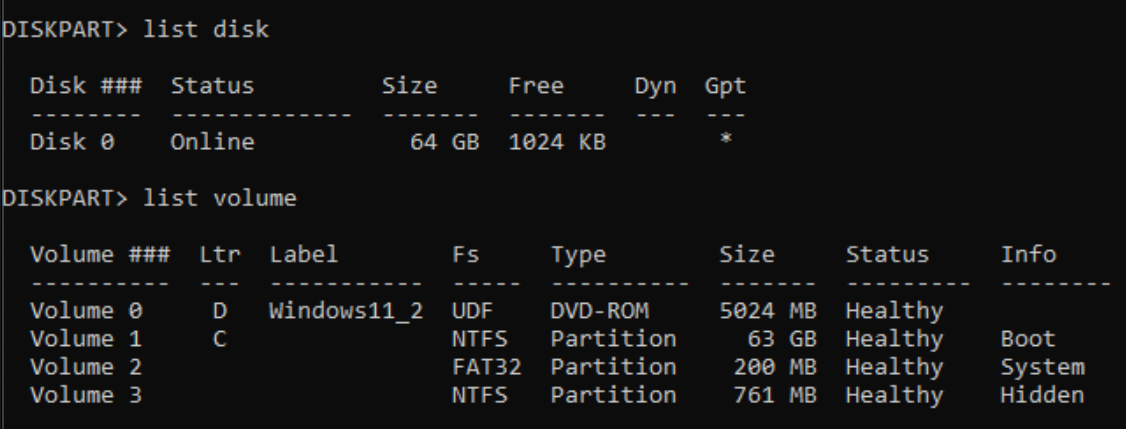
Interactive command-line disk partitioning tool. In forensics/IR, used to list disks/volumes, assign drive letters to hidden partitions, or prepare evidence drives. Use extreme caution – can destroy data. Note: Requires admin rights. Excellent for examining offline drives or hidden partitions during forensics.
Syntax: diskpart
Example: diskpart > list disk > list volume > select disk 1 > detail disk
 Flags/Commands
list disk|list volume|list partitionselect disk n|select volume ndetail disk|detail volumeassign letter=x– Assign drive letterclean– wipe partition table (dangerous)create partition|format(inside diskpart)
FORMAT
Formats a volume, erasing all data. In security work, used to prepare evidence collection drives or wipe compromised removable media. Not secure by default – data can often be recovered unless using special options or multiple passes. Note: for secure wiping, combine with cipher /W afterward or use specialized tooling
Syntax: format [drive:] [options]
Example: format E: /FS:NTFS /Q
Flags:
/FS:NTFSor/FS:exFAT– file system type/Q– quick format (does not zero out data)/P:count– (Windows 10+) Perform count zeroing passes for secure erase/V:label– Volume label/X– Force dismount first
BITLOCKER
Manages BitLocker full-disk encryption. Critical in forensics/IR to check encryption status, unlock drives for analysis, back up recovery keyes, or manage protectors on compromised systems. Note: Run as Administrator. Extremely important when acquiring encrypted drives for forensic imaging.
Syntax: manage-bde [options] [drive:e]
Example: manage-bde -status C:
Flags:
-status– Show encryption status of all drives-on C:– Enable BitLocker (with protectors)-off C:– Decrypt drive-unlock E:-RecoveryPassword – Unlock a drive-protectors -get C:– View recovery keys/passwords-wipefreespace– Wipes free space on encrypted drive-pause|-resume– Pause/resume encryption
System Information & Enumeration
Before you can act, you need to understand the environment. These Windows command line tools reveal OS version, patch level, applied group policies, hardware details, and current user privilege – providing situational awareness needed to plan the next move.
SYSTEMINFO
Displays detailed system information (OS version, patches, hardware.) Use to compare information against known vulnerable baselines.
Syntax: systeminfo
Example: systeminfo | findstr /B /C:"OS Name" /C:"OS Version" /C:"Hotfix(s)"

HOSTNAME
Quickly shows the computer name. Useful in logs or multi-machine incident response.
Syntax: hostname
Example: hostname
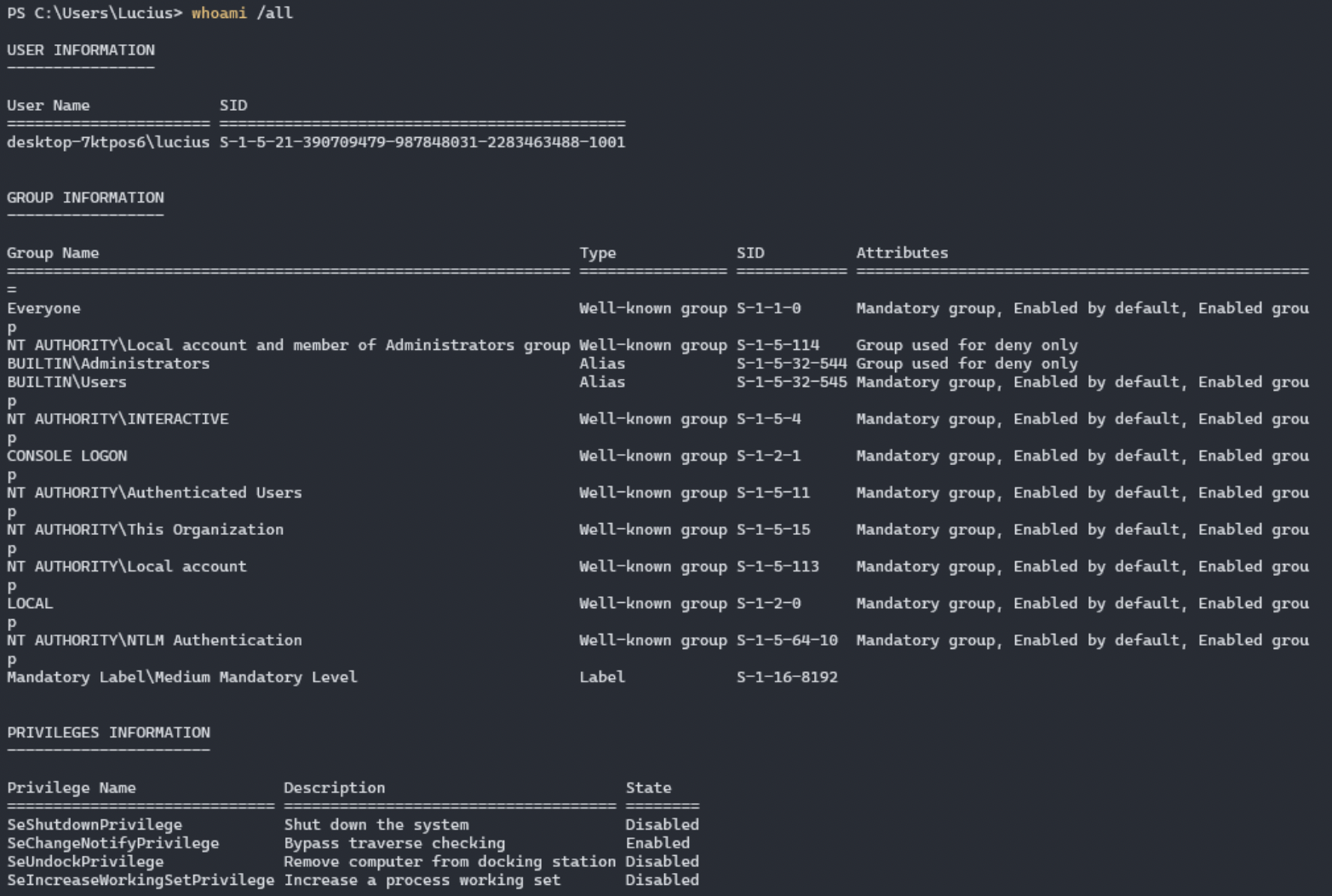
WHOAMI
Shows current user context and privileges. Critical for privilege escalation checks.
Syntax: whoami [options]
Example: whoami /all
Flags:
/ALL - groups, privileges, SID/PRIV - privileges only/GROUPS - groups only
WMIC
Powerful WMI queries for processes, users, software, etc. Excellent for detailed enumeration.
Syntax: wmic [alias] [verb] [options]
Example: wmic process list full
Flags:
processuseraccountproduct get nameversionqfe– hotfixesstartup
VER
Displays the current Windows version and build number. Quick first step in any investigation to determine OS version, which helps identify applicable vulnerabilities, exploits or missing patches.
Syntax: ver
Example: ver
GPRESULT
Displays Group Policy settings applied to the computer and/or current user. Critical for auditing security configuration, checking applied security baselines, password policies, and identifying misconfigurations that attackers could exploit. Note:Requires admin rights for full computer policy details. Great for compliance and hardening checks.
Syntax: gpresult [options]
Example: gpresult /H report.html /F
Flags:
/H report.html– Generate detailed HTML report (most useful for analysts)/R– Summary report in console

/SCOPE COMPUTERor/SCOPE USER– limit scope/Z– Super verbose output/F– Force overwrite of existing report file

MSINFO32
Launches the System Information GUI tool with detailed hardware, software, drivers, and environment information. Useful in forensics and IR to get a comprehensive system snapshot, including loaded drivers, startup programs, and installed software. Note: While it opens a GUI, the /REPORT switch makes it very useful for command-line evidence gathering.
Syntax: msinfo32 [options]
Example: msinfo32 /report C:\IR_Evidence\systeminfo.txt
Flags:
/REPORT path– Export all information to a text file (excellent for evidence collection)./CATEGORIES +SystemSummary +StartupPrograms +LoadedModules– Filter specific categories/NFO filename.nfo– Save in .NFO format- No parameters – Opens full interactive GUI
Networking & Connectivity
The network is where most attacks live and breathe. Through the Windows command line, you are able to map interface configurations, trace routes, resolve DNS, inspect active connections, enumerate ARP caches, and query firewall rules – covering everything from initial recon to lateral movement detection.
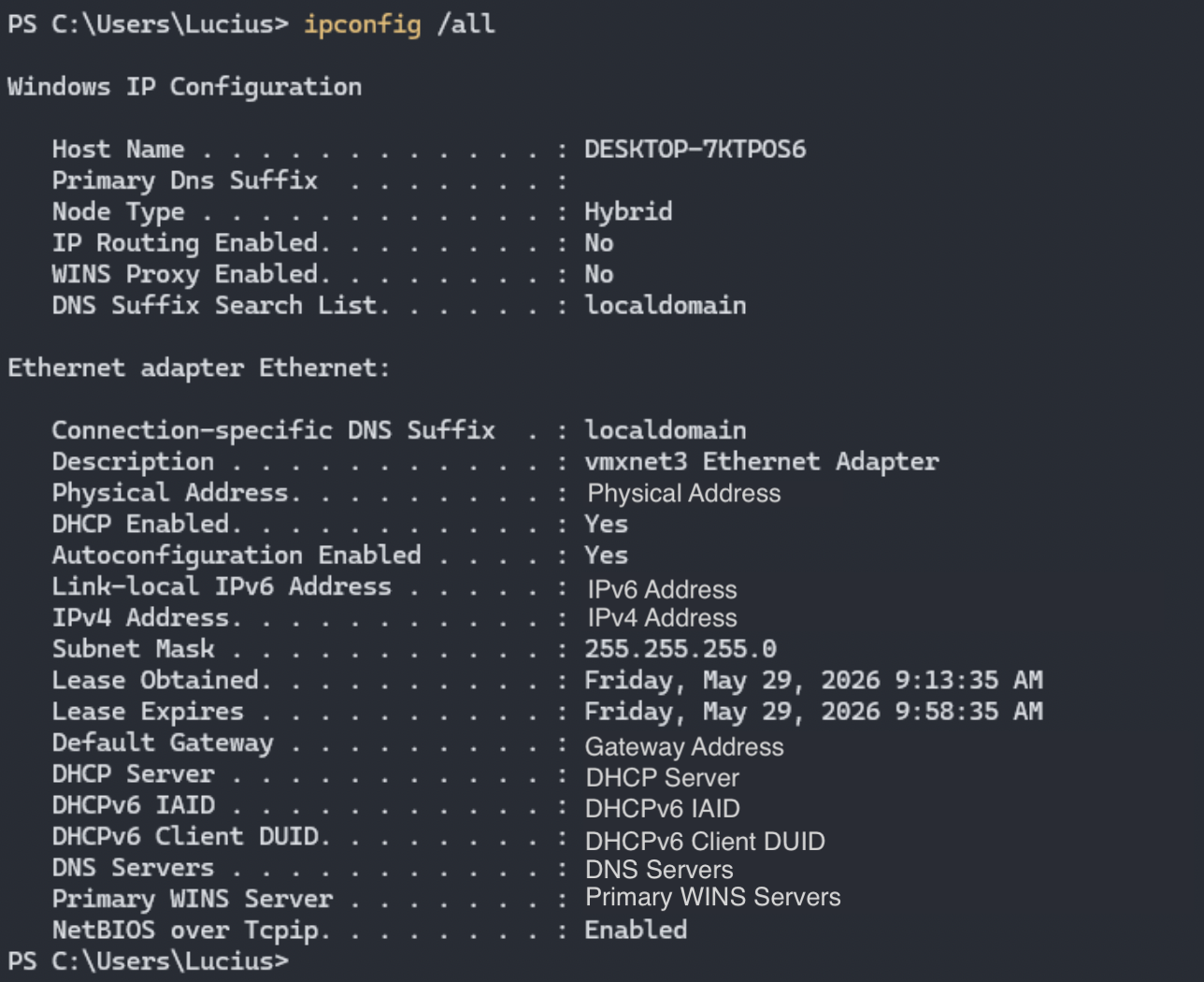
IPCONFIG
Displays current TCP/IP network configuration. Used to identify IP address, DNS servers, adapters, and quickly flush DNS cache during investigations involving DNS poisoning or connectivity issues.
Syntax: ipconfig [options]
Example: ipconfig /all
Flags:
/ALL– Full detailed information (recommended)

/RELEASE&/RENEW– Release/renew DHCP IP/FLUSHDNS– clear DNS resolver cacheDISPLAYDNS– Show current DNS cache/REGISTERDNS– Register DNS records
PING
Tests reachability to a host and measures latency. Useful for checking if a suspected C2 server is alive or testing network segmentation/firewall rules.
Syntax: ping [options] [target]
Example: ping 8.8.8.8 or ping suspicious-domain.com
Flags:
-t– Ping continuously until interrupted (Ctrl+C)-n count– number of echo requests (e.g., -n 4)-l size– Send buffer size (larger packets for fragmentation testing).-a– Resolve IP to hostname-S sourceIP– Specify source interface
TRACERT
Traces the route packets take to a destination. Helps identify network path, unusual hops, or possible traffic redirection during lateral movement or exfiltration investigations.
Syntax: tracert [options] [target]
Example: tracert 8.8.8.8
Flags:
-d– do not resolve addresses to hostnames (faster)-h maximum_hops– Set max hops (default 30)-w timeout– timeout in milliseconds per hop
NSLOOKUP
Queries DNS servers. Critical for investigating suspicious domains, checking DNS records, or identifying fast-flux or malicious infrastructure.
Syntax: nslookup [options] [hostname]
Example: nslookp suspicious-domain.com
Flags:
- Interactive mode:
nslookup>set type=A,set type=MX,set type=TXT,server 8.8.8.8 -q=type– Query specific record type
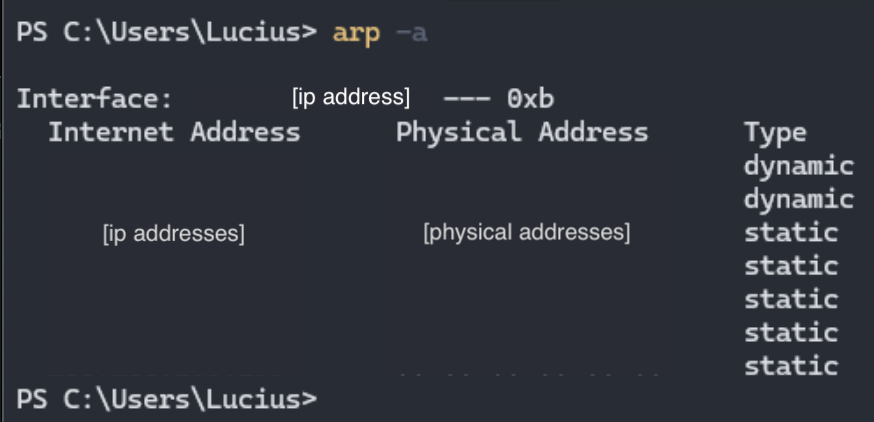
ARP
Displays and manages the Address Resolution Protocol cache. Useful for detecting ARP spoofing/poisoning attacks on local networks.
Syntax: arp [options]
Example: arp -a
Flags:
-a– Display current ARP cache

-d– Delete specific or all entries (can be used after detecting poisoning)-g– Same as-a
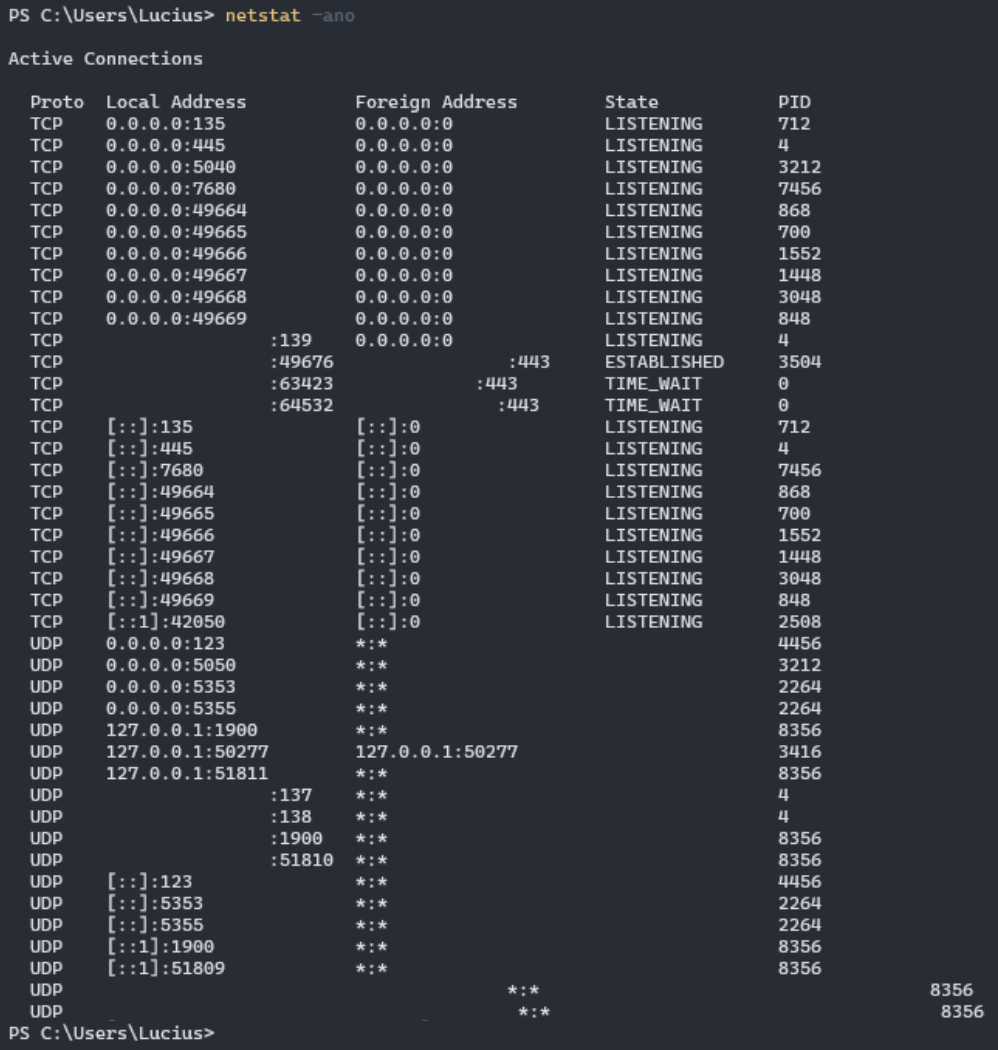
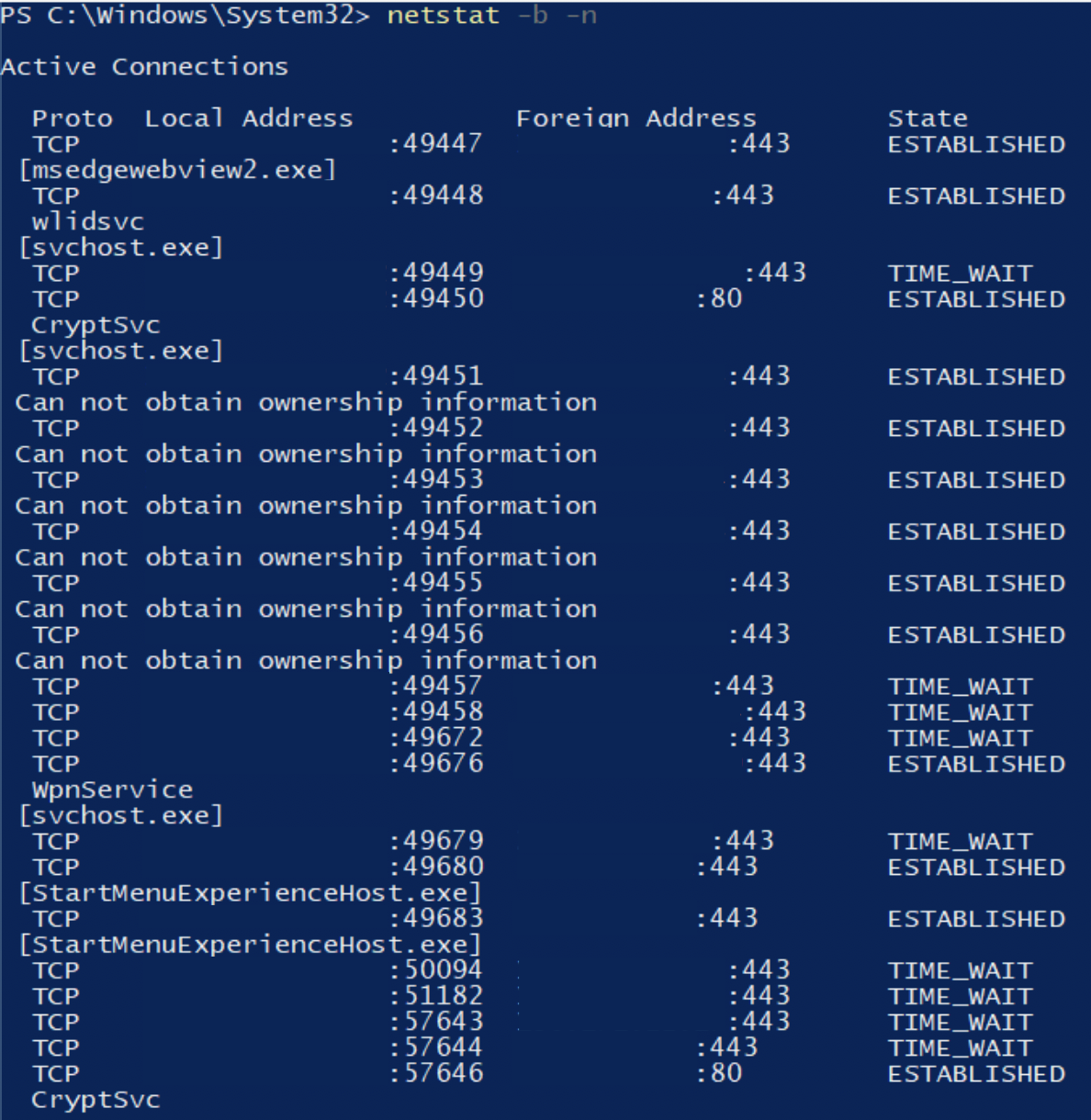
NETSTAT
Displays active network connections with Process IDs. One of the most important commands for detecting command-and-control (C2) backdoors, and suspicious outbound connections.
Syntax: netstat [options]
Example: netstat -ano
 Flags:
-A– All connections and listening ports-N– Numerical addresses/ports (no name resolution)-O– Show owning process ID (PID)-B– Show executable involved

NETSH
Powerful network shell for configuring interfaces, firewall rules, and wireless settings. Used to inspect firewall policies, saved Wi-Fi passwords, and interface configurations.
Syntax: netsh [context] [command]
Example: netsh advfirewall show all profles | netsh wlan show profiles
Flags:
advfirewall– Firewall rules and profileswlan show profiles– Saved Wi-Fi networks (use key=clear to show passwords).interface ip show config– interface detailstrace start– Start network packet tracing
NBSTAT
Displays NetBIOS over TCP/IP statistics and name tables. Useful for legacy network enumeration and discovering computer names and shares on older Windows environments.
Syntax: nbstat [options]
Example: nbstat - A 192.168.1.100
Flags:
-A IP– Show remote machine’s NetBIOS name table-a name– Show NetBIOS name cache-c– Show NetBIOS name cache-n– Show local NetBIOS names
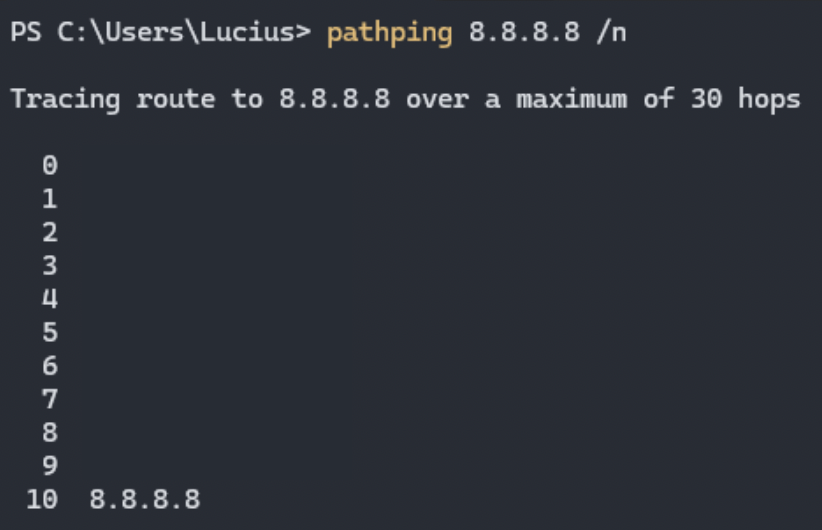
PATHPING
Combines functionality of ping and tracert with packet loss statistics per hop. Help identify problematic networks segments or potential points of interception.
Syntax: pathping [options] [target]
Example: pathping 8.8.8.8
 Flags:
-n– Do not resolve hostnames-hmaximum_hops – Max number of hops-pperiod – milliseconds between pings-qnum_queries – number of queries per hop
GETMAC
Displays MAC addresses of network adapters. Useful for inventory, MAC address filtering investigations, or identifying spoofed hardware addresses.
Syntax: getmac [options]
Example: getmac /V
Flags:
/V– Verbose output/FO TABLE|CSV|LIST– Format Output/S system– Run against remote system
Process & Service Management
Malware hides in processes; persistence hides in services. These Windows command line functions let you enumerate what’s running, identify parent-child process relationships, query service configurations, inspect scheduled tasks, and detect unsigned drivers that shouldn’t be there.
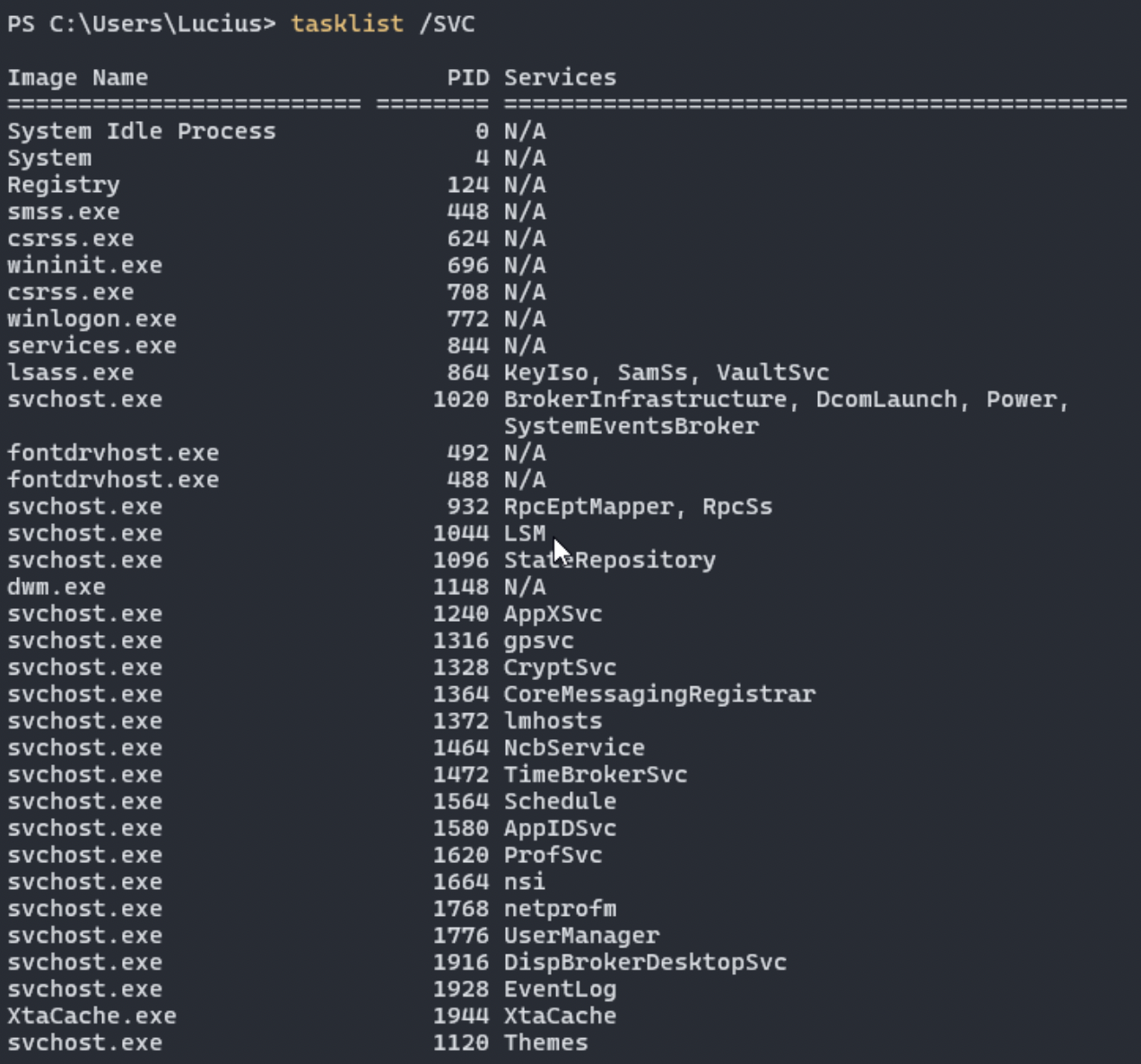
TASKLIST
Lists running processes. Pair with netstat to identify suspicious binaries or c2.
Syntax: tasklist [options]
Example: tasklist /SVC
Flags:
/SVC– services

/M– modules/DLLs/V– verbose/FO CSV
TASKKILL
Terminates malicious processes during containment.
Syntax: taskkill [options]
Example: taskkill /PID 1234 /F
Flags:
/PID/IM– Image name/F– Force
SC
Manages and queries Windows services. Detect persistence via rogue services.
Syntax: sc [command] [servicename]
Example: sc query
Flags:
queryqc– configurationstartstopconfig
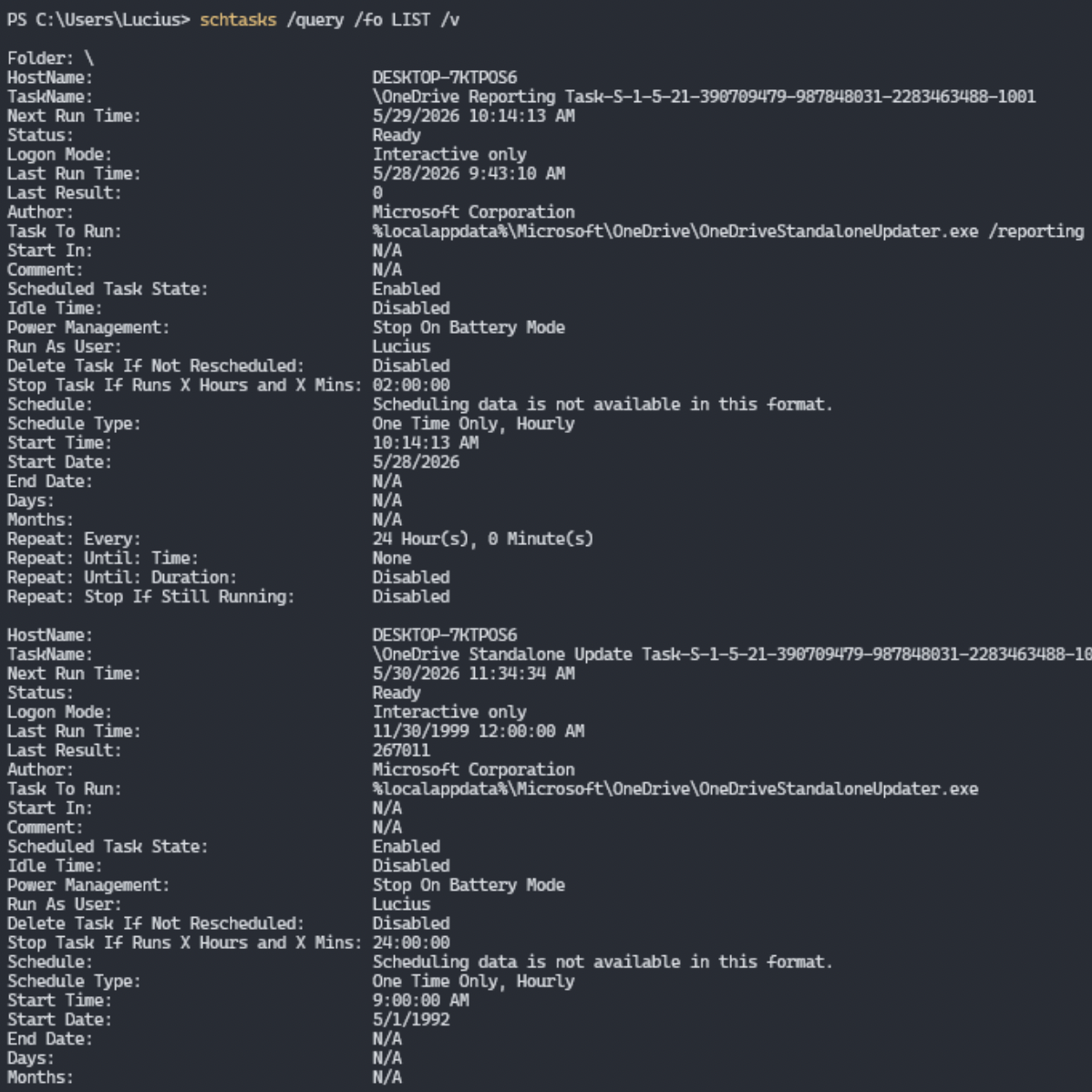
SCHTASKS
Manages and enumerates scheduled tasks. One of the most important commands for persistence hunting – attackers frequently use scheduled tasks for persistence, lateral movement, and ransomware execution. Note: Run as administrator for complete visibility
Syntax: schtasks [operation] [options]
Example: schtasks /query /fo LIST /v
 Flags:
/QUERY– List all tasks (most used in IR)/V– Verbose output (shows author, next run time, last run time, etc.)/FO LISTorCSV– Format output/XML– Export task in XML format/CREATE– Create a new task (red team / persistence)/DELETEor/DELETE /TN taskname– Remove malicious tasks./RUN– Manually trigger a task
TASKSCHD
Launches the Task Scheduler GUI (taskschud.msc). Useful when you need a visual view of task hierarchies, triggers, and actions during deeper investigation. Note: Best used on the system console or via RDP during investigations.
Syntax: taskschd
Example: taskschd
NET START | NET STOP
Starts or stops windows services. Critical for identifying and disabling suspicious or malicious services used for persistence (e.g., rogue AV killers, backdoors, or crypto miners). Note: Requires admin rights. Safer to use sc stop for more control
Syntax: net start [servicename] | net stop [servicename]
Example: net start | net stop "SuspiciousService"
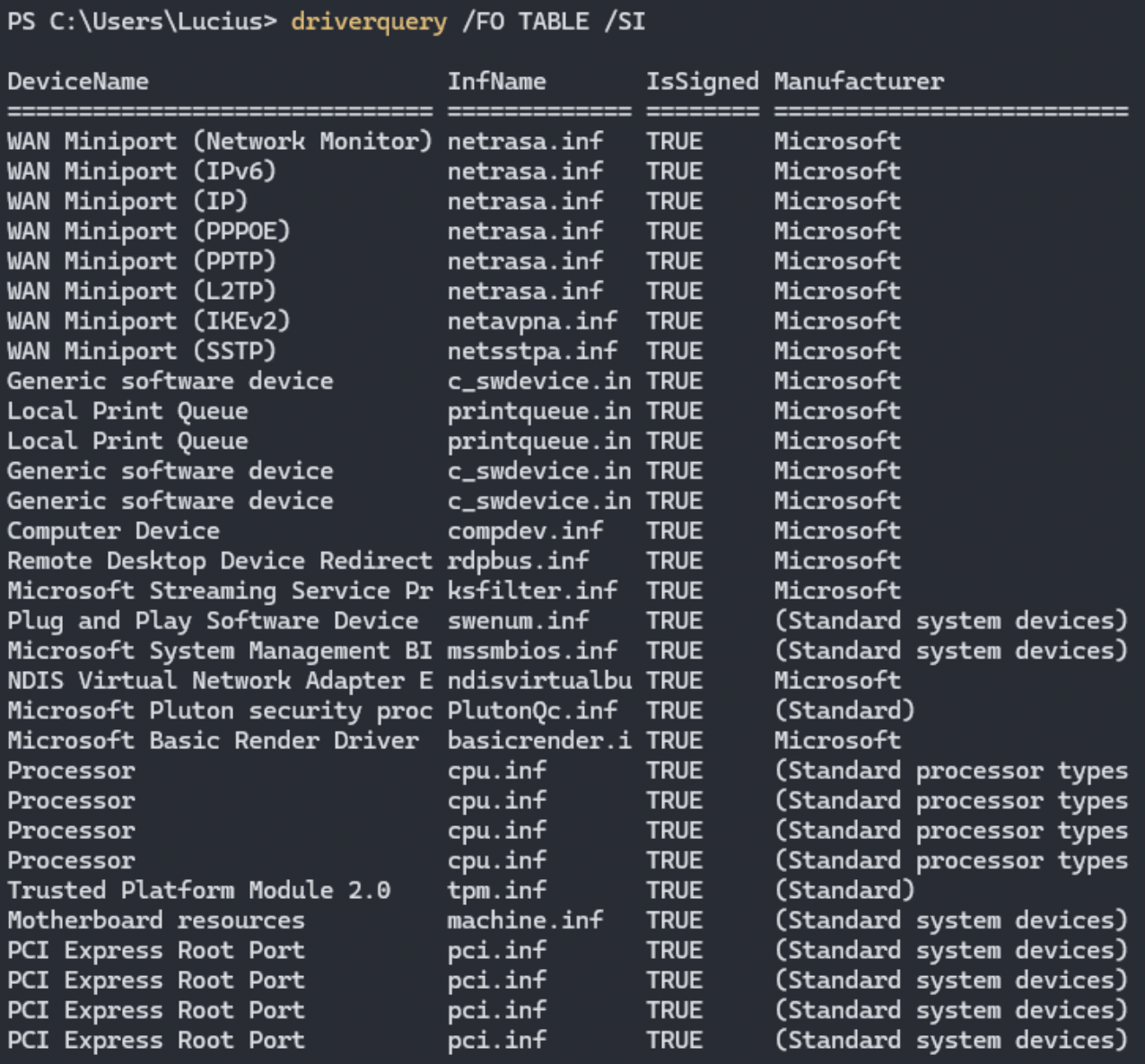
DRIVERQUERY
List all installed kernel drivers. Essential for rootkit detection – helps identify unsigned, outdated, or suspicious drivers loaded by malware. Note: Pair with sigcheck (Sysinternals) or autoruns for deeper validation.
Syntax: drivequery [options]
Example: drivequery /v
Flags:
/V– verbose output (includes singer, path, start model)/SI– Show signed/unsigned drivers/FO TABLE|CSV|LIST– Output format

/NH– No header
QPROCESS
Queries running processes on local or remote systems. Lightweight alternative to tasklist, useful for quick process enumeration during live response, especially on remote machines.
Syntax: qprocess [options]
Example: qprocess * or qprocess username
Flags:
*– show all processesusername– filter by username/SERVER:servername– Query remote system
QWINSTA
Queries active user sessions (WinStations) on local or remote systems. Useful for detecting unauthorized logons, RDP sessions left by attackers, or lateral movement. Note: Excellent for identifying hidden or disconnected attacker sessions.
Syntax: qwinsta [options]
Example: qwinsta or qwinsta /server:TARGET
Flags:
/SERVER:computername– Query remote computer/V– Verbose output
User & Account Management
Privilege is the prize in most engagements. The Windows command line gives you the tools to enumerate local users and groups, identify who holds administrative access, inspect active sessions, and execute commands under alternate credentials – critical for both attack and defense.
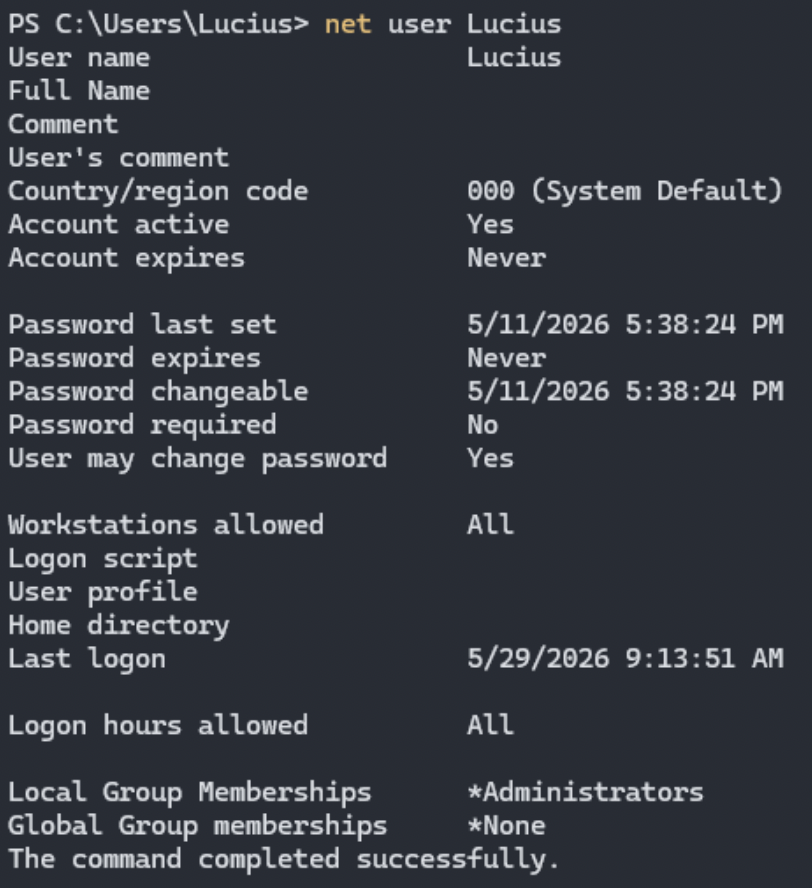
NET USER
Creates, modifies, or displays local user accounts. Critical during investigations to detect newly created backdoor accounts, dormant users, or accounts with suspicious activity. Note: Requires admin rights for most modifications
Syntax: net user [username] [options]
Example: net user or net user suspiciousadmin
Flags:
username– Show details of a specific user (last logon, password requirements, etc.)

/ADD– Create a new user account/DELETE– delete a user account/ACTIVE:YES|NO– Enable/Disable account/TIMES:ALLor specific times – Logon hour restrictions
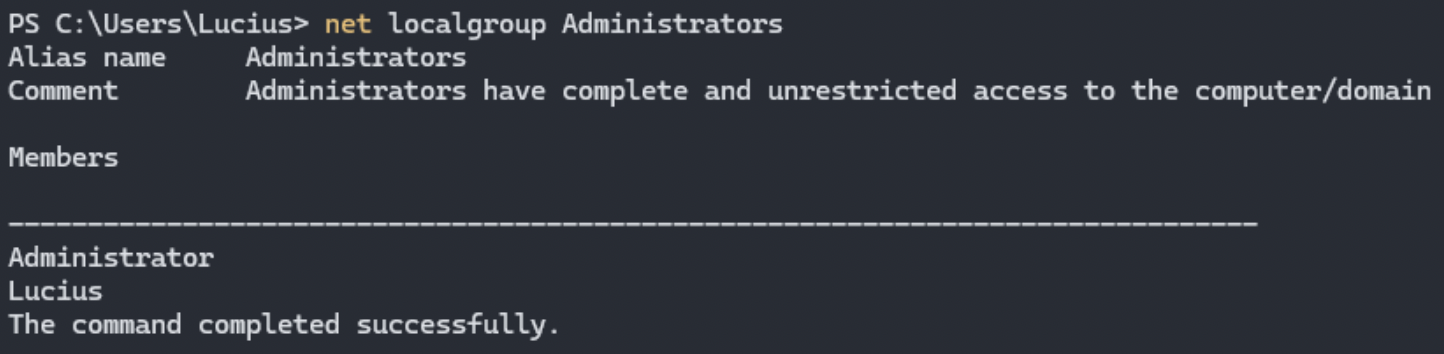
NET LOCALGROUP
Views and manages membership of local security groups (especially Administrators, Remote Desktop Users, etc). Essential for privilege escalation and insider threat investigations. Extremely useful for spotting unauthorized admin accounts.
Syntax: net localgroup [groupname] [options]
Example: net localgroup administrators
Flags:
groupname– Show members of that group/ADD username– add user to group/DELETE username– Remove user from group- Common groups: administrators, remote desktop users, power users
NET SESSION | NET FILE
Displays current network sessions connected to the local system. Helpful for detecting active lateral movement, SMB-based attacks, or attackers browsing shares.
Syntax: net session [options]
Example: net session
Flags:
/DELETE– Close a specific session
NET SHARE
Lists or manages shared folders on the system. Important for identifying exposed shares that attackers can exploit for lateral movement or data theft. Note: Look for suspicious shares like C$, ADMIN$ or newly created ones.
Syntax: net share [sharename] [options]
Example: net share
Flags:
sharename– Show details of a specific share/ADD– Create a new share/DELETE– Remove a share
RUNAS
Runs a program or command with different user credentials. Frequently used by attackers and administrators to launch processes under higher privileges or alternate accounts during privilege escalation testing or credential testing. Note: Requires the target user’s password. Useful for testing alternate accounts during investigations.
Syntax: runas [options] /user:username "command"
Example: runas /user:Administrator cmd.exe
Flags:
/USER:domain\usernameor.\username– Specify user/SAVE CRED– Save credentials/NETONLY– Use credentials for network access only/PROFILE– Load the user’s profile
Security & Integrity Tools
Default Windows has a surprisingly powerful set of native security tools accessible through the Windows Command Line. These commands let you audit policy configurations, query and export event logs, scan for system file tampering, inspect registry persistence keys, and interact with Windows Defender – all without third-party software.
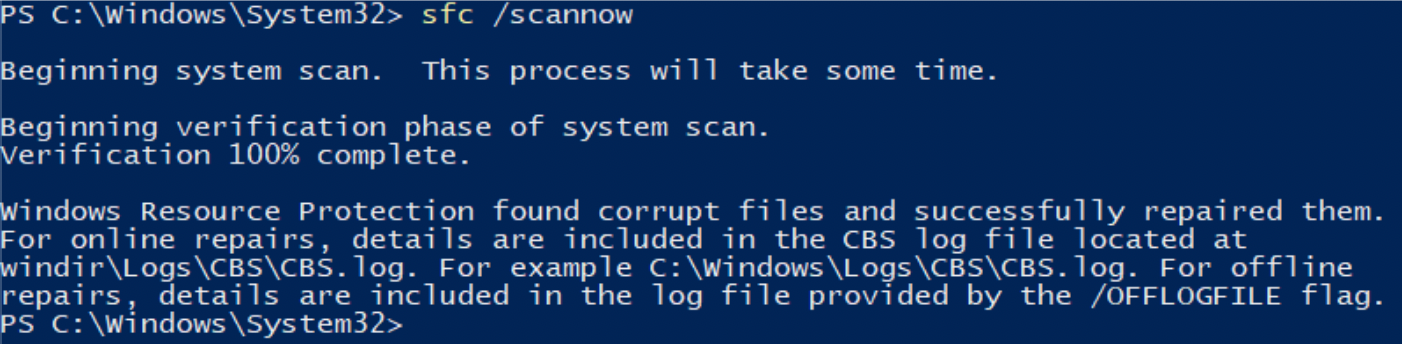
SFC /SCANNOW
System File Checker scans and repairs protected Windows system files. Critical in IR/forensics to detect and repair files tampered with by rootkits, malware, or attackers. Note: Run as Administrator. Often paired with DISM if SFC fails.
Syntax: sfc [options]
Example: sfc /scannow
 Flags:
/SCANNOW– Full scan and repair/VERIFYONLY– Scan without repairing/SCANFILE=<file>– Scan and repair a specific file./VERIFYFILE=<file>– Verify a specific file/OFFBOOTDIR+/OFFWINDIR– Offline repair (from WinRE)
DISM
Deployment Image Servicing and Management tool. Used to repair the Windows component store (when SFC fails), enabling deeper system integrity recovery after compromise or corruption. Note: Requires admin rights and internet (or install media) for full repair.
Syntax: dism [options]
Example: dism /Online /Cleanup-Image /RestoreHealth
 Flag:
Flag:
/Online /Cleanup-Image /CheckHealth– Quick check/Online /Cleanup-Image /ScanHealth– Detailed scan/Online /Cleanup-Image /RestoreHealth– Repair component store (most important for IR)/Source– Specify alternate repair source
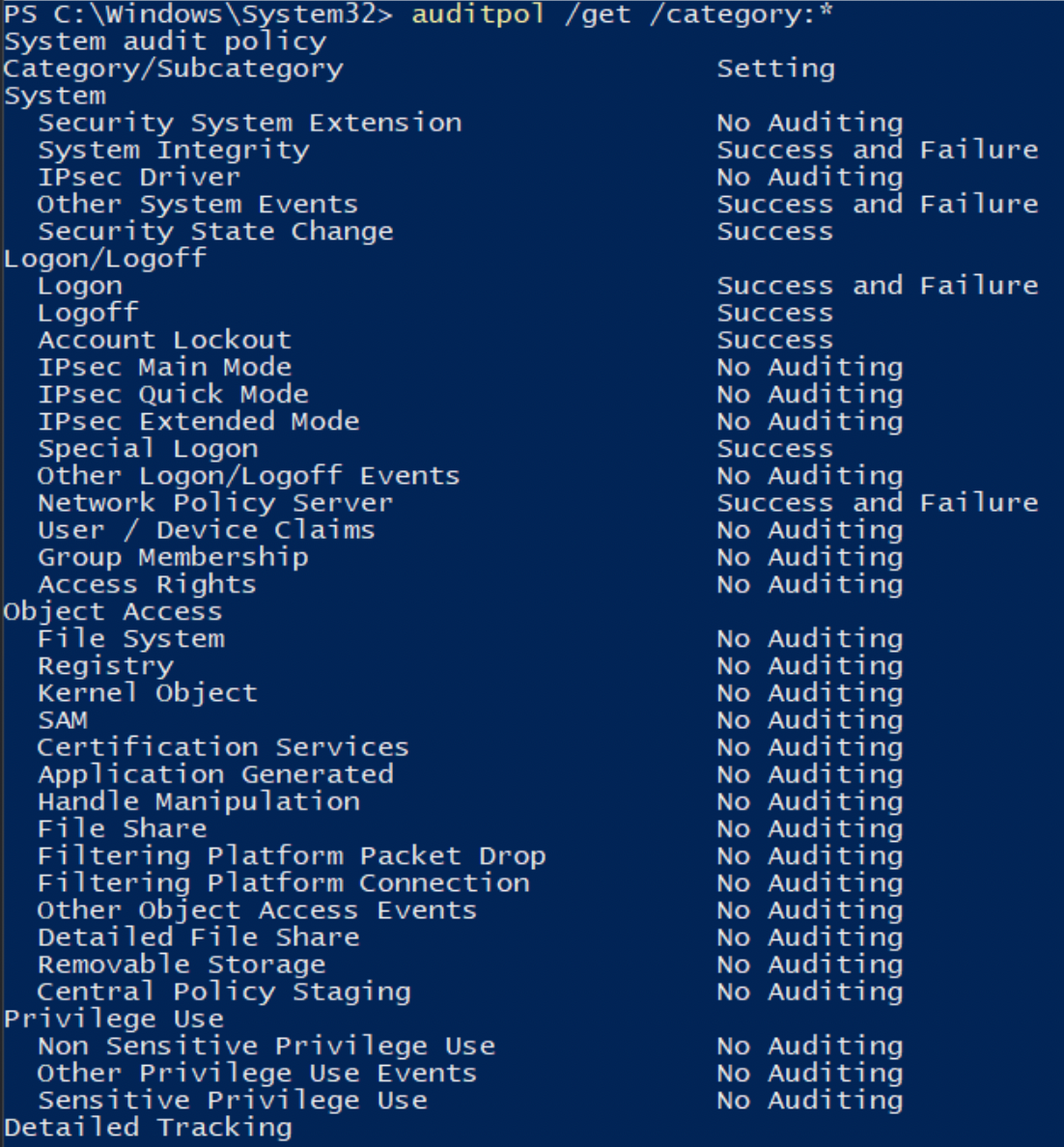
AUDITPOL
Manages and queries advanced audit policies. Essential for enabling detailed logging (e.g., process creation, file access) during investigations or improving detection capabilities post-breach. Note: Requires admin right. Very useful for enhancing monitoring during active incidents.
Syntax: auditpol [command] [options]
Example: auditpol /get /category:*
Flags:
/get /category:*– Show current audit policy

/set /subcategory:"Process Creation" /success:enable | /failure:enable– Enable specific auditing/list /subcategory:*– List available categories/clear– Reset audit policy
WEVTUTIL
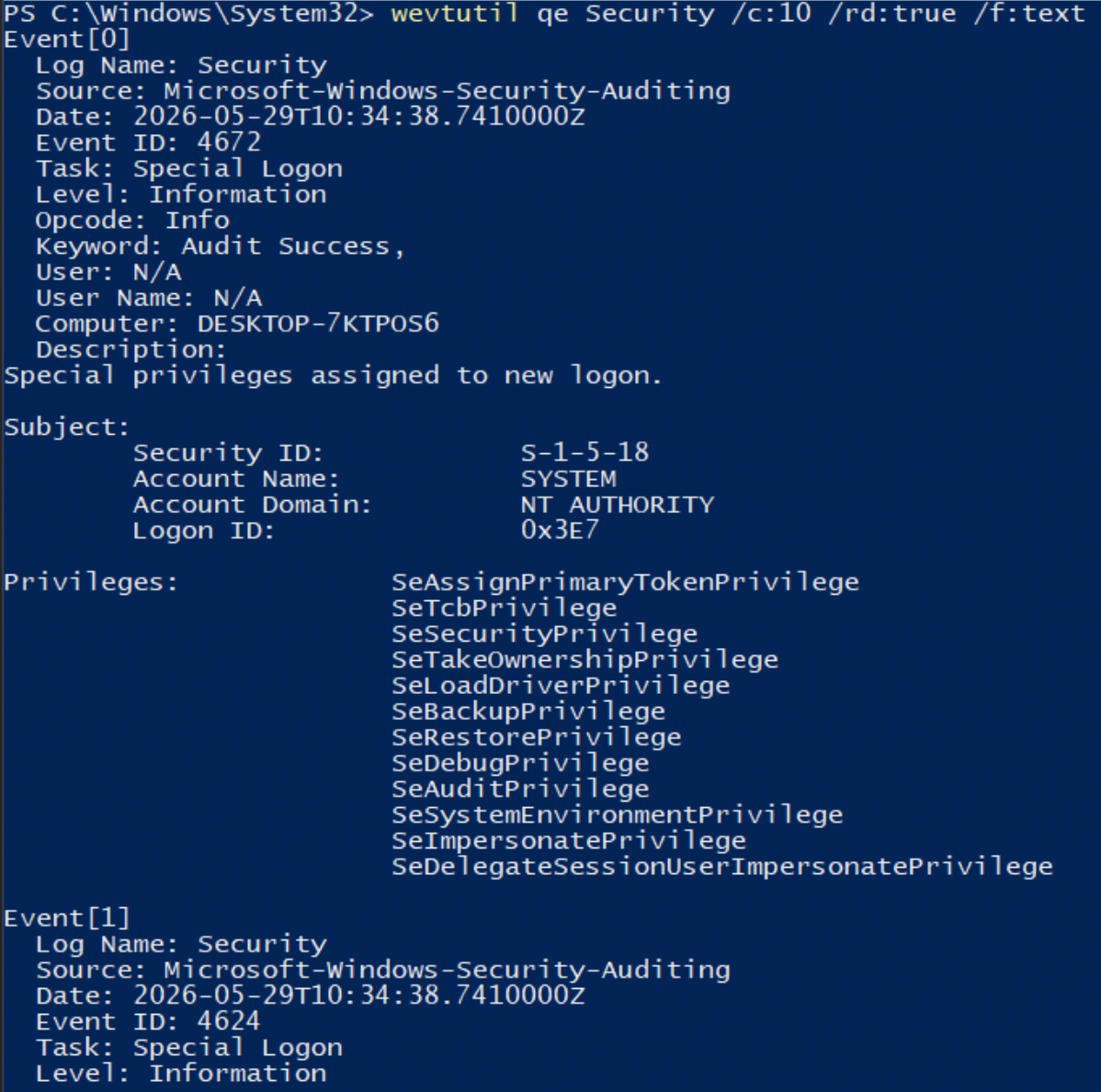
Queries, exports, and manages Windows Event Logs. Key tool for extracting Security, System, and Application logs during incident response and forensics.
Syntax: wevtutil [command] [log] [options]
Example: wevtutil qe Security /f:text | more
 Flags:
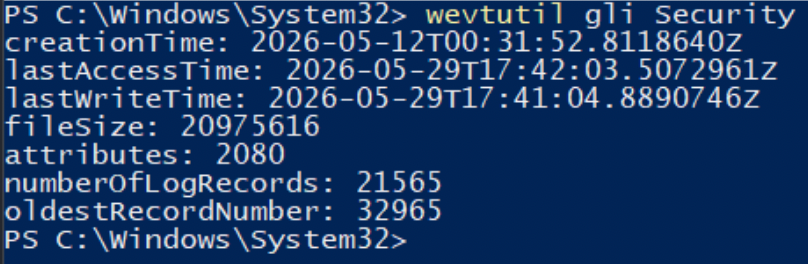
qe– Query events

/f:textor/f:xml– Output formatel– List all logsepl– Export log to file (e.g., wevtutil epl Security C:\export.evtx)gl– Get log information
EVENTWR
Launches the Event Viewer GUI. Useful for interactive analysis of logs, filtering events, and creating custom views during investigations. Note: Best used alongside wevtutil for scripted exports.
Syntax: eventvwr
Example: eventvwr
GPEDIT.MSC | SECPOL.MSC
Launches Local Group Policy Editor (gpedit.msc) or Local Security Policy (secpol.msc). Used to review and audit security settings, password policies, audit configurations, and restrictions that attackers may have modified. Note: Only available on Pro/Enterprise editions (not Home). Requires admin rights
Syntax: gpedit.msc or secpol.msc
Example: gpedit.msc or secpol.msc
MPCMDRUN (Mircosoft Defender CLI)
Command-line interface for Microsoft Defender Antivirus. Allows on-demand scanning of suspicious files/folders or full system scans during malware triage and remediation. Note: Path is usually in %ProgramData%\Microsoft\Windows\Defender\Platform\[version]\MpCmdRun.exe
Syntax: MpCmdRun.exe -[Command] [Options]
Example: MpCmdRun.exe -Scan -ScanType 2
 Flags:
-Scan -ScanType 0/1/2/3– 0=Default, 1= Quick, 2=Full, 3=Custom-Scan -File <path>– Scan specific file/folder-SignatureUpdate– Update definitions

-?or-h– Show all commands

REG
Queries, adds, modifies, or deletes registry keys/values. One of the most important tools for persistence hunting (Run keys, services, autoruns) and recovering from registry-based attacks.
Syntax: reg [operation] [key] [options]
Example: reg query
Flags:
QUERY– Read values

ADD– Add keys/valuesDELETE– Remove keys/valuesEXPORT|IMPORT– Backup/restore registry- Common paths:
HKLM\...\Run,HKLM\...\Services,HKCU\Software\Microsoft\Windows\CurrentVersions\Run

BITSADMIN
Manages Background Intelligent Transfer Service jobs. Frequently abused by malware (LOLBin) for downloading payloads, persistence, or data exfiltration. Defenders use it to inspect or cancel suspicious jobs. Note: High-value for detection – monitor for anomalous use
Syntax: bitsadmin [options]
Example: bitsadmin /list /verbose
Flags:
/listor/list /allusers /verbose– Show all jobs/info <jobID>– Details on a specific job/cancel <jobID>– Cancel suspicious job/reset– Cancel all jobs/create,/addfile,/SetNotifyCmdLine(commonly abused)
Other Important Commands
A versatile set of Windows command line utilities that don’t fit neatly into one box, but earn their place in any engagement toolkit. From powerful string searching and file association inspection to power configuration analysis and remote file monitoring, these commands fill the gaps where others fall short.
ECHO
Displays messages or turns command echoing on/off. Very useful in batch scripts for logging actions during automated IR scripts, creating custom log files, or building quick scripts on compromised systems. Note: One of the most used commands when writing custom incident response batch files.
Syntax: echo [message] or echo [on|off]
Example: echo Investigation started at %DATE% %TIME% > IR_log.txt
Flags:
echo.– Prints blank lineecho message >> logfile.txt– Append to log fileecho on|echo off– Control command display in scripts- Often combined with redirection (
>,>>) and variable (%DATE%,%TIME%)
FINDSTR
Searches for specific text strings within files or command output. Extremely powerful for hunting IOCs (IPs, domains, file names, keywords like “password”, “C2”, etc.) across logs and configuration files. Note: One of the top string-search tools in Windows for threat hunting.
Syntax: findstr [options] "searchstring" [files]
Example: findstr /I /C:"password" *.log
 Flags:
/I– Case-insensitive search/C:"string"– Literal string search/R– Regular expressions/S– Search subdirectories recursively/N– Show line numbers/B|/E– Match at beginning/end of line/G:file– Get search strings from a file.
SORT
Sorts text output or file content. Helpful when analyzing large logs, process lists, or directory outputs to quickly spot anomalies (e.g., sorting by date or frequency). Note: Frequently piped with other commands (dir, type, tasklist, netstat). Note: Frequently piped with other commands (dir, type, tasklist, netstat)
Syntax: sort [options] [filename]
Example: tasklist | sort or dir C:\ /S | sort > files.txt
Flag:
/R– Reverse order/+n– Sort starting at column n/Ofilename – Output to file
ASSOC
Displays or modifies file extension associations. Attackers sometimes change associations (e.g., .exe or .scr) to hijack execution. Useful for detecting or correcting suspicious file type hijacking. Note: Pair with ftype for deeper analysis or file execution behavior.
Syntax: assoc [.ext]=[filetype]
Example: assoc .exe or assoc
Flag:
assoc– List all current associationsassoc .ext=– Remove association (use with caution)- Often used with
ftypeto view/modify the actual program used.
OPENFILES
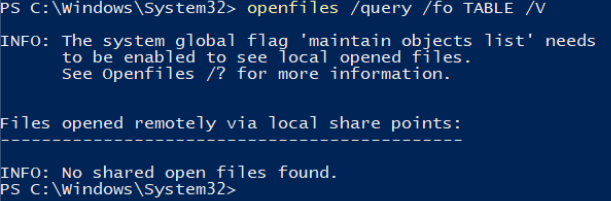
Lists files currently opened by local or remote users. Useful during investigations to detect active data access, ransomware encrypting files in real-time, or attackers copying sensitive data. Note: Requires admin rights
Syntax: openfiles /query [options]
Example: openfiles /query /fo table
 Flags:
/Query– List open files (main command)/Ssystem – Query a remote system/Uuser – Filter by username/FO TABLE|CSV|LIST– Output format/V– Verbose output
POWERCFG
Manages power settings and generates dianostic reports. Can reveal sleep/hiberantion issues, battery drain caused by malware, or help identify persistence techniques that wake the system (e.g., scheduled tasks or unusual wake timers). Note: Reports are saved as HTML files – very useful for documentation.
Syntax: powercfg [options]
Example: powercfv /batteryreport or powercfg /requests
Flags:
/BATTERYREPORT– Generate HTML battery health report./ENERGY– Generate energy efficient diagnostic report/REQUESTS– Show what is preventing the system from sleeping./LASTWAKE– Show what caused the last system wake/DEVICEQUERY wake_armed– show devices allowed to wake the PC