
Introduction
When testing a web application, changing one parameter at a time can be useful, but it becomes slow when you need to test dozens or hundreds of values. For example, imagine a login page that behaves differently when you enter a valid username and an invalid one.
Testing every possible username manually would take a long time.
This is where Burp Suite Intruder becomes useful.
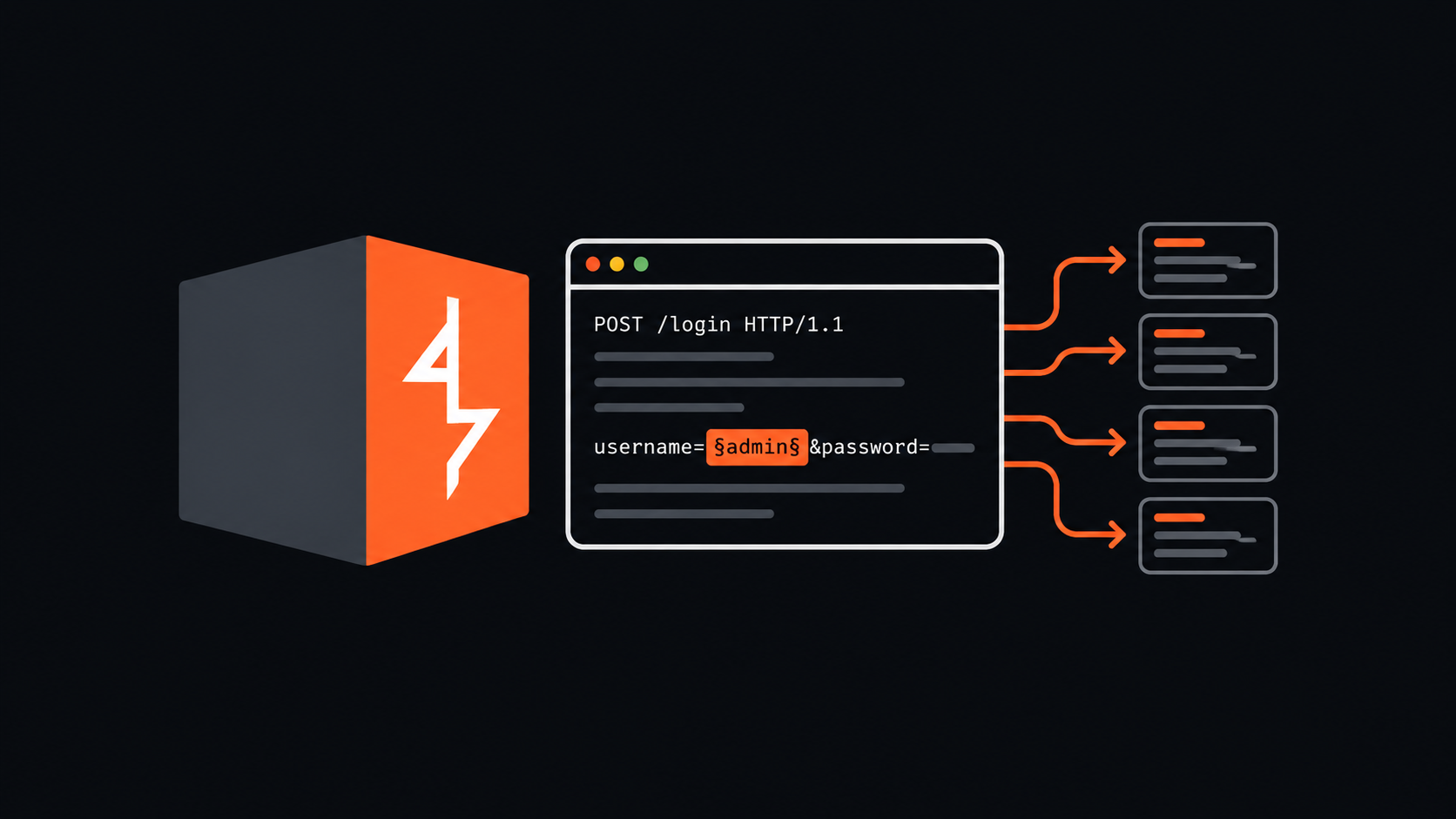
Burp Suite Intruder is a web security testing tool that automates HTTP requests. You capture a request, select the values you want to test, provide a list of payloads, and let Intruder send requests with different values. You can then compare the responses to identify unusual behavior.
Intruder is commonly used for:
- Testing input validation.
- Identifying valid usernames or other identifiers in authorized environments.
- Testing parameter handling and application logic.
- Fuzzing inputs to discover unexpected responses.
- Evaluating authentication mechanisms in controlled tests.
1. What Is Burp Suite Intruder?
If you’re new to Burp Suite, start with our Burp Suite Cheat Sheet for a quick reference to Proxy, Repeater, Intruder and the other tools used during web application testing.
Burp Suite is a collection of tools used for web application security testing. Its Proxy tool allows you to intercept HTTP traffic, Repeater helps you modify and resend individual requests, and Intruder automates repeated requests with different input values.
Suppose you capture the following HTTP request while testing a login page:
You want to understand how the application responds to different usernames. Without Intruder, you would have to change the username manually, send the request, examine the response, and repeat the process for every candidate. With Intruder, you can mark the username value as a payload position and supply a list such as:
Intruder sends requests using these values and displays the resulting responses in a table. You can sort the results by status code, response length, and other available fields.
When should you use Intruder instead of Repeater?
For a hands-on walkthrough of manually modifying and resending HTTP requests, see our Burp Suite Repeater Tutorial. Repeater is particularly useful for investigating individual requests before moving to automated testing with Intruder.
Use Repeater when you want to test a small number of changes and carefully inspect the response to each one.
Use Intruder when you want to test multiple values systematically and compare the responses.
For example:
- Repeater: Change id=10 to id=11 and inspect the result.
- Intruder: Test identifiers from 1 to 100 and look for differences in the responses.
Intruder does not automatically prove that a vulnerability exists. It helps you identify interesting behavior that requires further investigation.
2. How to Send a Request to Intruder
Before starting, install Burp Suite Community Edition and open its built-in browser.
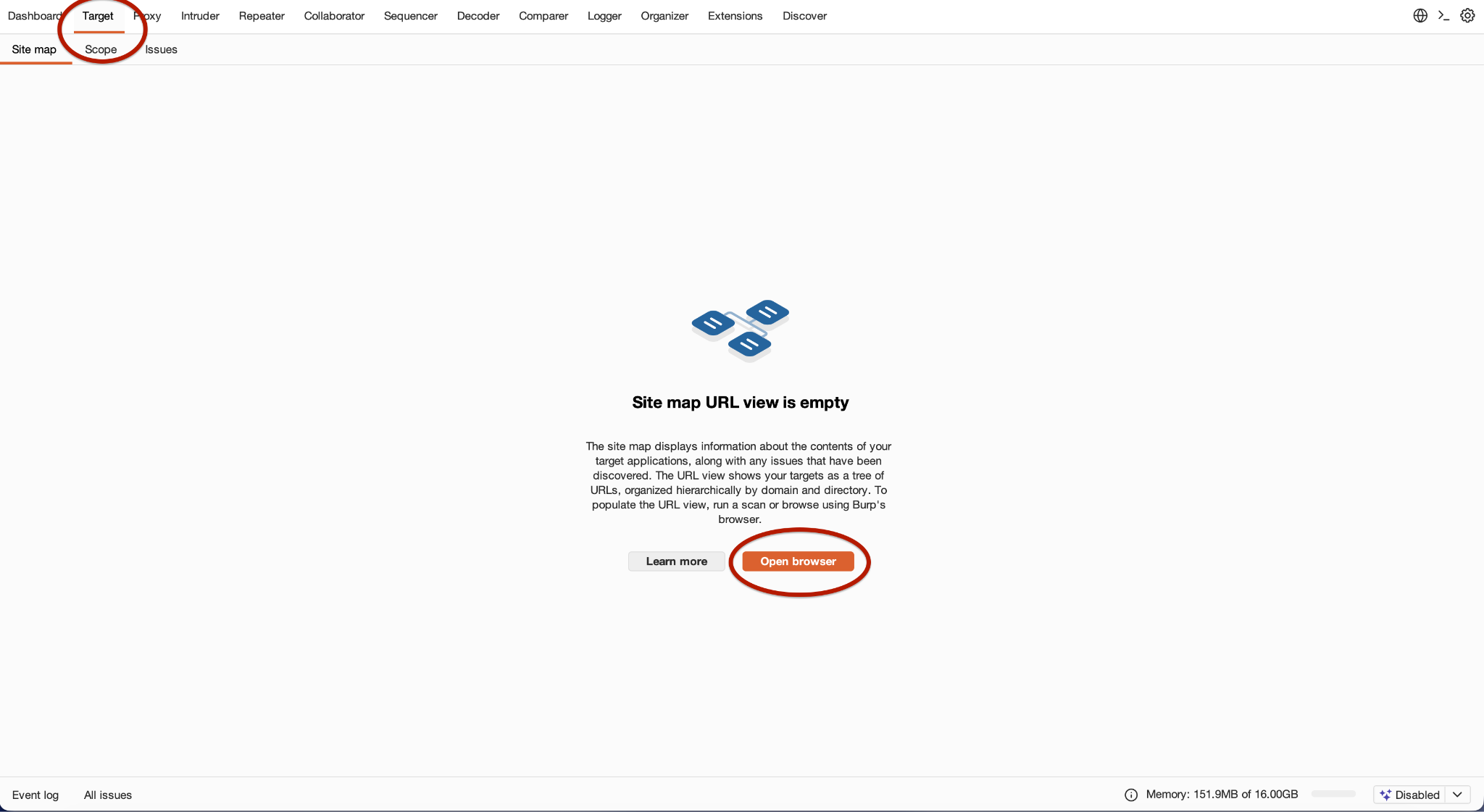
And, turn on interception in the proxy tab
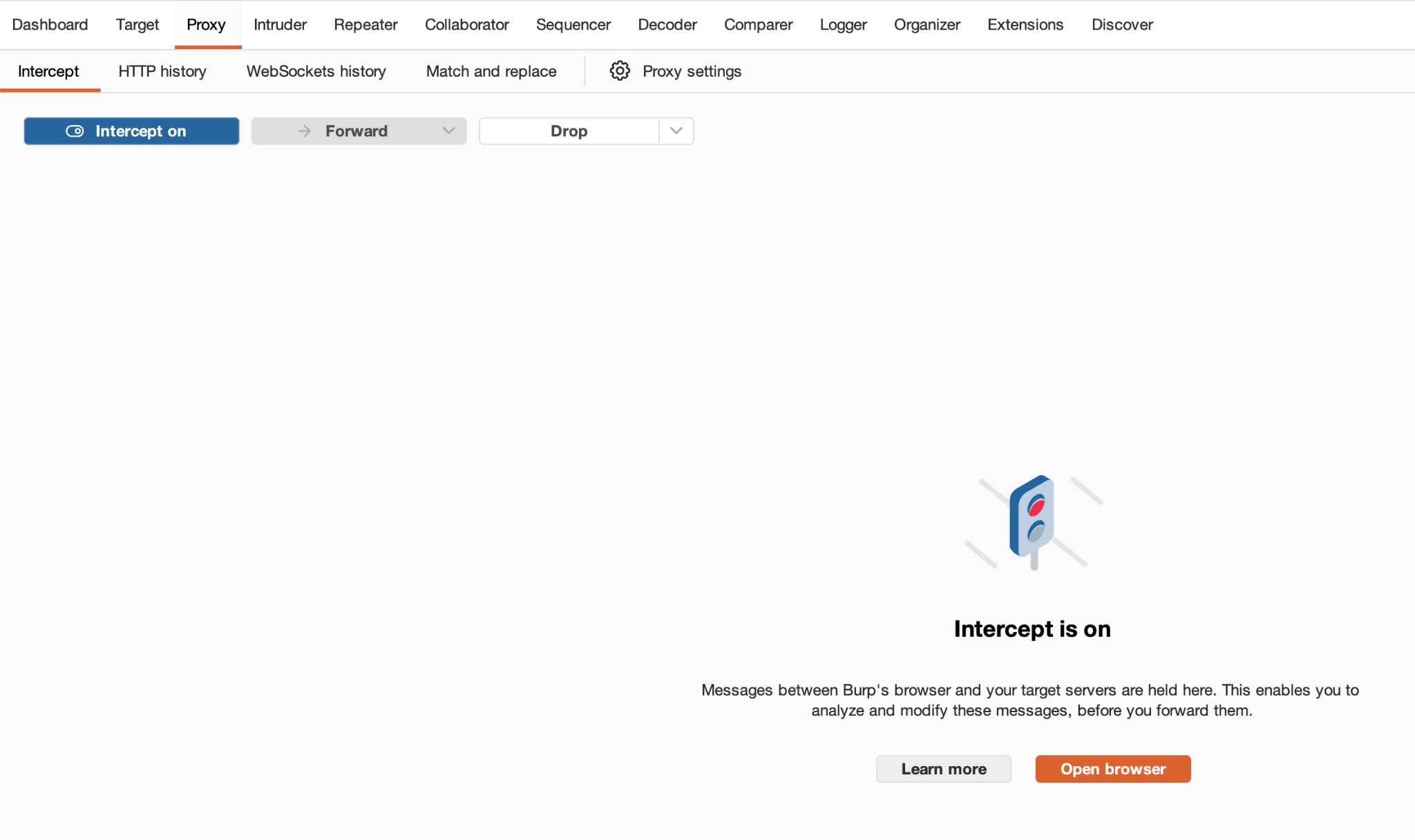
Step 1: Open the target page
Open the page that you want to test on the intruder. Lets say it is a login page.
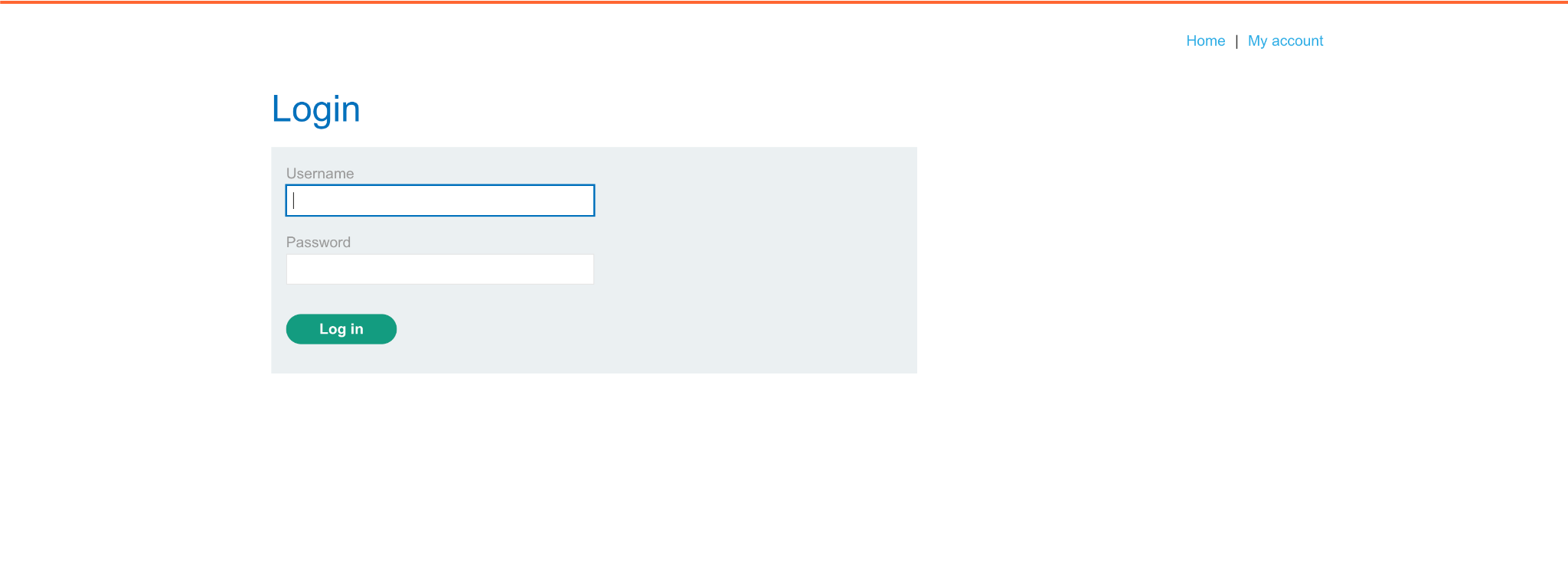
Step 2: Generate a login request
Open the lab’s login page and submit an invalid username and password.
For example, enter:
Username: invaliduser123
Password: wrongpassword
Submit the form.
Burp Suite should record the resulting HTTP request.
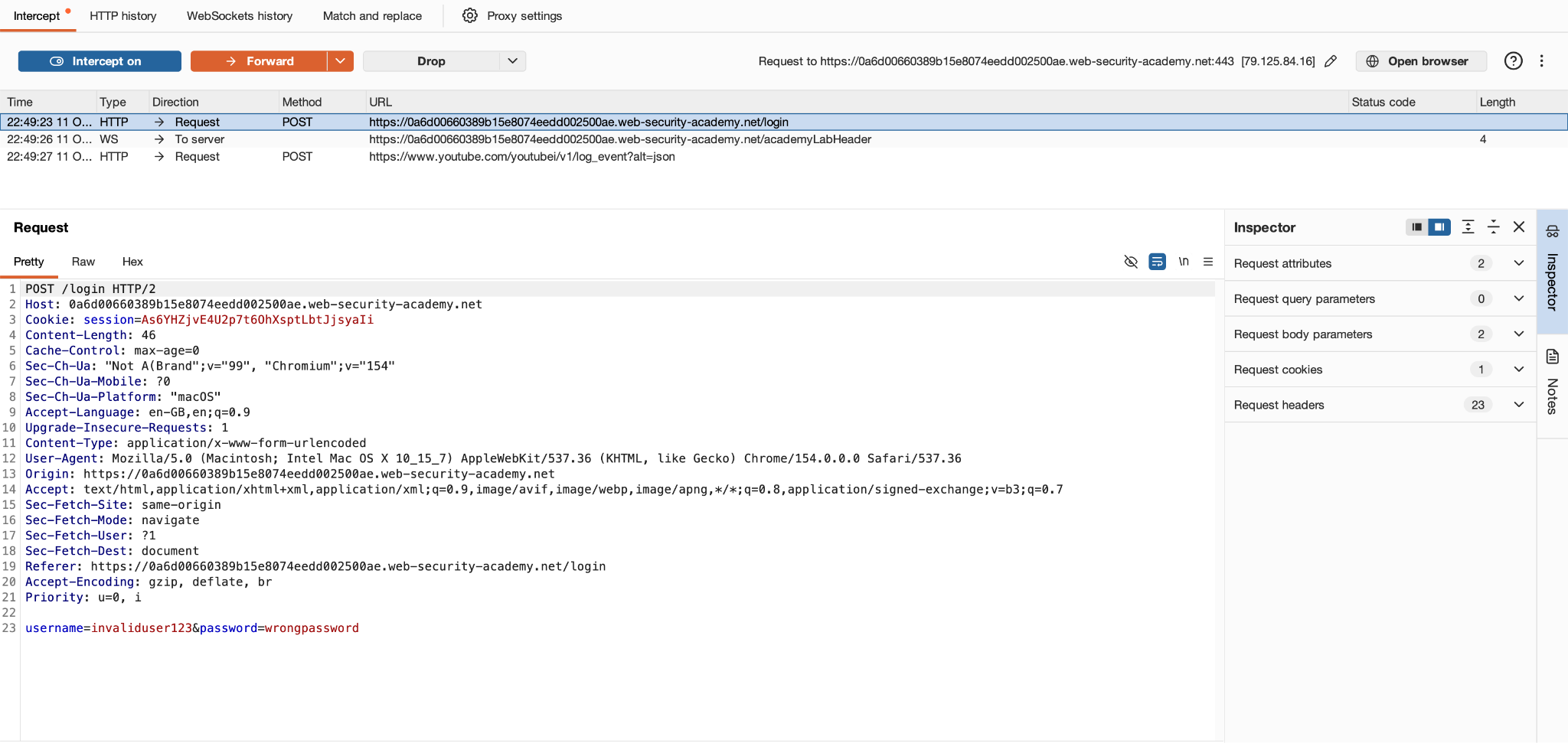
Step 3: Send the request to Intruder
Right-click the request and select “Send to Intruder”
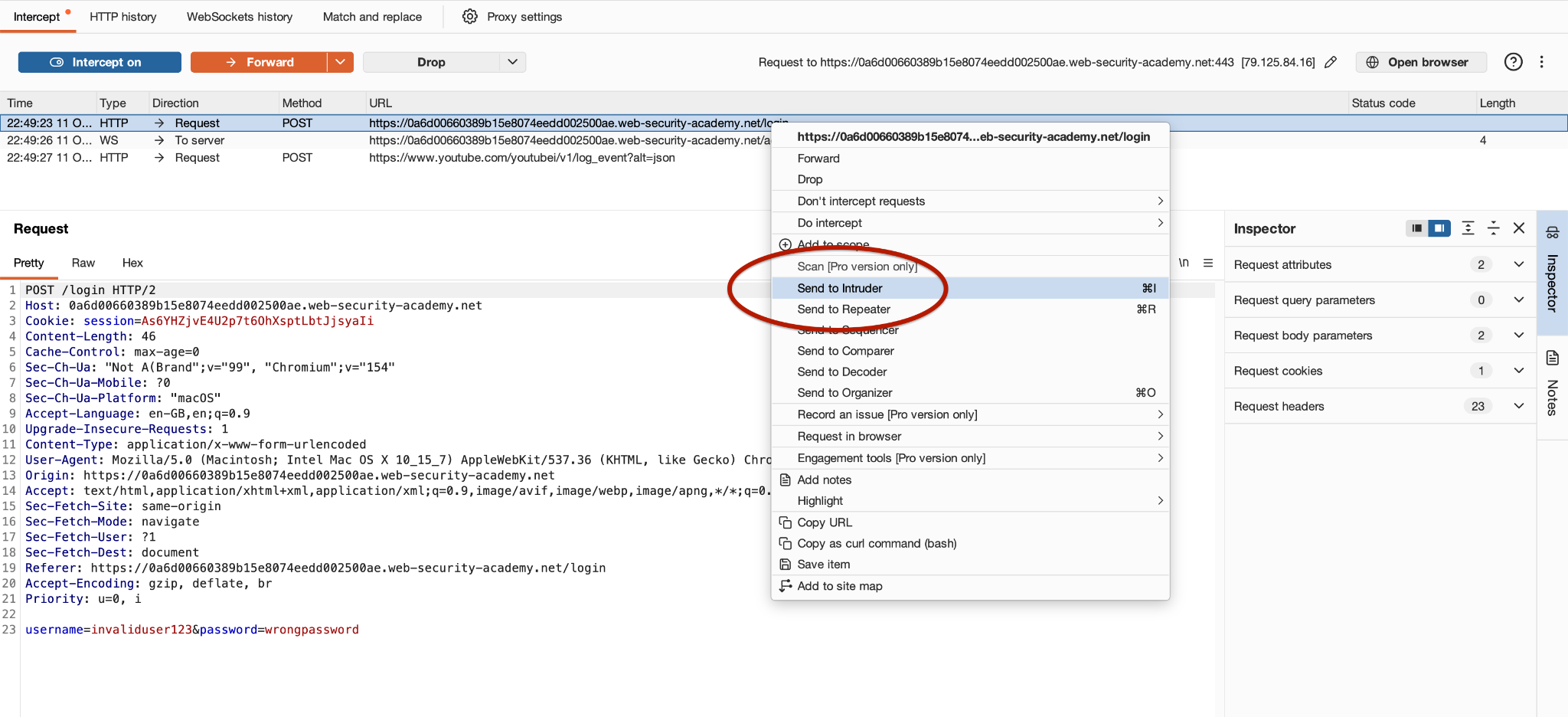 Now open the Intruder tab.
Burp creates an attack configuration using the captured request. You can select the input positions, choose an attack type, and configure payloads. This approach is useful because the original request already contains the necessary headers, parameters, and session information.
3. Understanding Intruder Positions
Payload positions determine exactly where Intruder inserts new values into a request. When you send a request to Intruder, Burp may automatically mark some values. You should always inspect these positions before starting an attack.
A payload position is surrounded by the “`§“` character. Consider this example:
The markers indicate that Intruder should replace invaliduser123 with each payload. For example, when the payload is admin, the request becomes:
When the payload is alice, it becomes:
The password remains unchanged because it is outside the marked position.
How to select exactly which values change
In the Intruder request editor:
- Open the Positions section.
- Click Clear § to remove automatically selected positions.

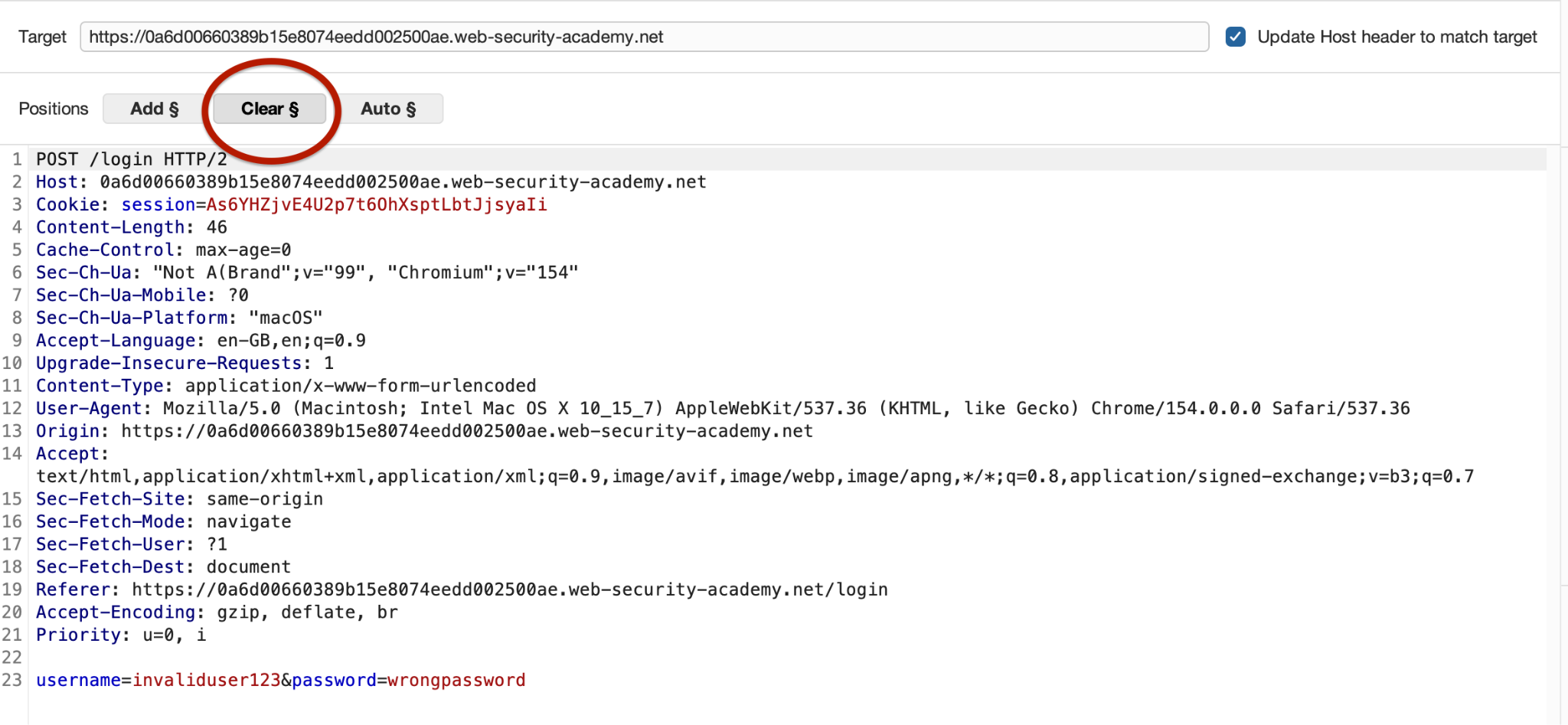
- Highlight only the value you want to test.
- Click Add § to mark the selected text.
- Verify that the markers surround the intended value and nothing else.
For a username test, select only the username value. You can also mark multiple positions when the selected attack type requires them. For example:
This defines two payload positions. The § markers are visual indicators used by Intruder. They are not normally sent to the server as part of the actual parameter value. Correct position selection is essential. If you mark the wrong section, Intruder may send malformed requests or test something different from what you intended.
4. Burp Intruder Attack Types
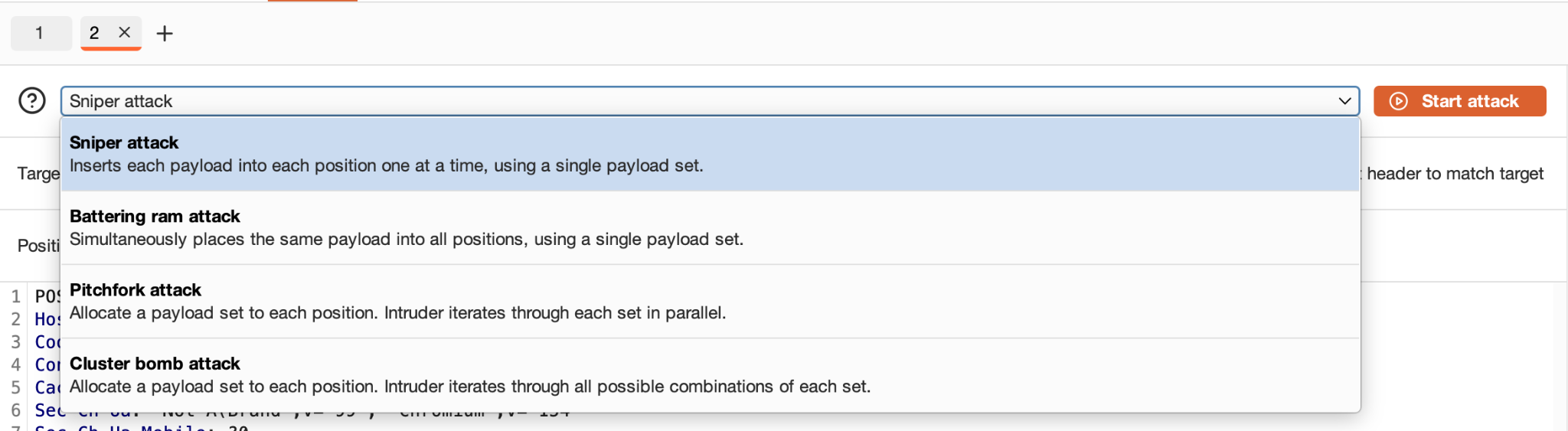
Burp Intruder has four traditional attack types
- Sniper
- Battering ram
- Pitchfork
- Cluster bomb
Each attack type determines how payloads are inserted into the marked positions.
4.1 Sniper attack
Sniper is generally the best starting point when you want to test individual parameters. It uses one payload set and inserts each payload into each marked position in turn. Other positions retain their original values. Consider this request:
Suppose the payload list is:
- admin
- alice
- guest
Intruder first tests the username position:
It then tests the password position using the same payload list:
With two positions and three payloads, Sniper generates six requests, excluding any optional baseline request.
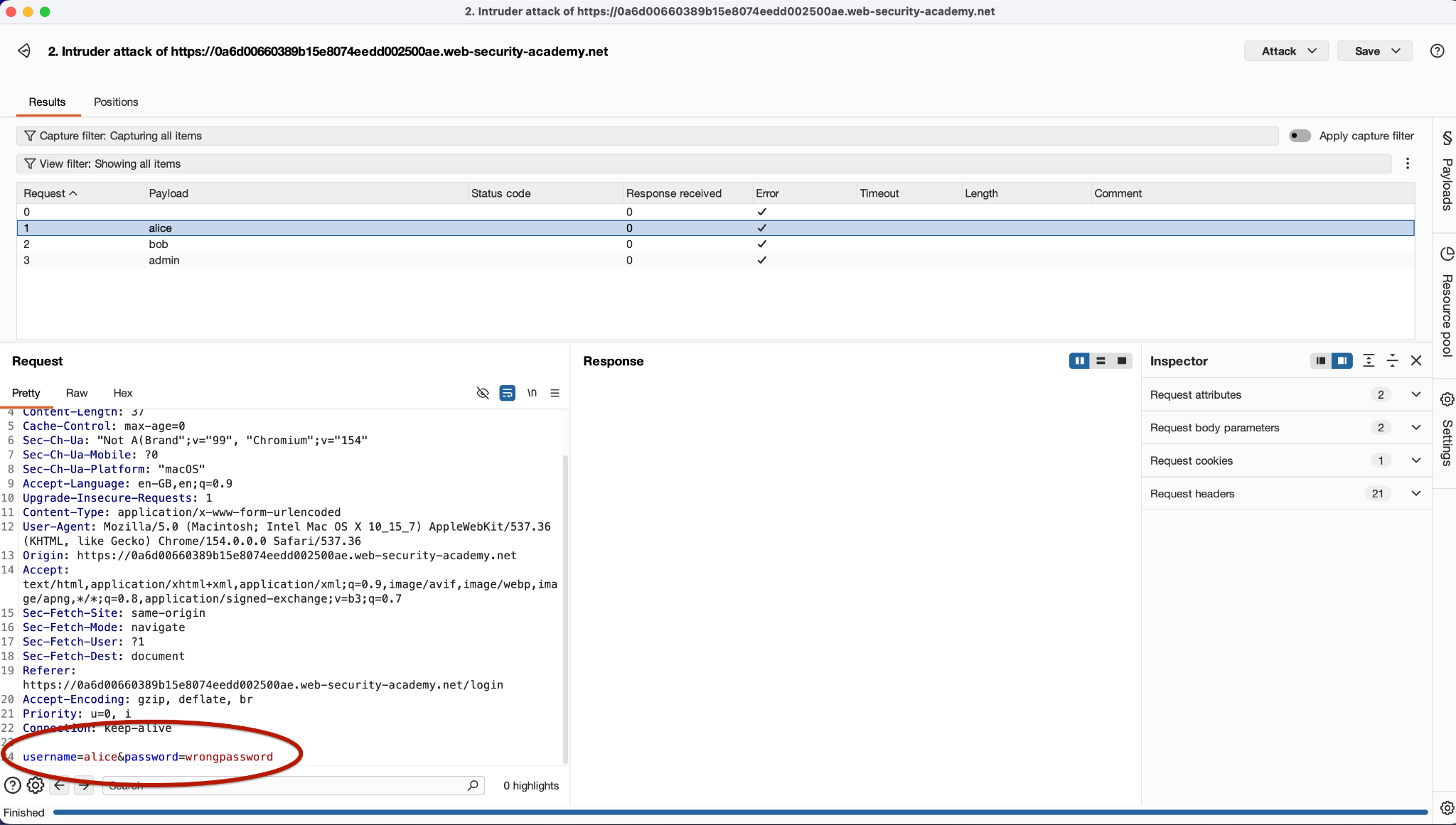
In our example, as we ran attack with three payloads, we can see how burp intruder replaced the payload on the required space
4.2 Battering ram attack
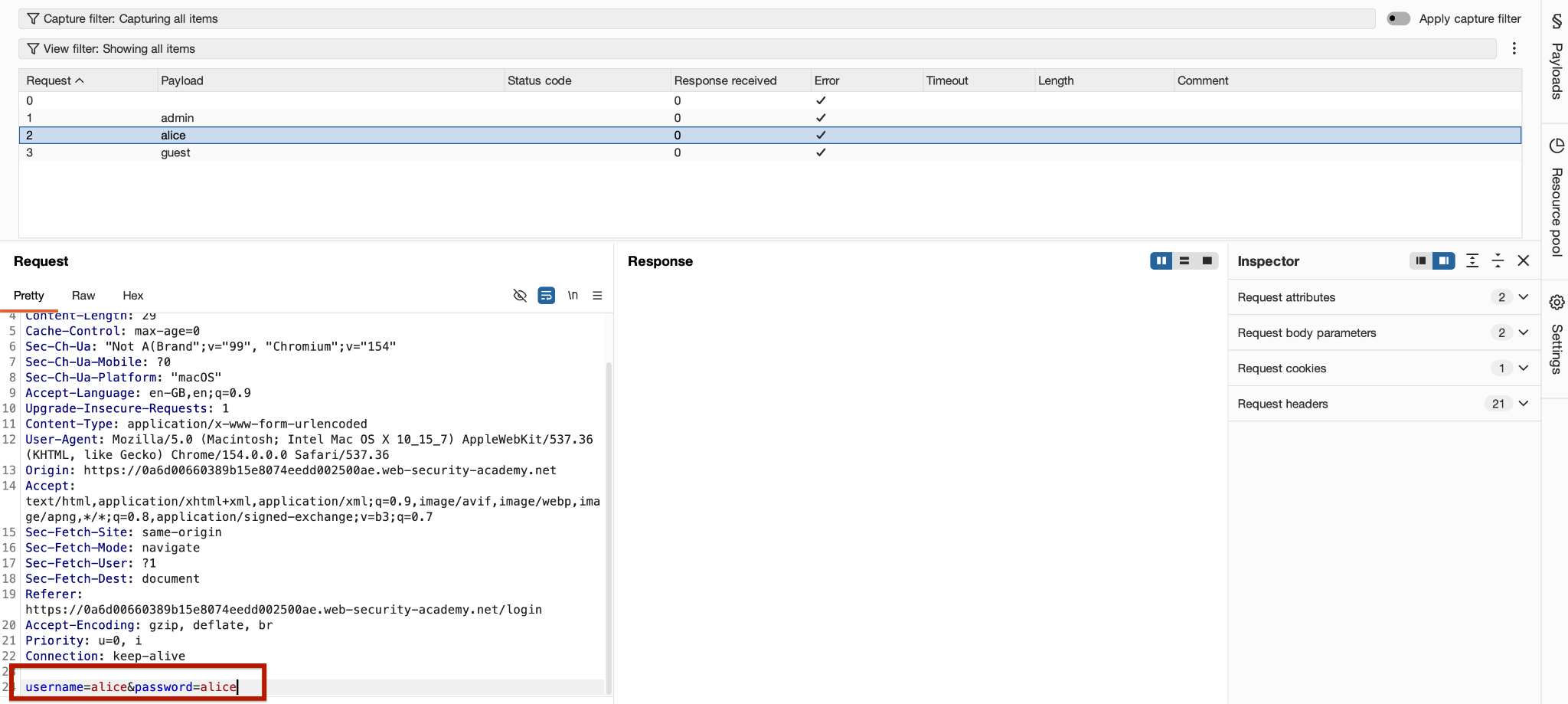
Battering ram also uses one payload set, but it inserts the same payload into every marked position simultaneously. Suppose the request is
The payload list is:
- admin
- alice
- guest
Intruder generates:
Both positions receive the same value for each request.
4.3 Pitchfork attack
Pitchfork uses multiple payload sets and inserts corresponding payloads into multiple positions.
Imagine you want to test matching pairs of usernames and passwords in a lab.
Position one uses this payload set:
- alice
- bob
- charlie
Position two uses this payload set:
- password1
- password2
- password3
Pitchfork produces:
The first item from each list is used together, followed by the second items, then the third items.
4.4 Cluster bomb attack
Cluster bomb uses multiple payload sets and tests combinations of their values. Suppose the request contains two marked positions:
The first payload set contains:
- alice
- bob
The second payload set contains:
- pass1
- pass2
- pass3
Cluster bomb generates the combinations:
The total number of requests is the product of the number of payloads in each set. In this example, 2 usernames × 3 passwords = 6 requests which can be very time taking. Cluster bomb can generate a large number of requests. For example, 100 usernames and 1,000 passwords could produce 100,000 combinations.
5. Setting Up Intruder Payloads
Payloads are the values that Intruder inserts into the selected positions. After configuring positions, open the Payloads section. You can choose a payload type and configure the values that Burp will use.
5.1 Simple list
A Simple list is one of the most useful payload types for beginners. It lets you enter values manually, paste a list, or load values from a file.
For example, for a basic input-validation test:
- hello
- 123
- -1
- 0
- 999999
- test
For username-enumeration, you could use:
- invaliduser123
- admin
- carlos
- wiener
- test
- guest
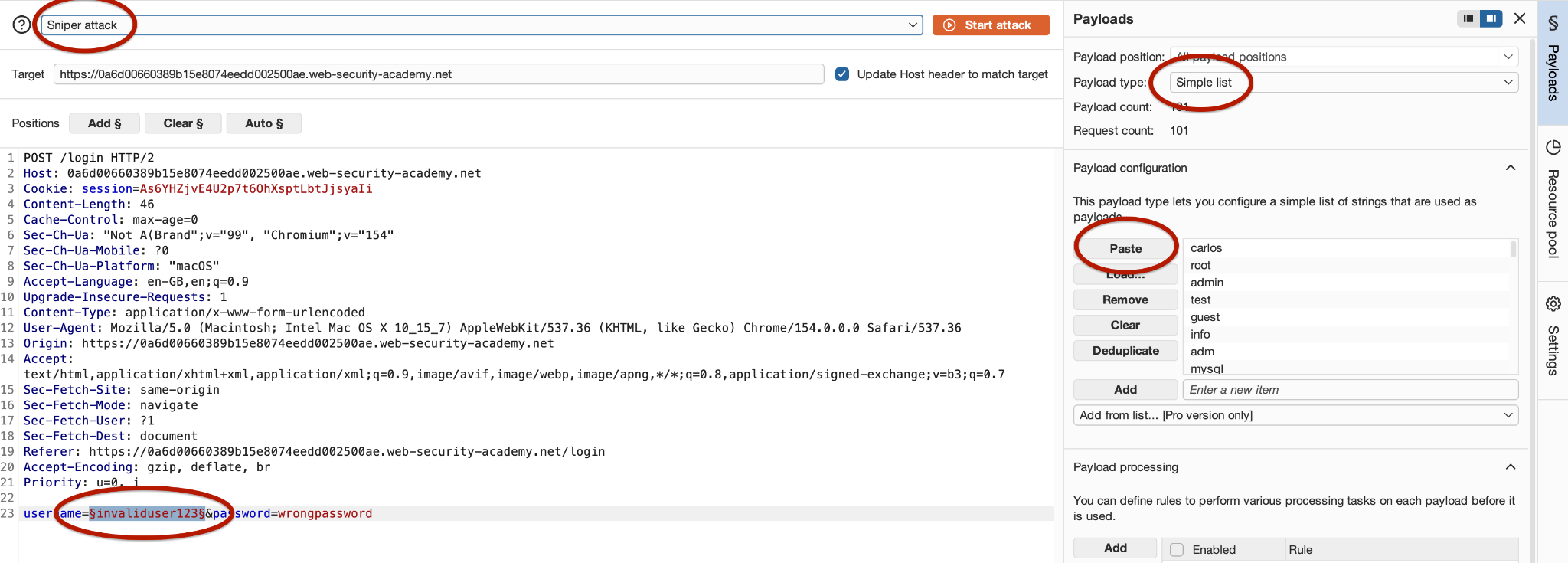
In the Payloads section:
- Select the relevant payload set.
- Choose a simple list.
- Paste or load your values.
- Review the payload count. If you copy a few values and want to insert them into a list, simply click paste and it will insert all those values.
- Confirm that the attack type matches your intended test.
For a single-parameter test, a simple list is usually sufficient.
5.2 Numbers
The intruder can also generate numeric payloads automatically. For example, suppose you want to test a numeric parameter such as:
You could generate values from 1 to 20.
To configure this, choose the Numbers payload type and define the range, step size, and other available settings. Numeric payloads are useful for testing identifiers, pagination parameters, quantities, and boundary values.
A numeric sequence can help reveal unexpected behavior, but a different response does not automatically mean that access controls are broken. The response must be interpreted in context.
6. Running an Intruder Attack
In this example, we’re using an intentionally vulnerable PortSwigger Web Security Academy lab to demonstrate how Intruder can identify differences in login responses.
We’ll begin by testing a small list of usernames while keeping the password unchanged. Then we’ll examine the responses to determine whether the application reveals different information for valid and invalid usernames.
Once we identify an interesting response, we’ll investigate it further using a separate test with a fixed username.
The goal is to understand how response differences can reveal weaknesses in authentication behavior during an authorized security assessment.
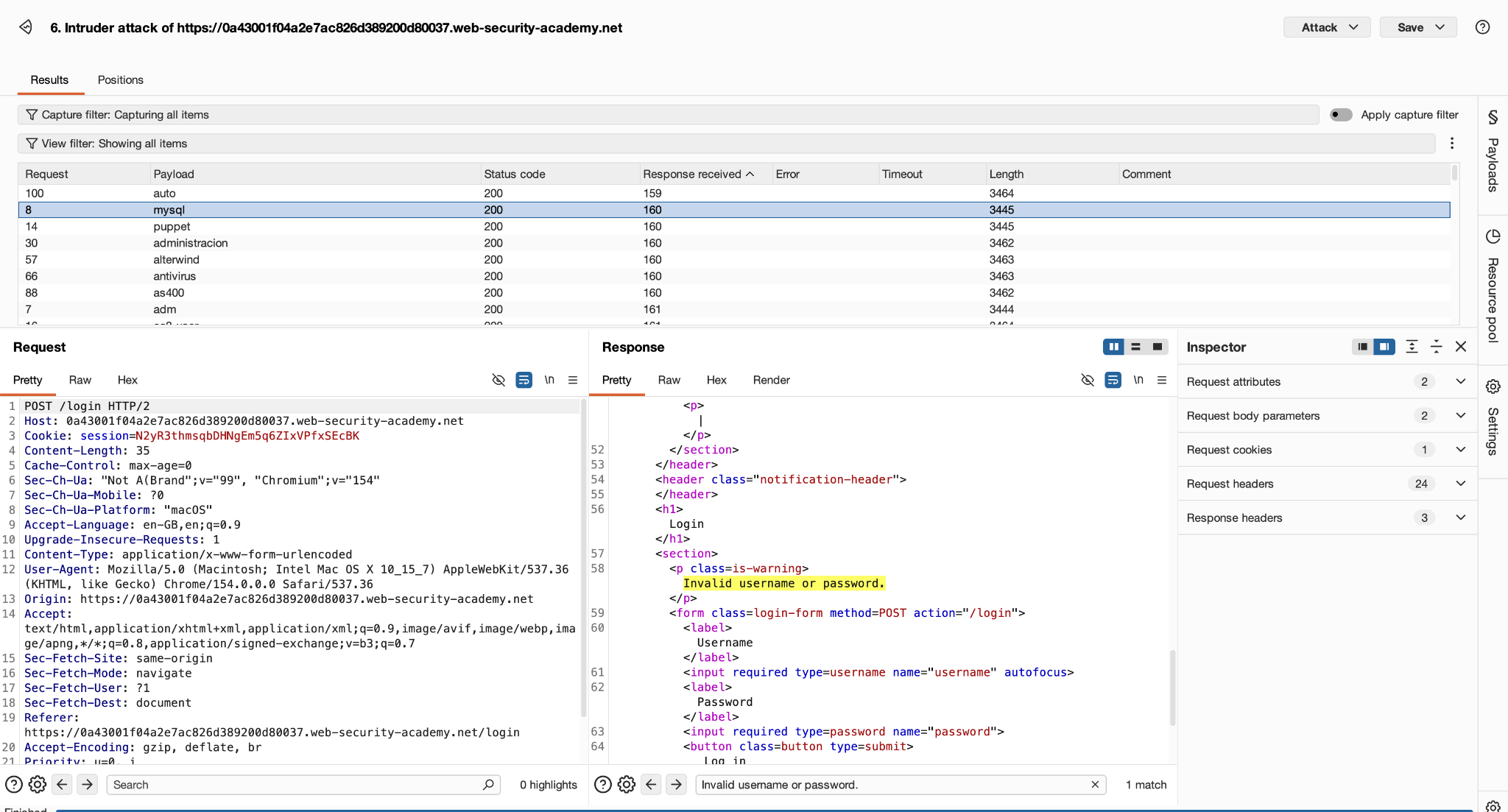
We can see that the application is giving us information “Invalid username or password.” for every response. So a trick here could be to check if all the responses contain this string. If some response misses this then we can check it deeper. While reviewing the responses, we can see that one response did not give us the string match. And upon closely checking, we see it does have almost the same string but one ”.“ is missing
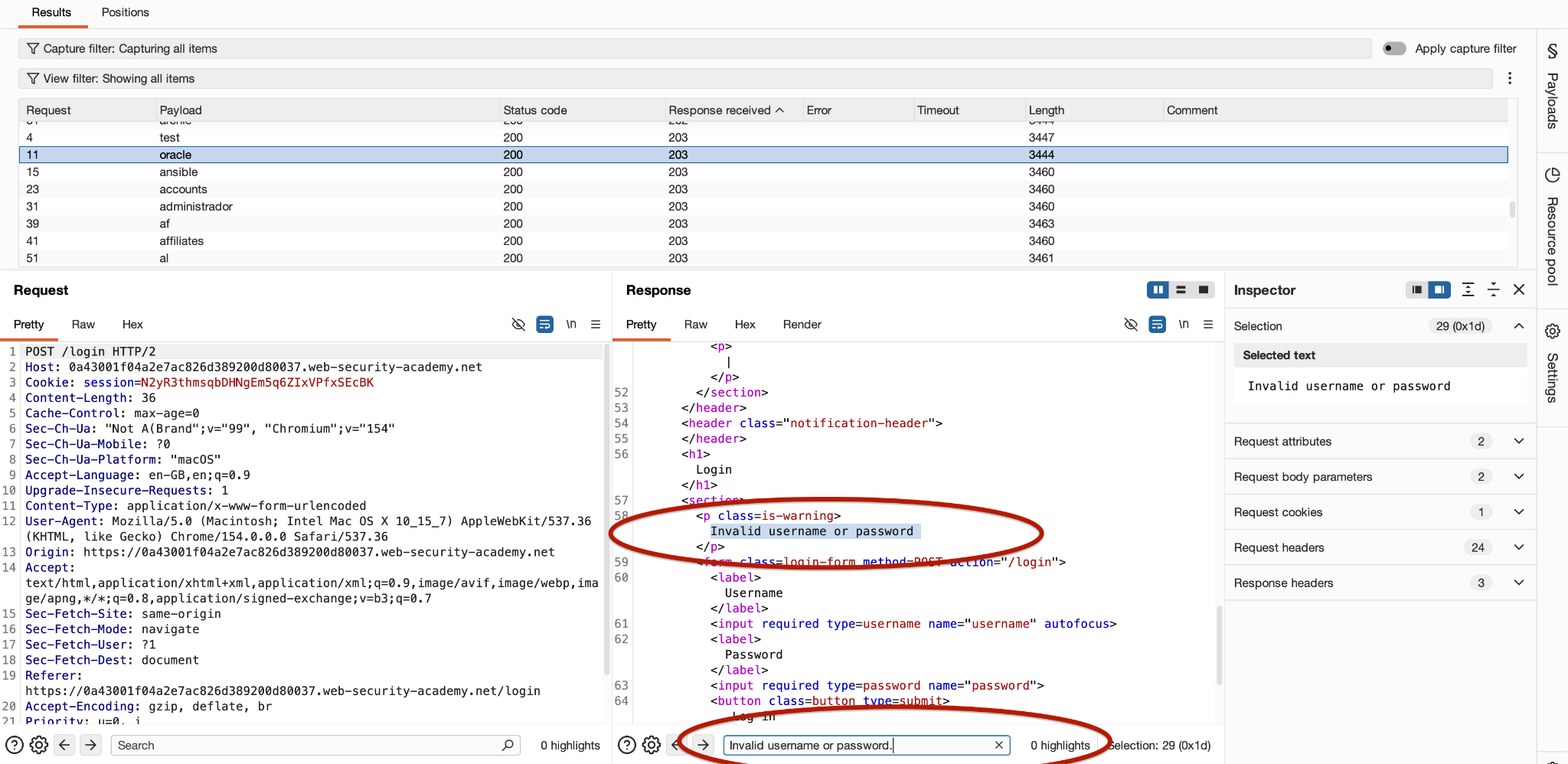
So it looks like the username “oracle” produced a different response which is good for further testing. Now, we will use the other attack to use “oracle” as our username and passwords supplied from the list.
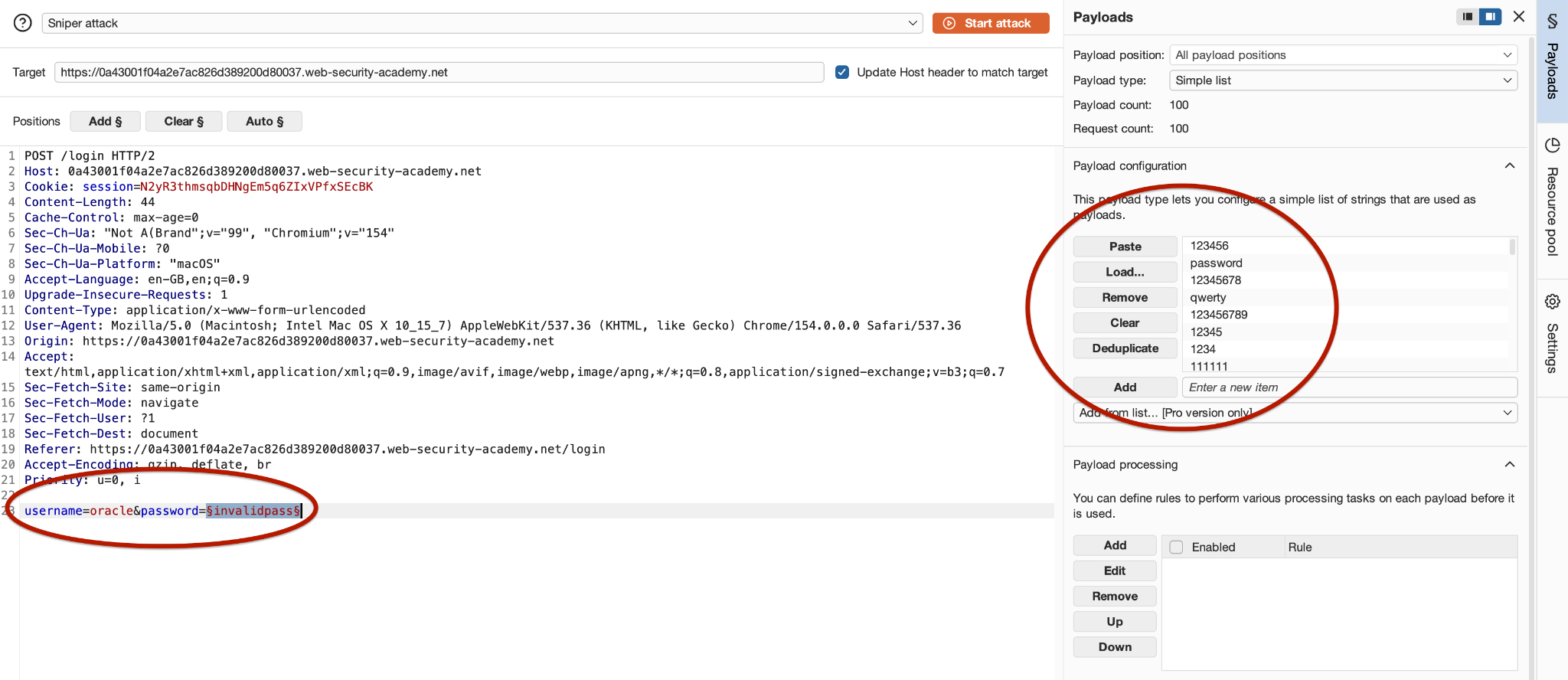
Now we know all responses will generate a string “Invalid username or password” so we should look for a response that does not have this string. While reviewing the response, we can across one with different response
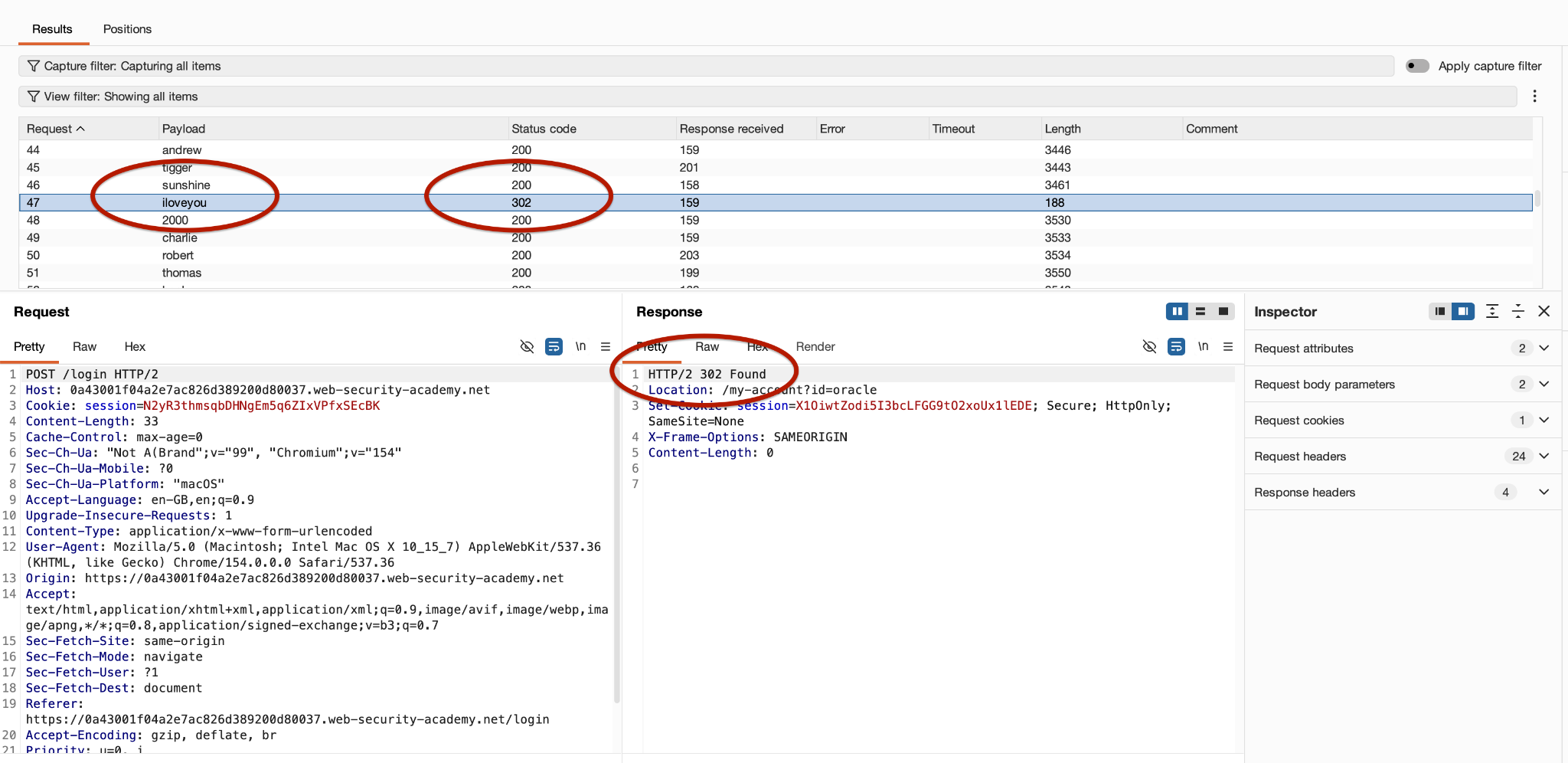
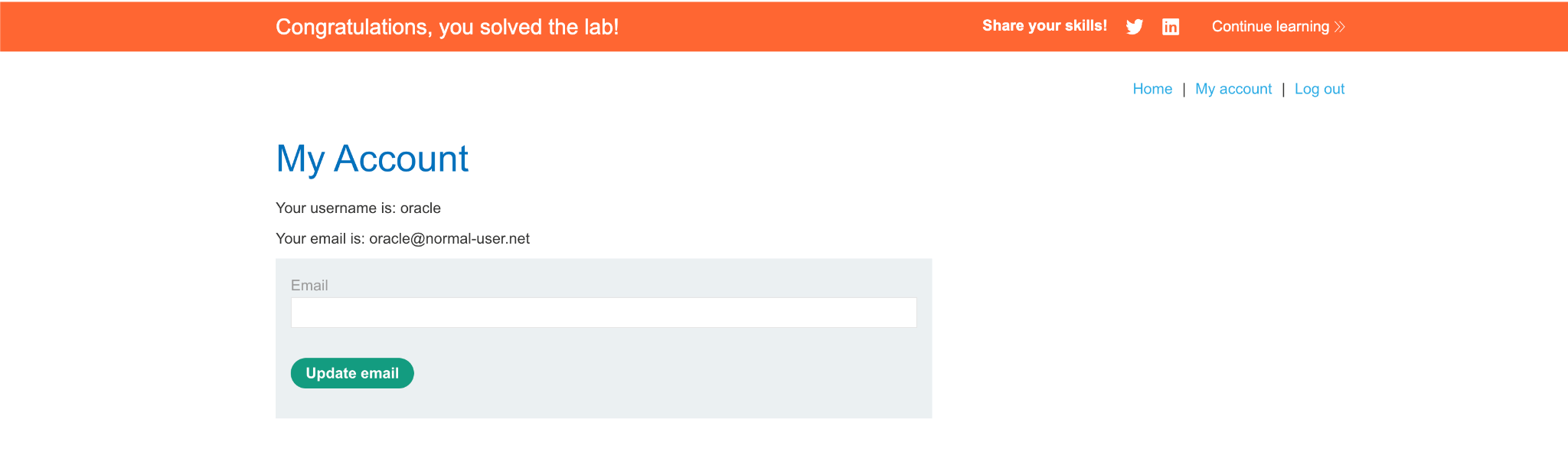
Which makes it clear that we found the correct credentials. So our username was “oracle” and password was “iloveyou”
7. How to Analyze Intruder Results
Running an attack is only half the work. The real value comes from understanding why responses differ. Burp Intruder displays useful response information in a table. Start by comparing the following indicators.
7.1 HTTP status code
The HTTP status code indicates the broad outcome of a request. Examples include:
- 200 OK: The server returned a successful HTTP response.
- 302 Found: The server redirected the client.
- 400 Bad Request: The server rejected the request as malformed.
- 401 Unauthorized: Authentication is required or was not accepted.
- 403 Forbidden: The server refused the request.
- 404 Not Found: The requested resource was not found.
A status code is not a complete security verdict. For example, an application can return 200 OK even when a login attempt fails, because the response contains a login page and an error message.
Look for unexpected status codes and compare them with the normal baseline response.
7.2 Response length
Response length is often one of the fastest ways to identify unusual results. Suppose your results look like this:
The last response is 28 bytes longer.
That difference deserves investigation, but it does not prove that candidate4 is valid. The response might include a different error message, a changing token, a timestamp, or other dynamic content.
Open the response and identify the actual reason for the difference.
7.3 Differences in response content
Response content is often more useful than the status code or length alone.
Look for:
- Different error messages.
- Unexpected content appearing in the response.
- Missing or additional fields.
- A redirect destination that changes.
- A different application state or page.
For our username-enumeration example, comparing the actual error messages was the key step.
8. Burp Suite Community vs Professional Intruder
Burp Suite Community Edition is suitable for learning Intruder and performing manual security testing. However, it does not provide the full Intruder functionality available in Professional.
PortSwigger describes Community Edition’s Intruder as a demo version. The Professional edition includes the full attack functionality and additional capabilities.
- Capture requests in Proxy: Community Edition = Yes, Professional = Yes
- Send requests to Intruder: Community Edition = Yes, Professional = Yes
- Configure and inspect positions: Community Edition = Available, Professional = Available
- Perform basic learning exercises: Community Edition = Yes, Professional = Yes
- Full Intruder attack functionality: Community Edition = Limited demo, Professional = Yes
- Professional vulnerability scanner: Community Edition = No, Professional = Yes
- Save project files: Community Edition = No, Professional = Yes
- Professional-only capabilities and extensions: Community Edition = Limited, Professional = Expanded
Conclusion
Burp Suite Intruder is useful because it automates repetitive HTTP testing while giving you control over which inputs change and how they change.
To use it effectively, you need to understand three things:
- Positions define where payloads are inserted.
- Attack types determine how payloads are assigned to those positions.
- Results analysis helps you identify and verify unusual application behavior.
Sniper is a strong starting point for testing individual inputs. Battering ram repeats one value across several positions, Pitchfork pairs values from different lists, and Cluster bomb tests every combination.
It is not necessary to master every Intruder feature immediately. Start with small payload lists and simple requests, learn to read the results carefully, and move to more complex attack types as understanding improves. The goal is not simply to send more requests. It is to use controlled testing to discover meaningful differences in how a web application behaves. Happy Hacking !!!